In this article, you'll learn where Reports lives in your Review Monster dashboard, which report tabs come with your plan, and which one opens first. It's the quickest way to see how your reviews and your website are doing.
To open your reports:
- Sign in to your dashboard.
- In the menu on the left, click Reports.
The page opens with the heading Reports and the line "Track your performance across reviews and your website." While you're on a report, its tabs slide open under Reports in the menu, so you can switch between them from there.
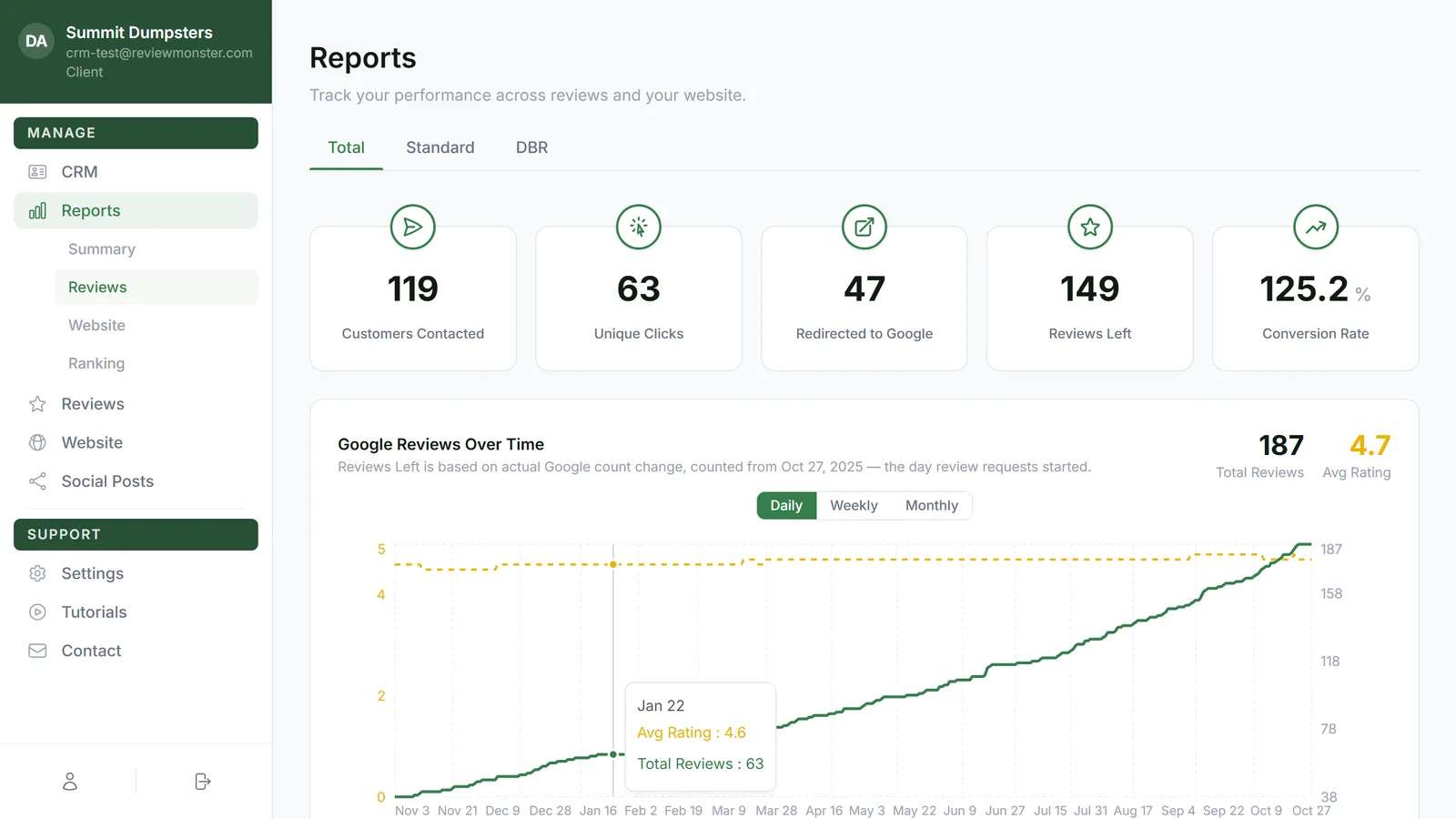
Which tabs you'll see
Your plan decides which report tabs show up:
- Reviews plan: Summary and Reviews
- Website plan: Summary and Website
- Both plan: Summary, Reviews and Website
- SEO plan: Summary, Reviews, Website and Ranking
They always sit in that order: Summary, Reviews, Website, then Ranking.
Here's what each one covers:
- Summary is your weekly roundup.
- Reviews shows your reviews and how your review requests are doing.
- Website shows your site's visitors, rankings, pages and backlinks, for your main site and each microsite.
- Ranking is for SEO plans only. It covers where you rank for the searches you're going after. If you open it on another plan, you land on Reviews instead.
Which tab opens first
When you click Reports, you land straight on a tab:
- On the Website plan, you land on Website.
- On every other plan (Reviews, Both and SEO), you land on Reviews.
From there, click any other tab under Reports to switch.
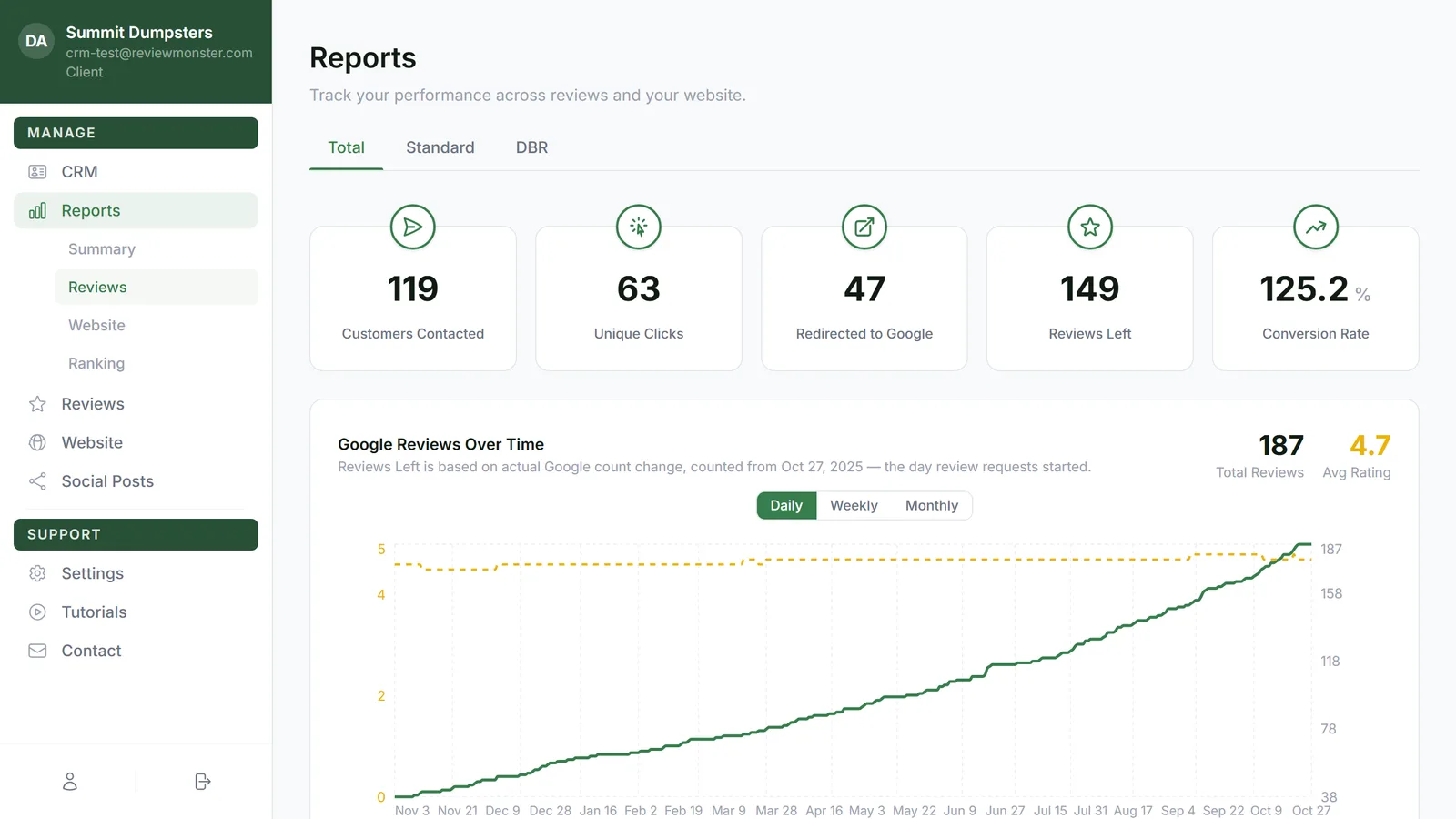
Looking for the old SEO report?
There used to be a separate SEO report. Its numbers now live on the Website tab, and old bookmarks or links to the SEO report open the Website tab instead.
Reports on the phone app
The phone app has some of these reports too.
To open them in the app:
- Open the side menu and tap Reports.
- Under Review Monster reports, tap Reviews, Website or Ranking.
You'll only see the ones your plan includes, the same as on the web, and a tab that's been switched off for your account stays hidden in the app too. The Summary report is web only, so open your dashboard in a browser for that one.
If your website isn't set up yet, the app's Website report shows the same "not set up yet" message as the web.
Below them, under Business reports, the app lists the CRM's own reports, like Jobs, Sales, ROAS, Payments and Invoices. Those are a different set from the ones in this article. Tapping one of them tells you the full report is on the web CRM and the phone version is on its way.