In this article, you'll learn how to choose the tip amounts your clients see when they pay, and how to turn the tip question off completely. Amounts that fit the kind of work you do make it easier for clients to say yes, and your crew takes home a bit more.
Out of the box, clients see 10%, 15% and 20%, plus No Thanks and Custom. You can swap those three for any three of 5%, 10%, 15%, 20%, 25% and 30%.
To open the tip settings:
- At the bottom of the menu, click the gear icon to open Settings.
- Under General, click Tips.
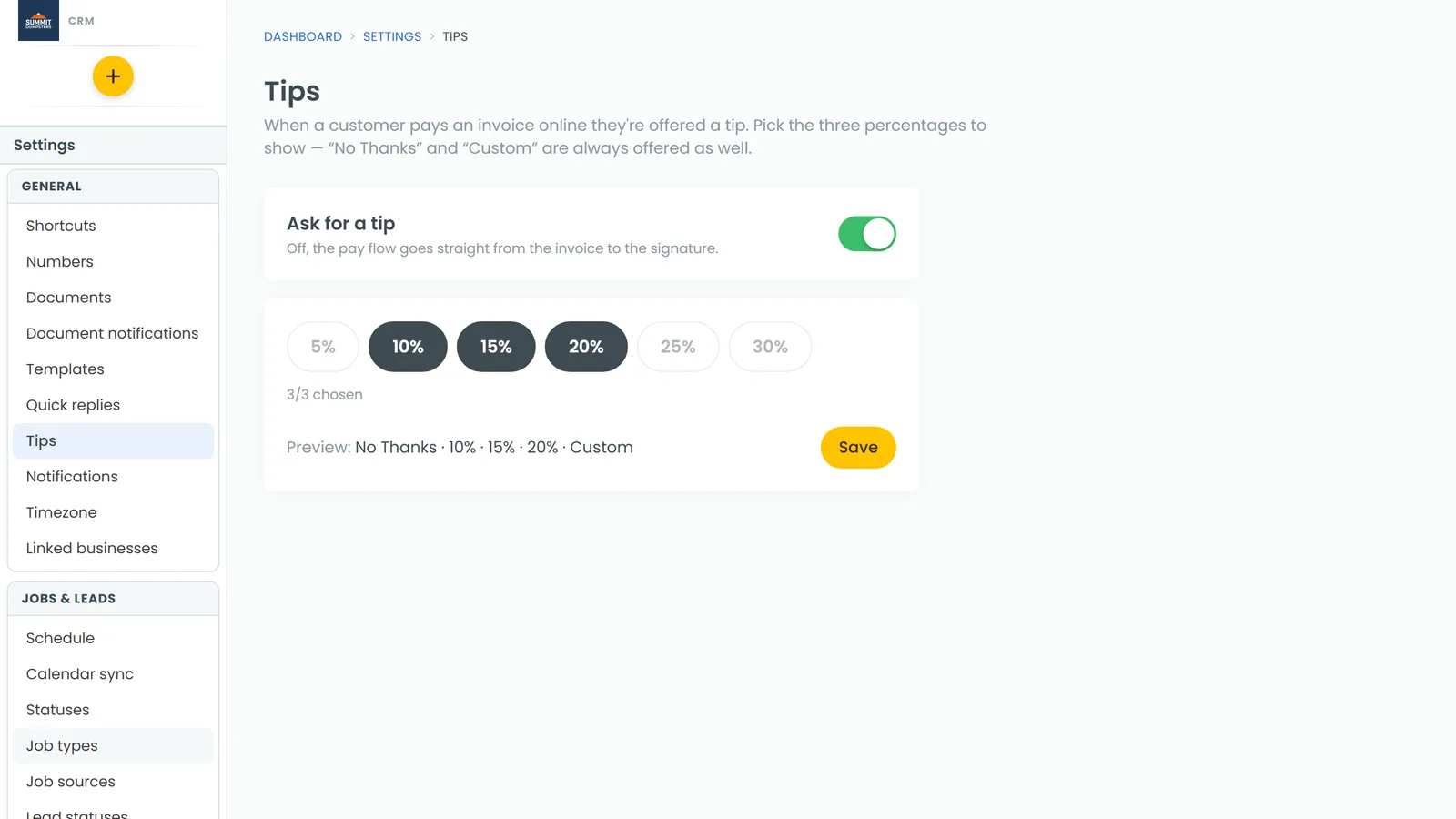
Turn the tip question on or off
The Ask for a tip switch at the top of the page decides whether clients are asked for a tip at all. It saves the moment you flip it.
- Open Settings › Tips.
- Click the Ask for a tip switch.
With it off, the pay flow goes straight from the invoice to the signature. The percentage buttons below fade out, but your picks are kept for when you turn it back on.
Choose your three tip amounts
- Open Settings › Tips.
- Click a highlighted percentage to deselect it.
- Click the percentage you want in its place. Only three can be picked at once, so the rest stay greyed out until you deselect one.
- Check the counter under the buttons. It should read 3/3 chosen.
- Check the Preview line. It shows the order clients will see, for example No Thanks · 15% · 20% · 25% · Custom.
- Click Save. Saved appears next to the button.
No Thanks and Custom always appear beside your three picks. Custom lets the client type any amount they like.
Change it from the phone app
The same settings are in the phone app, under the same name.
- Open the menu and tap the gear icon at the bottom.
- Under General, tap Tips.
- Use the Ask for a tip switch and the percentage buttons the same way as on the web, then tap Save.
Where clients see your tip amounts
- Paying an invoice online. When a client pays an invoice from their customer portal, the first step asks Add a tip? and offers No Thanks, your three percentages and Custom.
- Tap to Pay on the phone app. After the payment summary, the client sees Would you like to add a tip? with your three percentages, Custom tip amount and No tip. If Ask for a tip is off, this screen is skipped.