In this article, you'll learn how to narrow down your Conversations inbox so you only see what you need. After a few weeks of calls, texts and emails, the tabs, the search box and the filter are how you find the thread you're after.
To open your inbox:
- In the menu, click Conversations.
The tabs run across the top of the list. The search box and the filter button sit right under them.
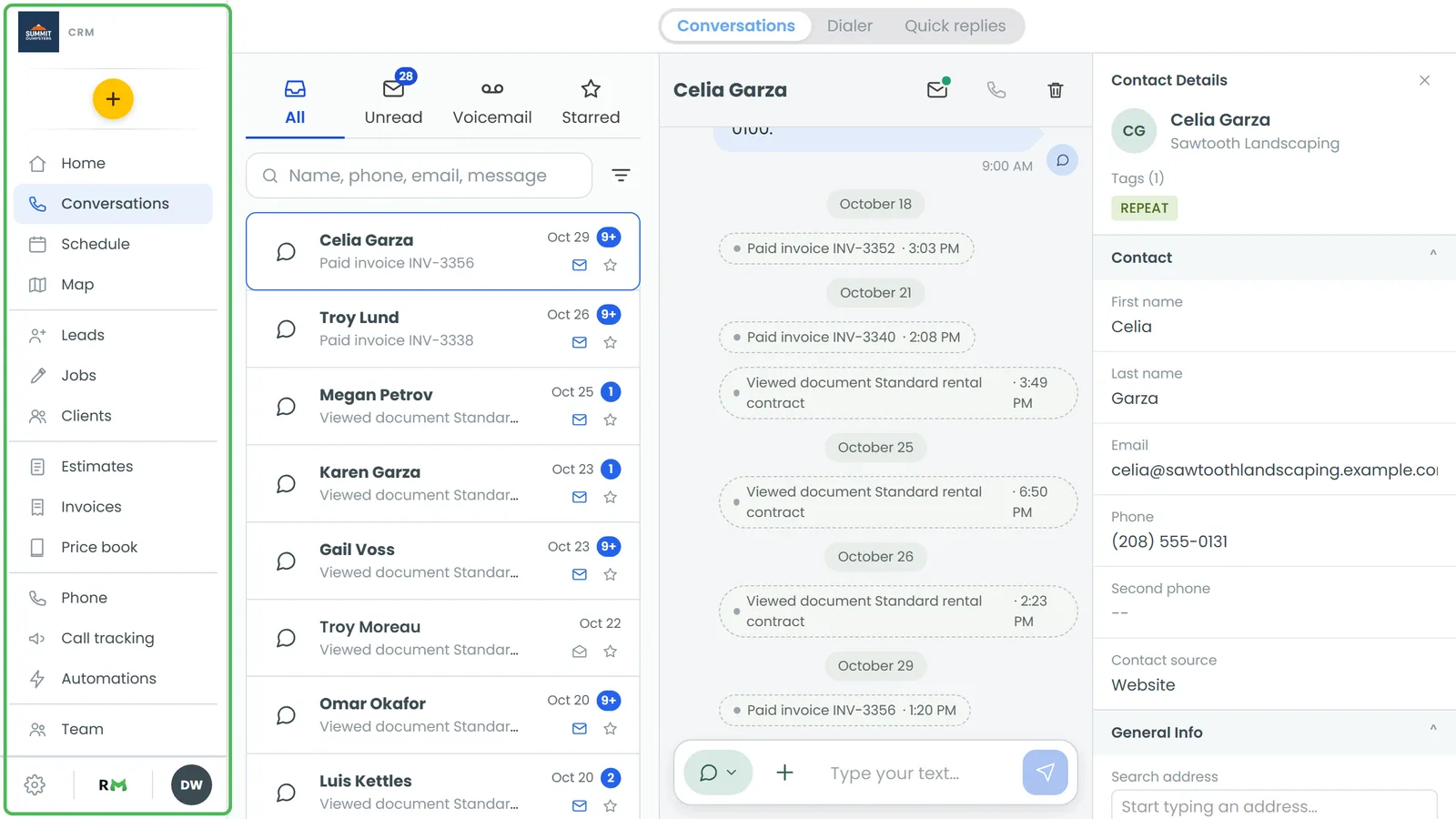
Switch between the inbox tabs
There are four tabs: All, Unread, Voicemail and Starred. Unread, Voicemail and Starred show a small blue count on their icon when there's something in them. All never shows a count.
- All shows every conversation in your inbox.
- Unread shows only threads with messages you haven't read yet. The count is how many threads that is.
- Voicemail lists every call that left a voicemail. The count is how many of those you haven't listened to.
- Starred shows only the threads you've starred.
To switch, click (or tap) the tab you want.
Star a conversation
Starring a thread puts it in the Starred tab so it's easy to get back to.
On the web
- Find the conversation in the list.
- Click the star in the bottom-right corner of its row. It fills in gold.
Click the star again to take it off.
On the phone app
- Swipe the conversation to the left.
- Tap Star.
To take it off, swipe left again and tap Unstar. A starred thread shows a small gold star on the right of its row.
Search your conversations
Type in the search box (it says Name, phone, email, message) to look across names, phone numbers, email addresses and the text of the messages. Results show up as you type. Click the X (or tap ✕ in the app) to clear the search and get your full list back.
Filter by channel
The filter button sits to the right of the search box. It lets you see just one kind of conversation.
On the web
- Click the filter button beside the search box.
- Pick All, Calls, SMS, Email, Facebook or AI chat. A check mark shows which one is on.
On the web, a thread shows up under a channel if it has any message on that channel, not only if its latest one was. If nothing matches, the list says so and you can clear the search or filter.
On the phone app
- Tap the filter button beside the search box. A sheet titled Show opens.
- Tap Everything, Calls, SMS, Email or Facebook.
In the app, a thread shows up under a channel only if its most recent message was on that channel. The app has no AI chat choice, so use the web for that one.
To go back to the full list, pick All on the web or Everything in the app.
Show active, deleted or hidden items
Under the channel choices in the same menu (or sheet) there are three checkboxes:
- Active is your normal inbox. It's ticked unless you untick it.
- Deleted shows conversations you deleted, plus the ones that left the inbox when you blocked a number. They carry a grey Deleted label.
- Hidden shows voicemails you hid. It only affects the Voicemail tab, and those voicemails carry a grey Hidden label.
You can tick any mix. Tick Active and Deleted together to see everything, or untick Active and tick Deleted to see only what you've removed. With nothing ticked, the list is empty.
Conversations from your other businesses
If your login runs more than one business, threads from your linked businesses can show in the same inbox. Each one carries a coloured label with that business's name under the contact's name, so you can tell them apart. Which businesses show here follows the business list on your Home screen. There's no separate setting for it on the Conversations page.
Related articles
- Conversations overview
- Deleting conversations or marking them unread
- Blocking unwanted calls and texts
- Listening to your voicemail
- Switching between your businesses