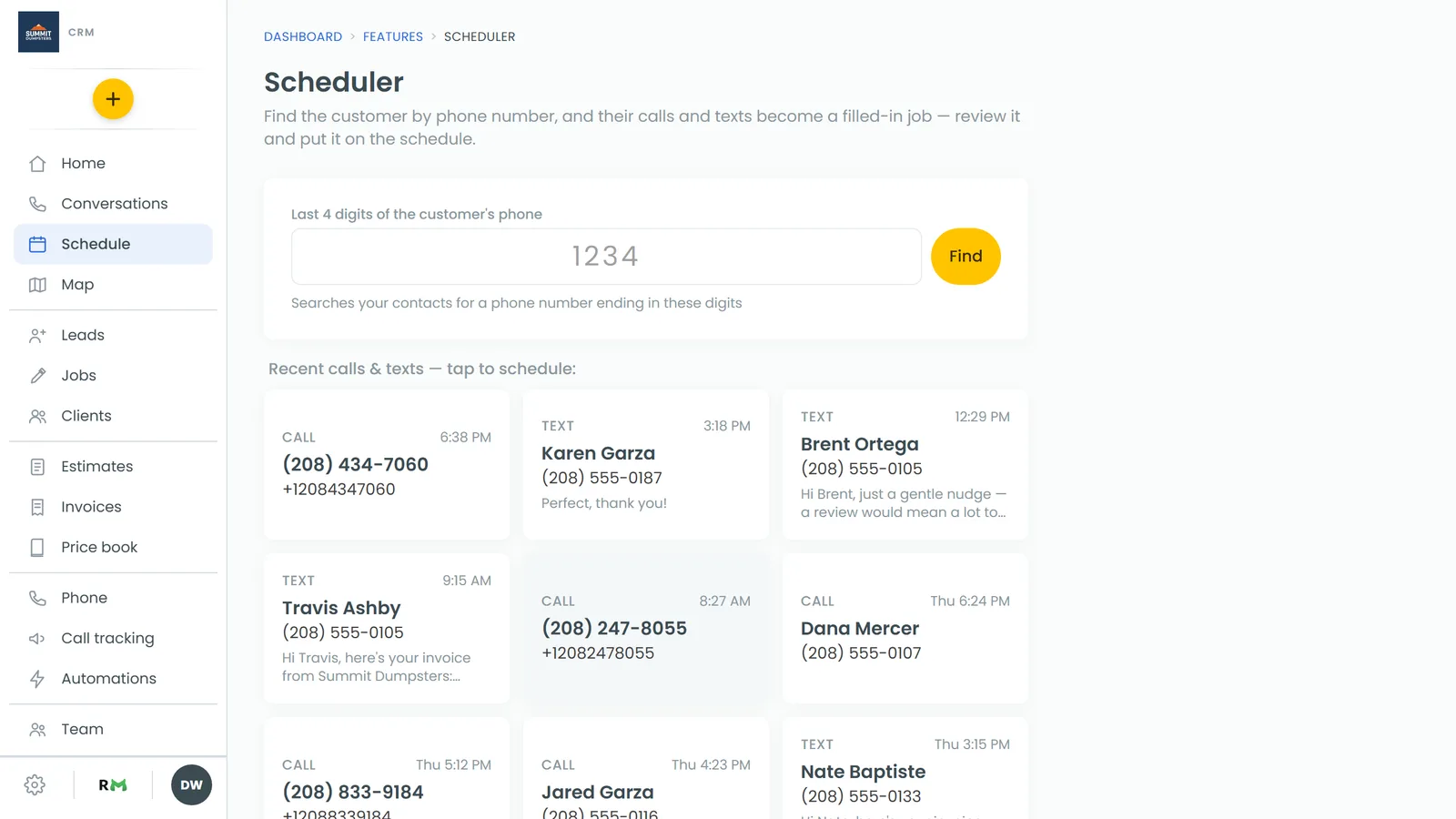
In this article, you'll learn how to book a job straight from a phone call. Turn on one switch during the call. When you hang up, the Scheduler opens for that caller and fills in the job from what was said, so you don't have to type it all in later.
Turn on Schedule job during the call
The Schedule job switch sits on the in-call screen. It's the same on the web and in the phone app, and it works on calls you make and calls you answer.
To schedule the job from a call:
- Answer or place the call. The in-call screen opens with the caller's details.
- Under the caller's card, find Schedule job. While it's off, it reads "Turn on to schedule the job from this call when it ends."
- Click (or tap) Schedule job to turn it on. The card turns green and tells you the Scheduler will read the call and fill in the job for that caller the moment you hang up.
- Finish the conversation as usual, then hang up with End.
If you change your mind before hanging up, turn Schedule job off again and nothing opens when the call ends.
If the caller isn't a customer yet
For a number you haven't saved, the in-call screen says "Not one of your customers yet." That's fine. Schedule the job anyway, and when you put it on the schedule they're added as a customer with that phone number.
What happens when you hang up
The Scheduler opens for the person you were just talking to. It finds them by their phone number and reads their calls and texts. Then it fills in the job form for you: name, address, date, time and a description of the work. If several customers share that number, it lists them so you can pick the right one.
Waiting for the call to finish processing
The call has to be saved and transcribed before the Scheduler can read it. While that's happening you'll see "Getting [name]'s call ready" with a progress bar. It moves through four steps: Call, Recording, Transcript and Job details. It checks back every few seconds and fills in the form once the transcript comes in.
You don't have to wait:
- On the web, click Fill in without this call to fill in the form from everything else in their conversation. In the app, the button is Fill in without it.
- Click Cancel to stop waiting.
Check the job and put it on the schedule
- Look over the customer details. The Scheduler checks the address against map data and warns you if something doesn't look right.
- Check the Job date, Start time, How long and Job type. Fix anything it misheard in Job description.
- If the customer sent photos, they show up under Photos from the conversation. Remove any that don't belong to this job.
- Click Put it on the schedule.
When it's booked, you'll see Job scheduled with the job number. Click Open the job to go to it, or Schedule another to start over.