In this article, you'll learn how to set up the CRM to text anyone whose call you miss. If you're on a job or it's after hours, the caller gets a text from your business line a moment after they hang up. That gives them an easy way to reach you before they call the next company on their list.
Missed-call text-back isn't an automation rule, so you won't find it in Automations. It's a setting on each phone number. You can turn it on for one line and leave it off for another.
To open your phone number settings:
- In the menu, click Settings (the gear at the bottom).
- Click Phone numbers.
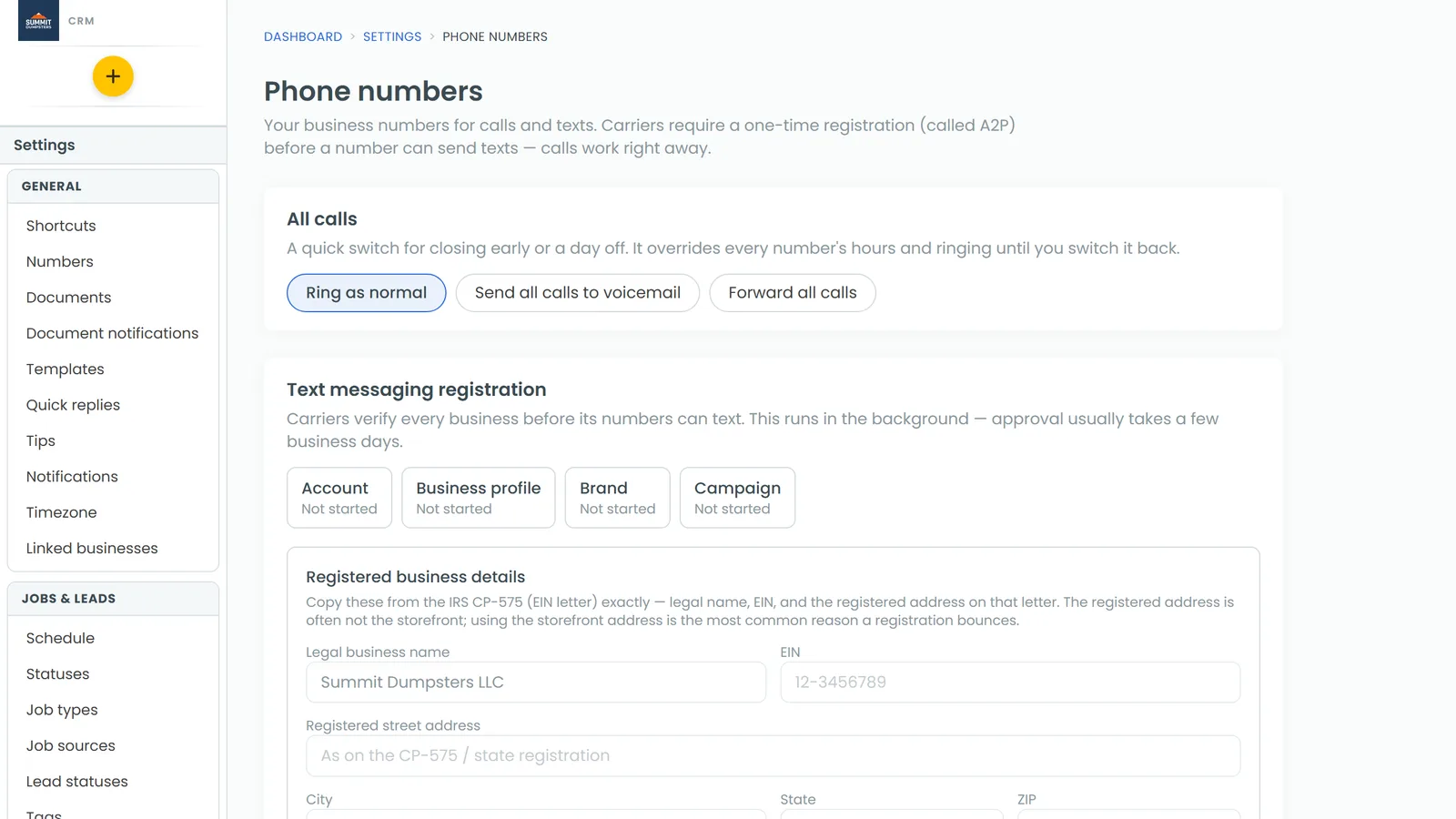
Turning on missed-call text-back
- Next to the number you want, click Edit.
- Click the Advanced tab.
- Tick Text back when a call is missed. A Message box shows up under it.
- Type the text you want callers to get, or leave the box empty to use your company text (more on that below). The grey wording in the box is only a placeholder.
- Click Save.
Do this for each number that should text back.
Writing one message for all your numbers
A number with an empty Message box sends the company text. Out of the box it reads: "Hi there, this is {owner_first_name} with {company}. Sorry we missed your call. How can we help?" The CRM fills in your first name and your business's short name.
To change the company text:
- In the menu, click Settings, then Templates.
- Scroll down to the Missed calls section.
- Under Company text, click the Text message tile to open it and change the wording. You can use the {owner_first_name} and {company} placeholders.
- Click Save. Undo changes puts back what was saved before, and Reset to default brings back the original wording.
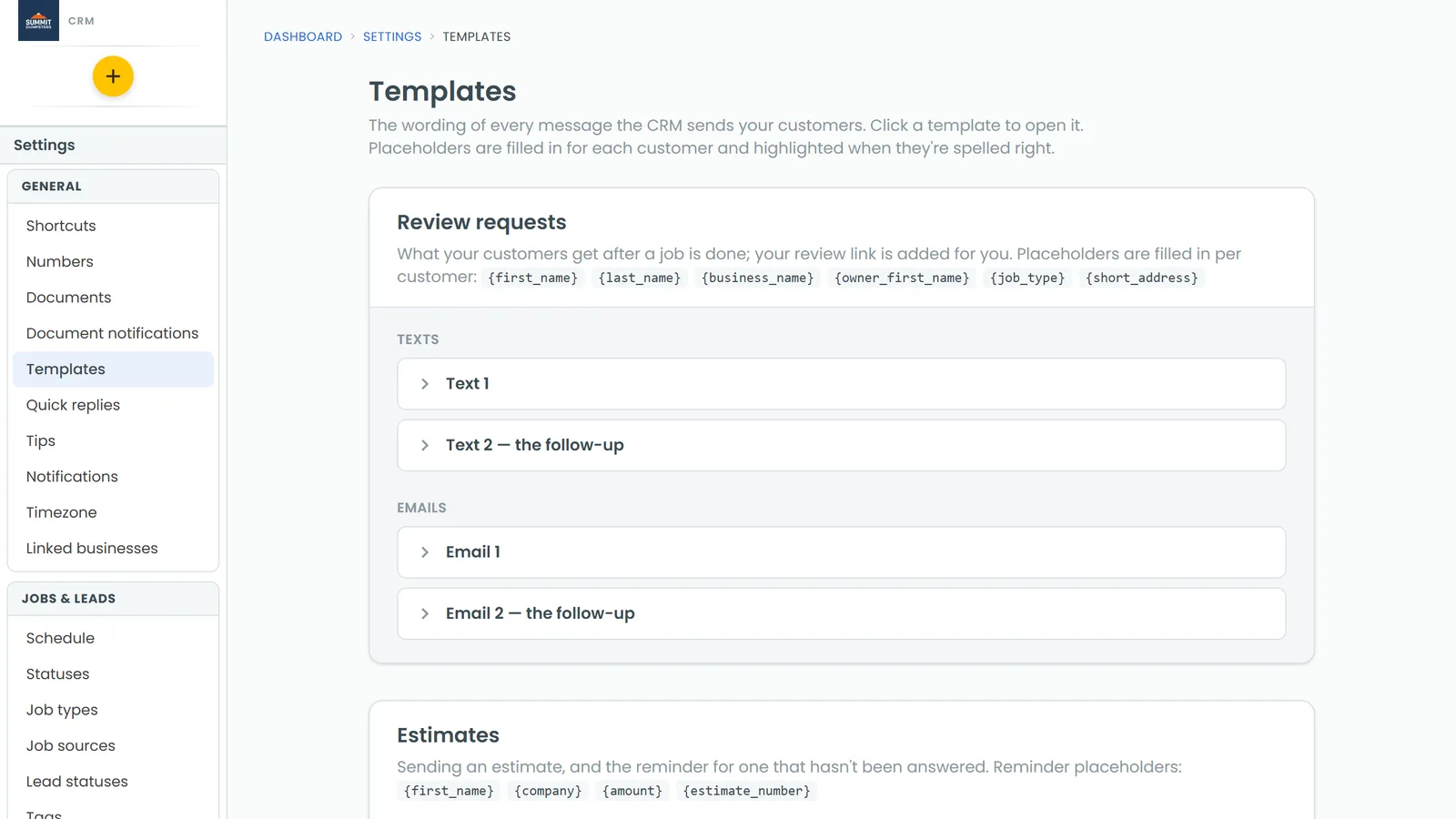
The Missed calls section also lists your numbers under By phone number. Each tile is tagged Sending or Text-back off, and you can edit that number's own message right there. It's the same message as the one on the number's Advanced tab, so changing it in one place changes it in both. Clear a number's message to switch it back to the company text.
After hours
Each number's Hours tab has an After hours setting with three choices. One of them is Take a voicemail and text the caller back. When you're closed, callers hear your after-hours greeting and can leave a message.
The text itself still depends on the Text back when a call is missed box on the Advanced tab. If you pick this option, make sure that box is ticked too, or no text goes out.
On the phone app
You can change the same settings in the app:
- Open the menu and tap the Settings gear at the bottom, then Phone numbers.
- On the number you want, tap Call settings.
- Tap the Advanced tab and switch on Missed-call text back.
- Type your message in the box under it, or leave it empty to use the company text.
- Tap Save.
The app's Hours tab has the same after-hours choice. There it's called Voicemail + text back. The app's Settings › Templates has the same Missed calls section as the web, so you can edit the company text from your phone too.
How it works
- The text goes out when an incoming call ends without anyone answering. It goes out whether or not the caller left a voicemail.
- It's sent to the number that called, and it shows up in Conversations with the rest of your texts.
- Customers marked Do Not Disturb don't get it.
- Calls caught by the spam filter never get a text back. Their caller ID is often fake, so the text could reach whoever really owns that number.
- Your outgoing calls never trigger it, and your Reviews number never texts callers back.
Related articles
- Automations FAQ
- Understanding texting registration (A2P)
- Choosing who your calls ring
- Updating your voicemail greetings
- Blocking unwanted calls and texts