In this article, you'll learn what happens when you book a delivery that needs more units than you have free on those dates, and how an admin approves or declines it. That way you can say yes to a customer on the phone and sort out the shortage afterwards, without losing track of it.
Asset Tracking has to be switched on first. If you don't see Asset Tracking in your menu, turn it on in Features.
There's no setting to turn on for this. Stock is counted per size, per day, and every delivery holds a unit of its size from its delivery date until it's due back. A booking is allowed to take a day below zero, but when it does, it waits for an admin to approve or decline it. Each booking gets its own answer.
Seeing the shortage on the new-job form
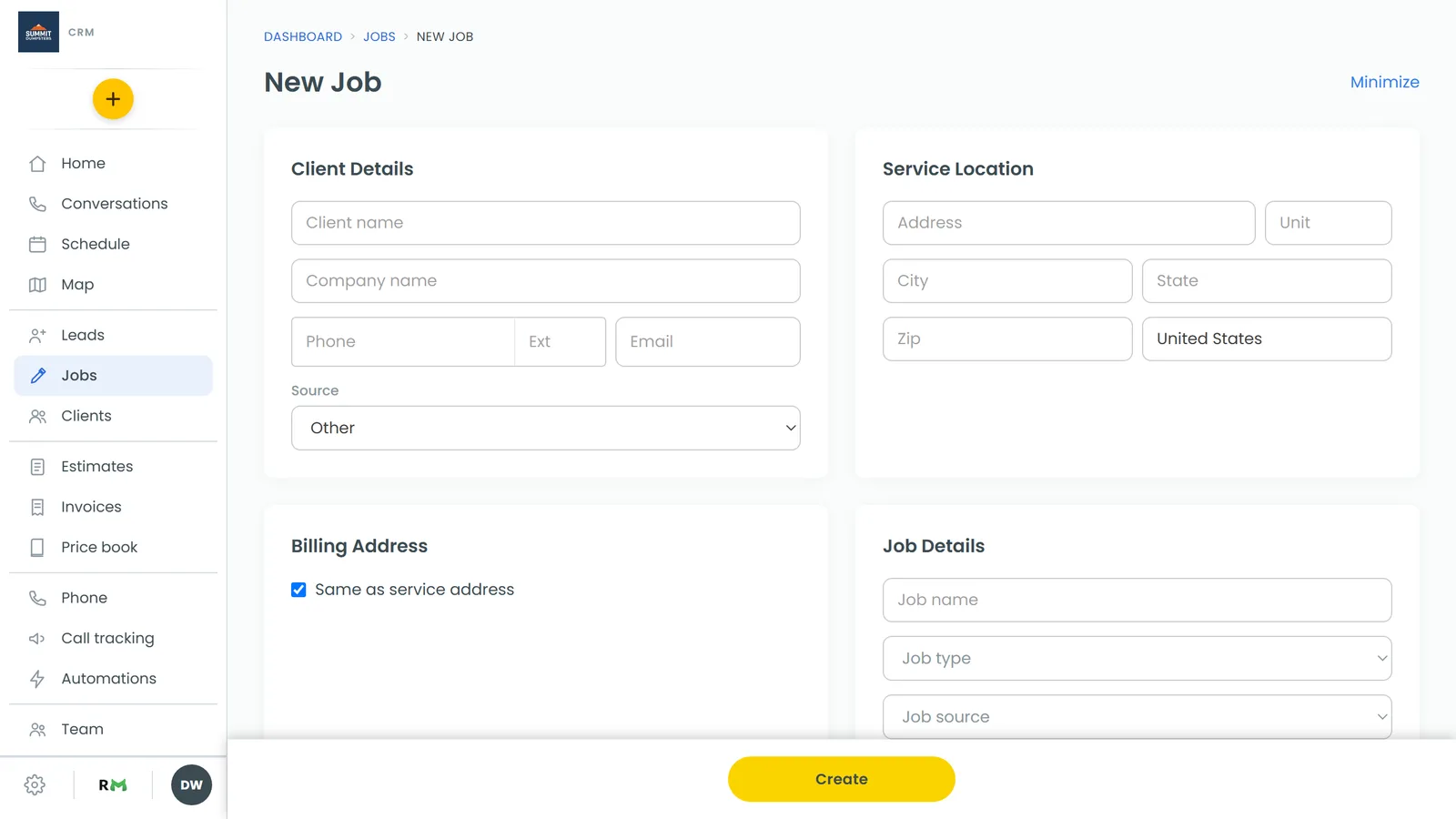
When you pick a job type that delivers a unit, the new-job form shows a rental box with Unit, How many and Rental days. You'll also see Rate if that size has rates in your price book. Once you've chosen a size and a date, the box tells you what's free.
To check what's free while you book:
- Choose the job type.
- Under Unit, pick the size. Set How many if you need more than one.
- Pick the date.
- Read the line under the fields:
- A green pill means there's room, for example "3 of 5 free for these 7 days".
- A yellow pill that ends with "this takes the last" means you're booking the last one.
- A red box means you're short. It says how many are free on the tightest day, then "this booking would oversell" and the size.
- If the rental fits on a later date, the red box says "The earliest date it fits is" with that date, plus a Use button with the date on it. Click it to move the job to that date. If nothing frees up in the next 90 days, it says so.
- If you keep the date, the box says "Booked as is, it waits for an admin's approval."
When you click Create on a booking that's short, a box called This would oversell tells you how many are free on those dates. Click Go back to change the booking, or Create anyway to book it. The job is created and waits for approval. The web and the phone app ask the same question with the same buttons.
What the job shows while it waits
Open the job and look at its Rental section. You'll see a yellow box titled Needs inventory approval. It says how many units the job asks for, how many are free on the tightest day, and the earliest date the booking would fit.
If you're an admin, the box has two buttons:
- Click Approve anyway to keep the booking as it is.
- Or click Decline to turn it down.
Everyone else sees "An admin has been notified." The CRM also sends a push notification, Booking needs inventory approval, so the admin hears about it.
Approving from the Availability tab
When several bookings are waiting, it's quicker to deal with them in one place.
To open Availability:
- In the menu, click Asset Tracking.
- Click the Availability tab.
At the top you'll see Waiting for approval. Each row shows the job number, the customer, how many units of which size, and the date. Click a row to open the job.
- Click Approve to book it anyway.
- Or click Decline to turn it down.
Below that list is the Free units, next 28 days table. Because a waiting booking still holds its slot, any day it oversells shows zero or a negative number in red. On the web, hover over a number to see how it's worked out. On a phone, tap it.
After you approve or decline
- Approved: the booking keeps its slot, and the job's Rental section shows an Approved oversell pill so you remember to find a unit for it.
- Declined: the slot is released, and the Rental section says "The oversell was declined — pick another date or size, or cancel the job." Once you move the job to a date or size that fits, the warning goes away.
On the phone app
The app works the same way. The new-job form shows the same free count, red warning and Use button, and Create asks This would oversell with Go back and Create anyway. The job's Rental section has Needs inventory approval with Approve anyway and Decline. On Asset Tracking, the Availability tab has the Waiting for approval list with Approve and Decline, and you tap a day to see how its number is worked out.