In this article, you'll learn how to keep money that moved but wasn't spent out of your books. Transfers between your own accounts, paying off the business credit card and owner draws all show up in your bank feed, but none of them is an expense. Left in, they'd make it look like you spent far more than you did.
There are two ways to handle them: exclude the transaction completely, or file it to a category that sits outside profit and loss. A rule can do either one for you every time.
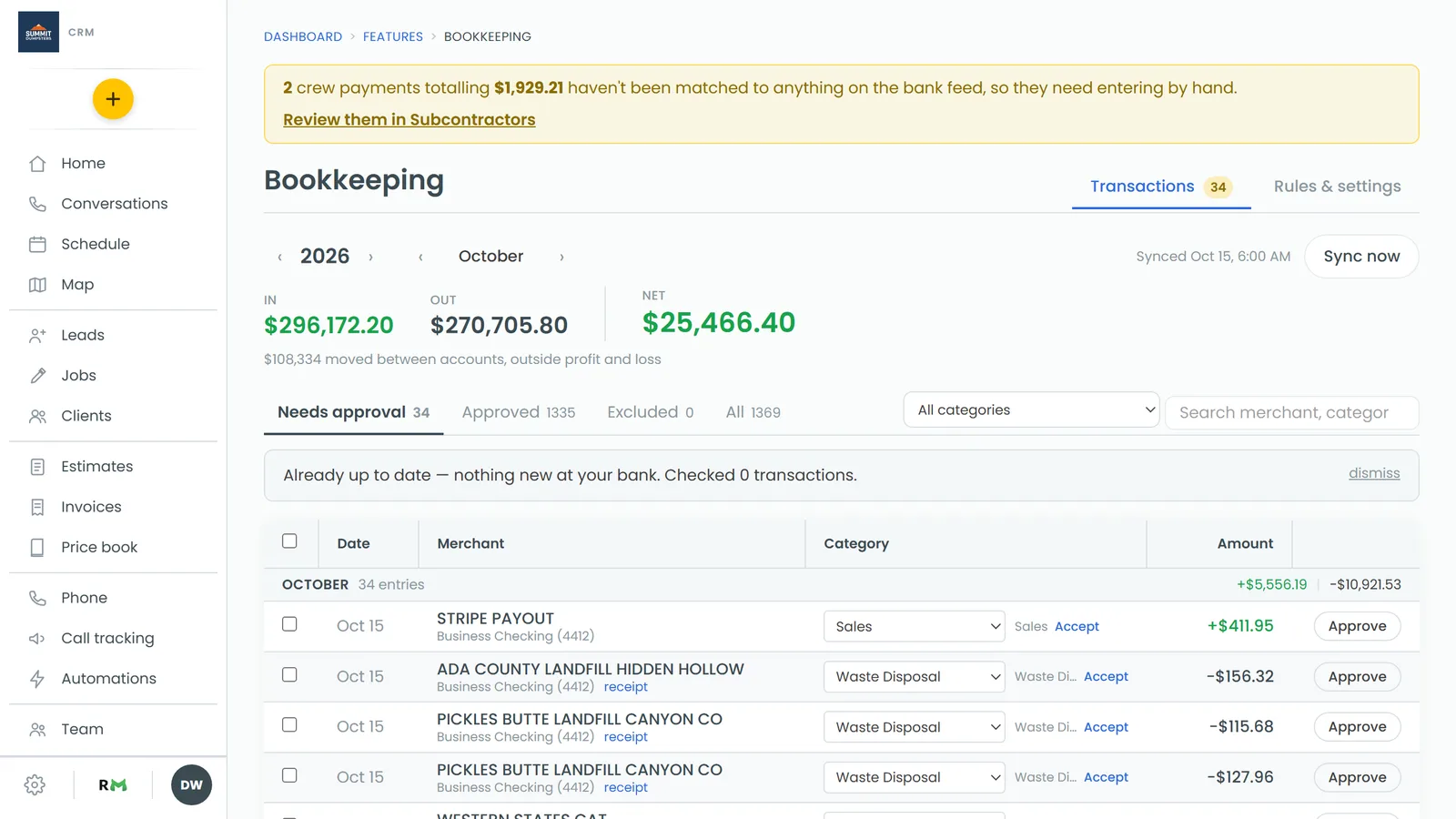
To open your transactions:
- In the menu, click Bookkeeping.
- Make sure the Transactions tab is selected.
Exclude a transaction
Excluding takes a transaction out of the books completely. It's still there to look at, it just doesn't count.
- Click the merchant name on the row. The row opens up underneath.
- Click Exclude (transfer, not an expense).
Here's what changes:
- The row moves to the Excluded view at the top of the list.
- Its category column reads Excluded, and the whole row turns faded.
- It no longer counts toward the In, Out and Net figures at the top, or the in and out totals on its month header.
- There's nothing to approve. An excluded row doesn't sit in Needs approval.
Bring an excluded transaction back
If you excluded something by mistake, you can undo it.
- Click the Excluded view.
- Find the row and click Include at its right end.
The transaction comes back uncategorized, so it lands in Needs approval. Pick a category for it and approve it like any other charge.
File it outside profit and loss instead
Sometimes you'd rather keep a transfer in the ledger with a proper label than hide it. Your category list has three groups for exactly that:
- Transfers — money moving between accounts you own
- Owner money — draws and money you put into the business
- Loans & liabilities — loan payments, credit card payoffs and the like
Pick one of those categories from the row's category dropdown, then approve it as usual. The transaction stays in your books and shows its category, but it doesn't count as income or an expense. Instead, the total shows up in small type under your In, Out and Net figures as "$x moved between accounts, outside profit and loss".
You can add, rename or hide categories in each of these groups under Rules & settings, in the Categories section.
Let a rule handle repeats
If the same transfer or card payment comes through every month, set a rule once and stop doing it by hand.
- Click the Rules & settings tab.
- Under Categorization rules, click + New rule.
- Under When, choose what to match: A charge, A deposit or Any transaction, then how it matches, then type the words to look for (for example, the name of your card company).
- Under Then, choose Exclude it from the books. Or, to file it instead, choose File it as and pick a Transfers, Owner money or Loans & liabilities category.
- Check Matches this month at the bottom to see which transactions it would catch.
- Click Save rule.
In the rules list, a rule that excludes shows Exclude from the books in its Then column.
On the phone app
Excluding is web only. On the phone app you can open the Excluded view and tap Include to bring a transaction back, but there's no way to exclude one from the app. Do that from the web.
Related articles
- Categorizing and approving transactions
- Creating categorization rules
- Managing expense categories
- Bookkeeping overview
- Reading your books at month end