In this article, you'll learn how to give each of your ads its own phone number so you can see which ones actually make your phone ring. If you're paying for Google Ads, a mailer, yard signs and a truck wrap, this tells you where the money is working and where it isn't.
How call tracking works
You buy an extra phone number for each place you advertise and put that number only there. Then:
- Calls to the number ring through to you, the same as a call to your main line.
- Each number feeds a source. Whoever calls it is credited to that source once they're saved as a contact, and their payments count toward it for life.
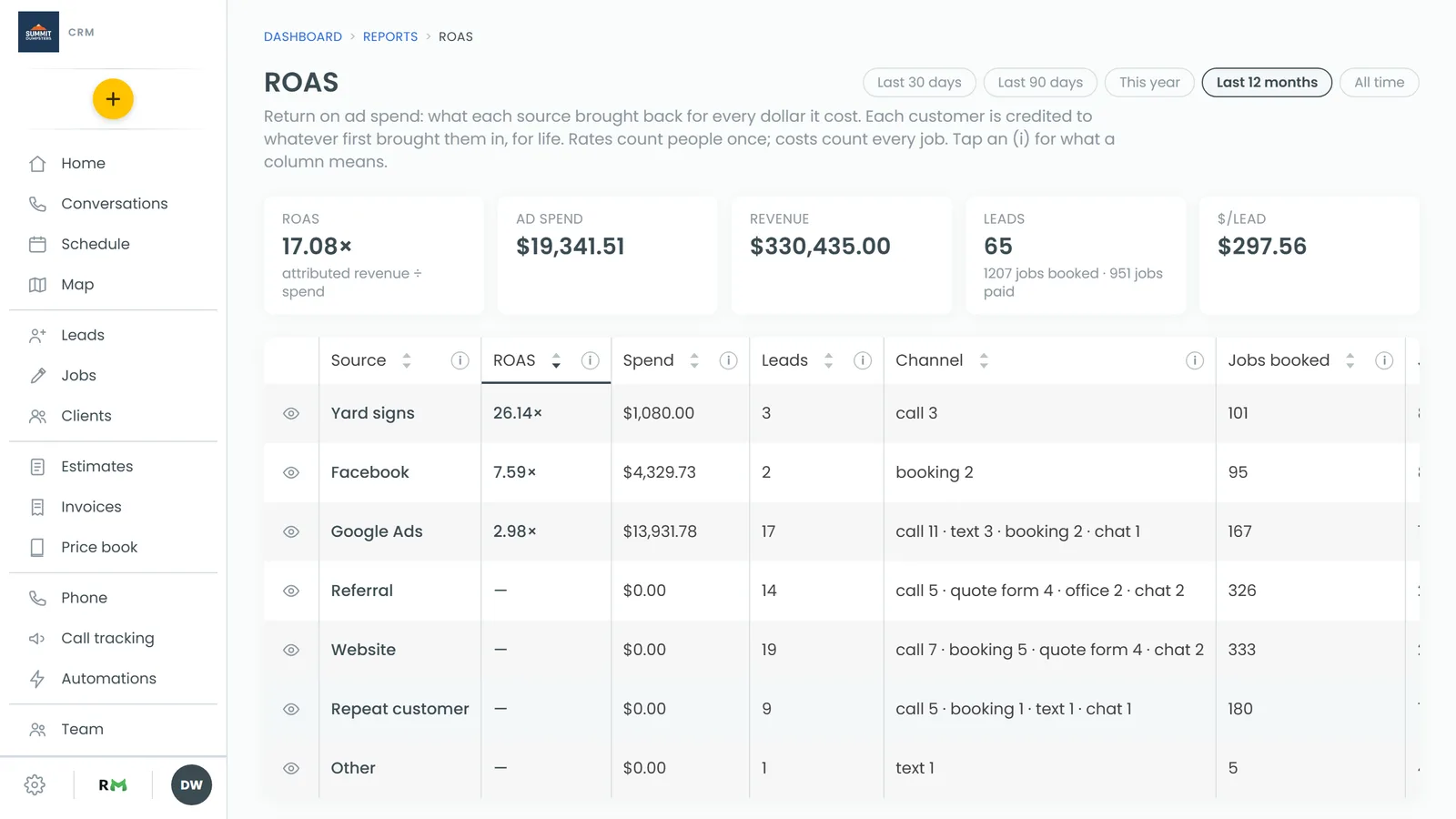
- The ROAS report adds it all up per source: spend, leads, jobs booked and revenue.
A first-time caller isn't turned into a contact on their own. The call stays under their number, and when you save them as a contact, a lead or a job, they're credited to the number they first called.
Each tracking number is $5 a month, added to your subscription. Call tracking is part of the paid CRM, so there's nothing to switch on first. It isn't included on the free plan.
To open call tracking:
- In the menu, click Call tracking.
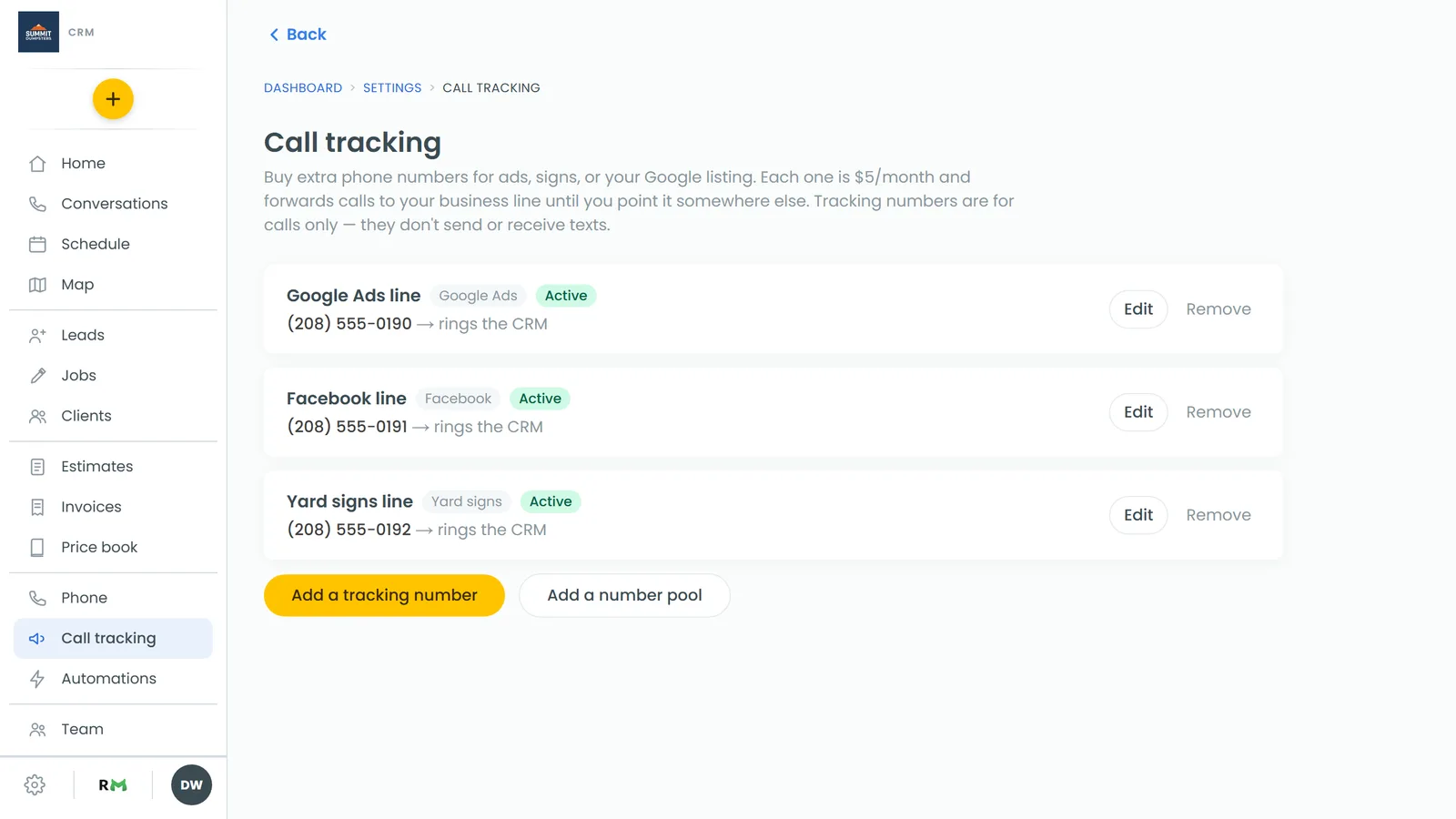
Add a tracking number
- Click Add a tracking number.
- Type a City and an Area code, then click Search numbers. Each result shows the town it belongs to.
- Under Pick a number, click the one you want. If nothing comes up, try a nearby town or area code.
- In Name this number, give it a name you'll recognize, like "Google Ads".
- In Where will you use it? (optional), note where it'll go, like "Spring mailer" or "truck decal".
- Under Ad source, leave New ad source named after this number to start a fresh source, or pick one of your existing sources.
- Click Get this number.
The number shows Active as soon as setup finishes. Until you change it, calls forward to your business line.
Change where a number rings
- Next to the number, click Edit.
- Change the Name, Used on (optional) or Ad source if you need to. Changing the source only affects new callers. Anyone already credited stays where they are. Picking — none (callers aren't attributed) — stops crediting new callers altogether.
- Under Calls ring, pick one:
- Forward to a number: calls go to the phone in Forward calls to. Set Ring for (seconds), tick Record calls (callers hear a short recording notice) if you want recordings, and add a Whisper message (optional). Whoever answers hears the whisper, like "Call from your Google Ads number". The caller never hears it.
- The CRM (ring targets, like your main line): the number rings the same people your main line does, and business hours, voicemail and recording follow your main line's settings.
- Click Save. Call settings can take a few minutes to apply.
Missed-call alerts
A missed call or voicemail on a tracking number is announced the same way as one on your main line. If the number forwards, that phone always hears about it. The Missed call and New voicemail rows in Notifications decide who else does.
Remove a number
- Next to the number, click Remove.
- Click Remove again to confirm. Calls to that number stop working and the $5 monthly charge ends.
Number pools for your website
If we build and host your website, you can give it a pool of numbers instead of one. Each visitor sees their own number from the pool, so when they call you know what brought them in, like a Facebook post or a Google ad, not just "Website". Search engines keep seeing your real number.
You'll only see Add a number pool if you have a site we host that doesn't have a pool yet.
- Click Add a number pool.
- Pick the Website.
- Set Numbers in the pool with the − and + buttons. It starts at 4, which is the smallest pool allowed.
- Under Calls ring, choose Forward to your business line or The CRM (ring targets, like your main line).
- Click Set up the pool.
Each number in the pool is $5 a month. The pool's card shows your visits over the last two weeks and your busiest hour. Use + to add a number if it ever runs short.
Read the results
Once your numbers have been out for a while, open Reports and click ROAS. Pick a date range at the top, like Last 30 days or This year. The report shows one row per source with Spend, Leads, Jobs booked, Jobs paid, Revenue and ROAS, plus cost per lead and per booking. Click the i next to any column heading to see what it means. New numbers need some time before the figures mean much.