In this article, you'll learn how to buy a new business phone number in the CRM and set up who it rings. You might want one for a second line, a new location, or another number your office can call and text from.
You buy numbers in the web CRM on a computer, and you need to be an admin on the account. The phone app lists your numbers and lets you change each one's settings under Call settings, but you can't buy or bring over numbers there. The same goes for the web CRM on a phone-sized screen.
To open your phone numbers:
- In the menu, click Phone. You can also get there from Settings › Phone numbers.
Your numbers are grouped under CRM number, Review requests and Other numbers, below the registration cards at the top of the page.
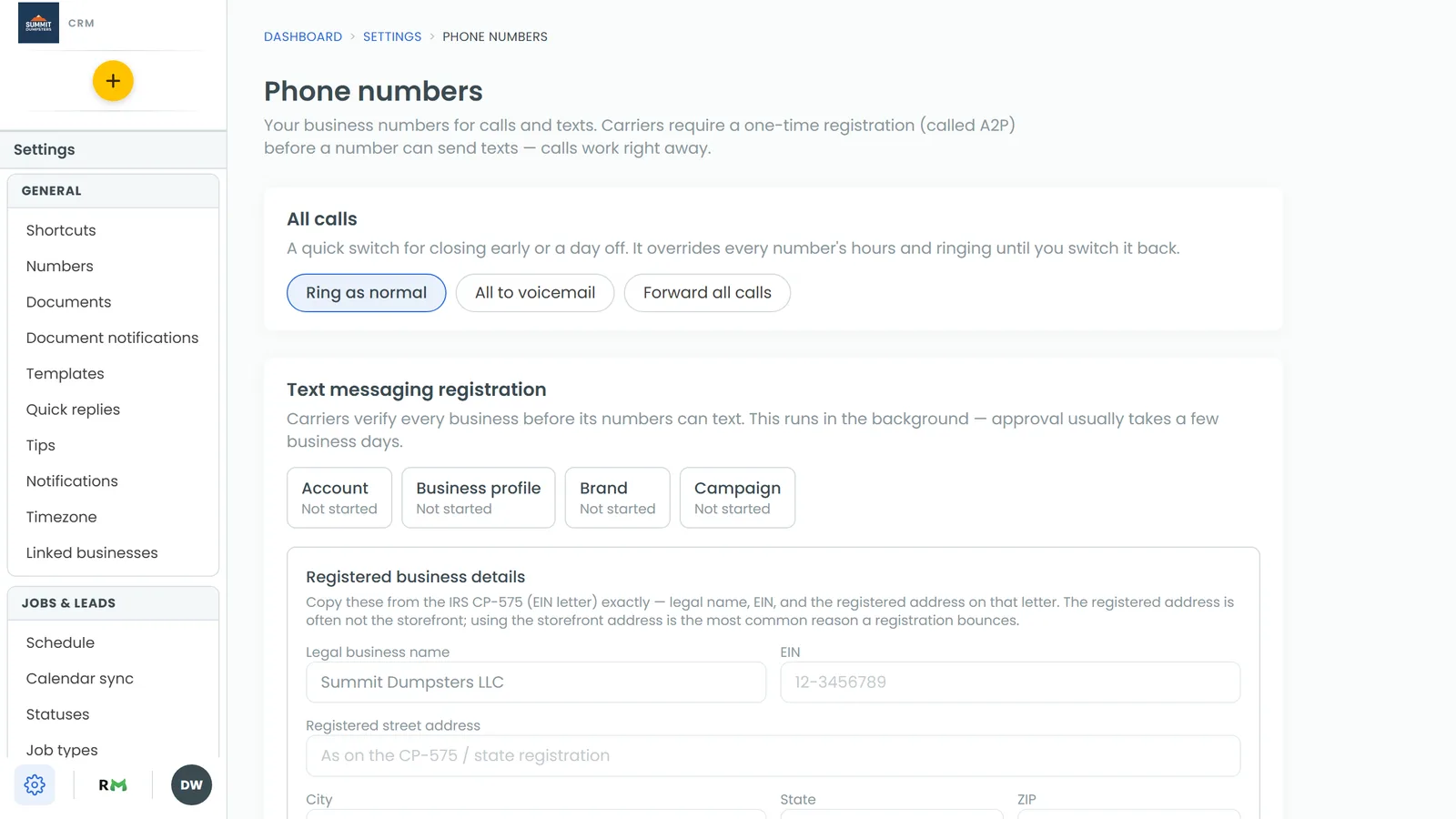
Before you buy
New numbers go into your company's own phone account, and the first step of your texting registration is what creates that account. If you open the buying panel before that step is done, you'll see a note asking you to start the registration above first.
If you see that note, go to the Text messaging registration card. Fill in Registered business details, click Save details, then click Continue registration. Once the Account tile reads Created, come back and buy your number.
Buying a number
- Below your numbers, click Buy a number.
- Type an Area code. It takes three digits, like 208.
- If you want certain digits in the number, type them in Contains (optional).
- Tick Toll-free if you want a toll-free number instead of a local one.
- Click Search numbers. Pressing Enter in either box searches too.
- Under Pick a number, click the one you want. Each choice shows its town and state, and you'll see up to 12 of them.
- If you like, type a name in Name this number (optional), like "Main line". Only your team sees it. Callers don't.
- Click Buy this number.
If the search shows Nothing matched — try a nearby area code., try another area code or clear the Contains box.
Changed your mind? Click Cancel at the top right of the panel to close it without buying anything.
Choosing who your new number rings
Your new number joins the CRM number group with an Active badge. Its row reads Permanent CRM like your main line, so tell them apart by the number itself. The name you gave it shows at the top of the Edit window.
- Next to the new number, click Edit.
- Open the Ringing & forwarding tab.
- Under Calls go to, pick A team member, An external number or Only the people ticked below, then choose the person or type the number.
- Tick anyone else under Also ring these team members.
- Click Save.
The same window has the Basic, Phone menu and Advanced tabs too. Choosing who your calls ring walks through all of them.
Making it your default outbound number
There's a star next to each number. A filled star marks your default outbound number, which is the line your outgoing calls and texts leave from. Your first number gets the star automatically. A number you buy later doesn't take it over. To switch, click the empty star next to the number you want.
Numbers for tracking ads
If you only need a number to see which ad, sign or listing brings in calls, use a call tracking number. Those are set up on their own page. See Using call tracking to see which ads bring in calls.