In this article, you'll learn what the Tap to Pay messages in the phone app mean and how to fix each one, so you can get back to taking the card instead of guessing.
With Tap to Pay, your phone is the card reader. There's nothing to pair or charge, so most problems come down to the phone, its settings, or your Stripe connection. Tap to Pay only works in the phone app (iPhone and Android), not on the web.
To open Tap to Pay:
- In the phone app, open the menu and tap Tap to Pay. You can also add it to your home screen shortcuts.
- To get the phone ready before your first customer, tap Set up this iPhone (or Set up this phone on Android).
You can also start setup from Settings > Payments with Set up Tap to Pay on this iPhone (or on this phone). That button only shows once Stripe is connected.
Before you start
Check these first. They fix most problems.
- Make sure the phone can do it. An iPhone needs to be an iPhone XS or newer on a current iOS. An Android phone needs a built-in NFC chip and a current version of Android.
- On Android, turn NFC on.
- When setup asks for location access, allow it. Tap to Pay uses your location each time it takes a card.
- Keep the app up to date from the App Store or Google Play.
- Let setup finish. While the screen says Setting up Tap to Pay (and shows Preparing this iPhone… with a percentage), Tap to Pay isn't ready yet. On an iPhone, accept Apple's Terms and Conditions if they appear.
Where errors show up
You'll see a problem in one of two places:
- During setup, the screen says Couldn't finish setup and shows the reason in red.
- While taking a payment, the Tap to Pay screen says Didn't go through with the reason under it.
Both screens have a Try again button. Fix what the message says, then tap Try again. You don't have to start the payment over.
The phone needs a newer iOS or Android
The message says Tap to Pay needs a newer iOS or a newer version of Android.
To update an iPhone
- Open the iPhone's Settings.
- Tap General, then Software Update.
- Install the update, then go back to the app and tap Try again.
To update an Android phone
- Open the phone's Settings.
- Tap System, then Software update.
- Install the update, then go back to the app and tap Try again.
This phone can't take Tap to Pay
On an iPhone, this means the phone is older than an iPhone XS or isn't on a current iOS. On Android, it means the phone has no built-in NFC chip, NFC is off, or Android is out of date.
If the phone doesn't have the hardware, updating won't help. Take cards on a newer phone, or send the customer a payment link instead.
NFC is off (Android)
Android needs NFC on to read a card.
- Open the phone's Settings.
- Search for NFC and turn it on.
- Go back to the app and tap Try again.
Developer options, USB debugging or a rooted phone (Android)
For security, Tap to Pay won't run on an Android phone that could have been tampered with. That covers developer options or USB debugging turned on, and rooted phones.
- Open the phone's Settings.
- Go to System and turn developer options off.
- Go back to the app and tap Try again.
Stripe isn't connected
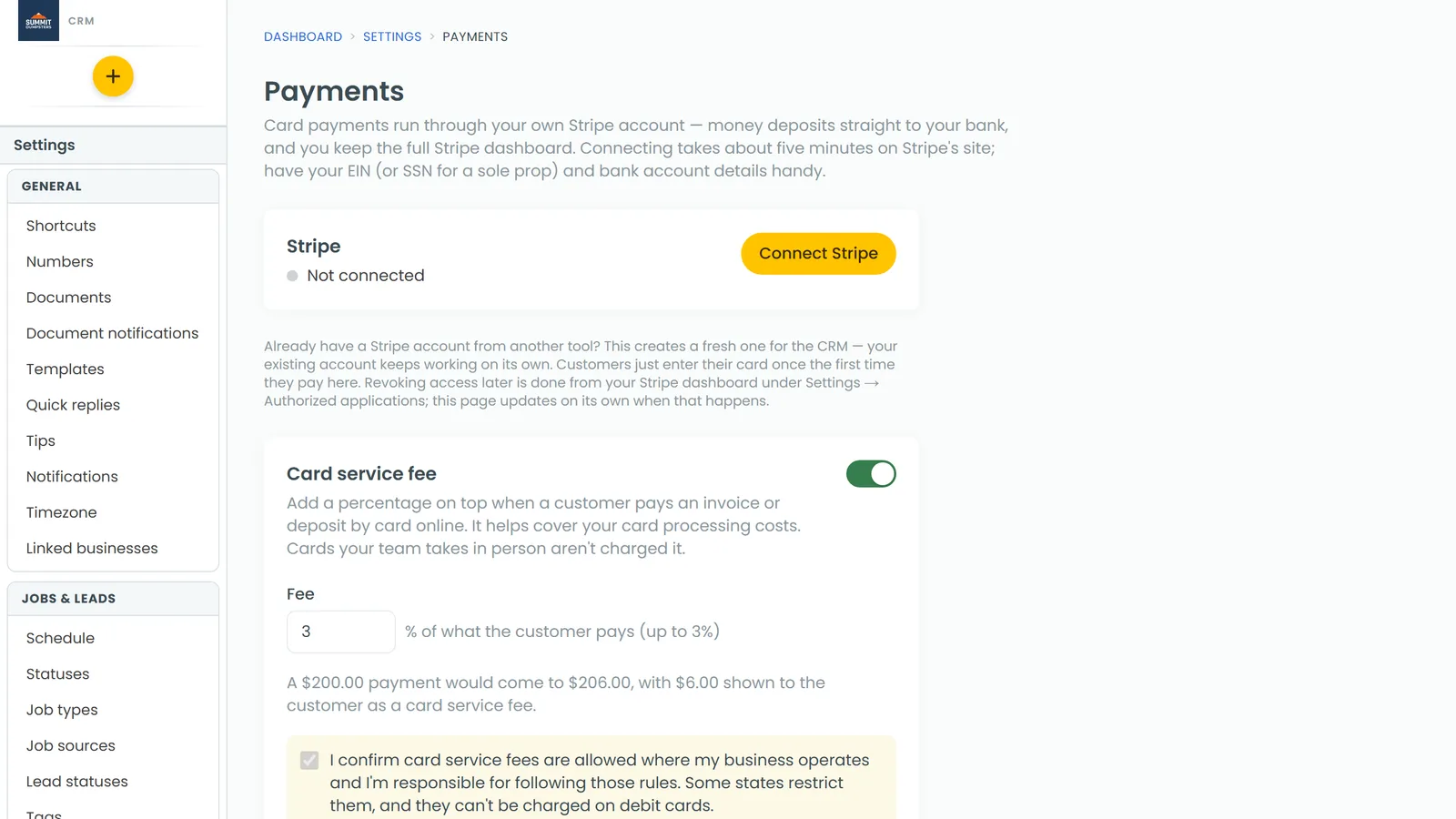
Tap to Pay takes the card through your company's own Stripe account. Until Stripe is connected, you'll see "Connect Stripe on the Payments settings page before taking Tap to Pay." The Tap to Pay page in the app shows a Connect Stripe to start tapping card with a Go to Payments settings button.
Connect it once and tapping works from then on. See Connecting Stripe to take online payments.
An admin sets this up
If you see An admin sets this up, your login isn't an account admin. Setup has to be done by an admin, and on an iPhone that's because Apple's Tap to Pay terms have to be accepted by one. Ask your admin to open Tap to Pay and tap Set up this iPhone (or Set up this phone) once. After that, everyone on your team can take payments.
The app needs updating
If the Tap to Pay screen says Update the app to tap, or setup says this version of the app doesn't include Tap to Pay yet, your copy of the app is older than Tap to Pay. Install the latest version from the App Store or Google Play, then try again.
The card won't read
If the phone is ready but the tap isn't going through, check where the customer is holding the card. The screen tells them:
- On an iPhone, they hold the card or their phone to the top of your iPhone.
- On an Android phone, they hold it to the back of your phone.
Have them hold it still until the screen moves on. If it still won't take, tap Try again. To back out, tap Cancel.
Related articles
- Using Tap to Pay on iPhone and Android
- Connecting Stripe to take online payments
- Stripe setup and card payments FAQ
- Collecting payments on the phone app
- Sending payment links