In this article, you'll learn what to check when your CRM phone isn't behaving: calls that don't ring, callers who see a spam warning, and texts that won't go through. Each item is a symptom, the usual fix, and a link to the article with the full steps.
Calls don't ring the phone app
On Android: allow the microphone
Android won't show an incoming business call at all if the CRM app can't use the microphone. After the app signs in and gets ready for calls, it checks for this. If the microphone is off, you'll see a prompt titled Let business calls ring this phone.
- Tap Allow.
- If you tapped Not now, the app tells you Calls won't ring here. Tap Open settings and allow the microphone for the app there.
On Android: turn on full-screen notifications
Newer Android phones can be set to show a business call as a small banner only, with no ringing screen when the phone is locked. When the app spots this, it shows Let calls ring on your lock screen.
- Tap Turn on.
- In the screen that opens, allow full-screen notifications for the app.
Check who the number rings
If the app is set up fine but your phone still stays quiet, the call may be going to someone else. Check which people and phones each number rings in Choosing who your calls ring, and check any forwarding in Setting up call forwarding.
Check the caller isn't blocked
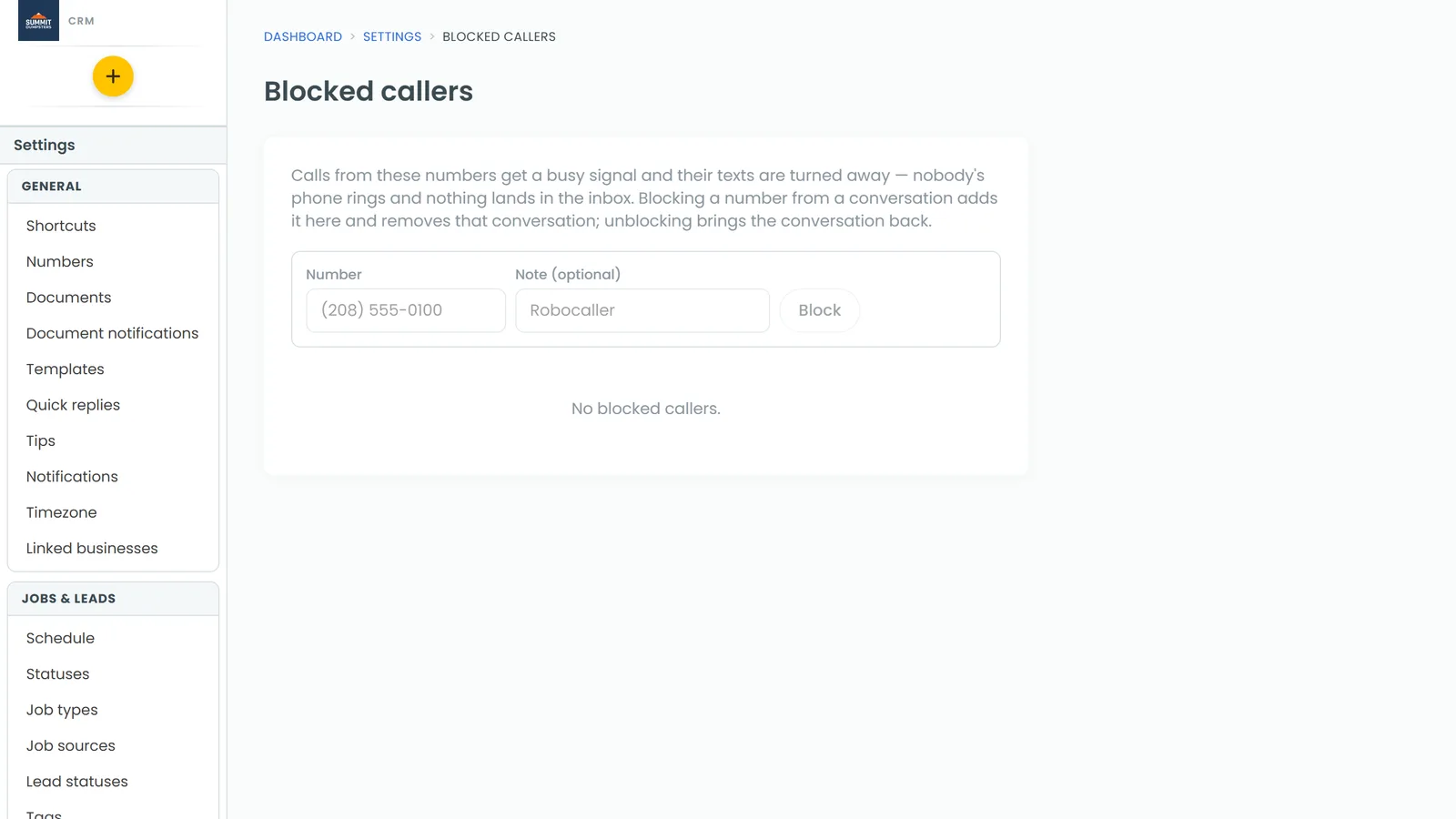
Calls from a blocked number get a busy signal, and nobody's phone rings. Blocking a number from a conversation also puts it on this list, so it's easy to do without remembering.
To check your blocked list:
- In the menu, click Settings.
- Under Phone & booking, click Blocked callers.
- Find the number. If it shouldn't be there, click Unblock.
Unblocking brings that person's conversation back. The phone app has the same list under Settings > Blocked callers. For more, see Blocking unwanted calls and texts.
Customers see "spam" when you call
If people say your calls show up as spam or a scam warning, set up your caller ID name. Setting your caller ID name to avoid looking like spam explains how.
Texts fail or don't arrive
First look at the message's status in the conversation. Understanding message statuses and failed texts explains what each one means and what to do about a failed text.
If many texts are failing, or you've just set up your number, your texting registration may not be approved yet. See Understanding texting registration (A2P).
Still stuck?
If none of this sorts it out, reach out to us. Getting help with the CRM shows you how.
Related articles
- CRM phone FAQ
- Setting up your CRM phone
- Making and answering calls on the phone app
- Getting help with the CRM