In this article, you'll learn how to keep prices, totals and other money details away from people on your team who don't need them. It's a common setup when you've got crew who run the jobs but shouldn't see what the customer is paying or how the business is doing.
You do it through roles. Every team member has a role, and each role has a set of permission switches. Turn one switch off for a role and everyone in that role loses it.
To open Roles & permissions:
- At the bottom of the menu, click the gear icon (Settings).
- Under Users & roles, click Roles & permissions.
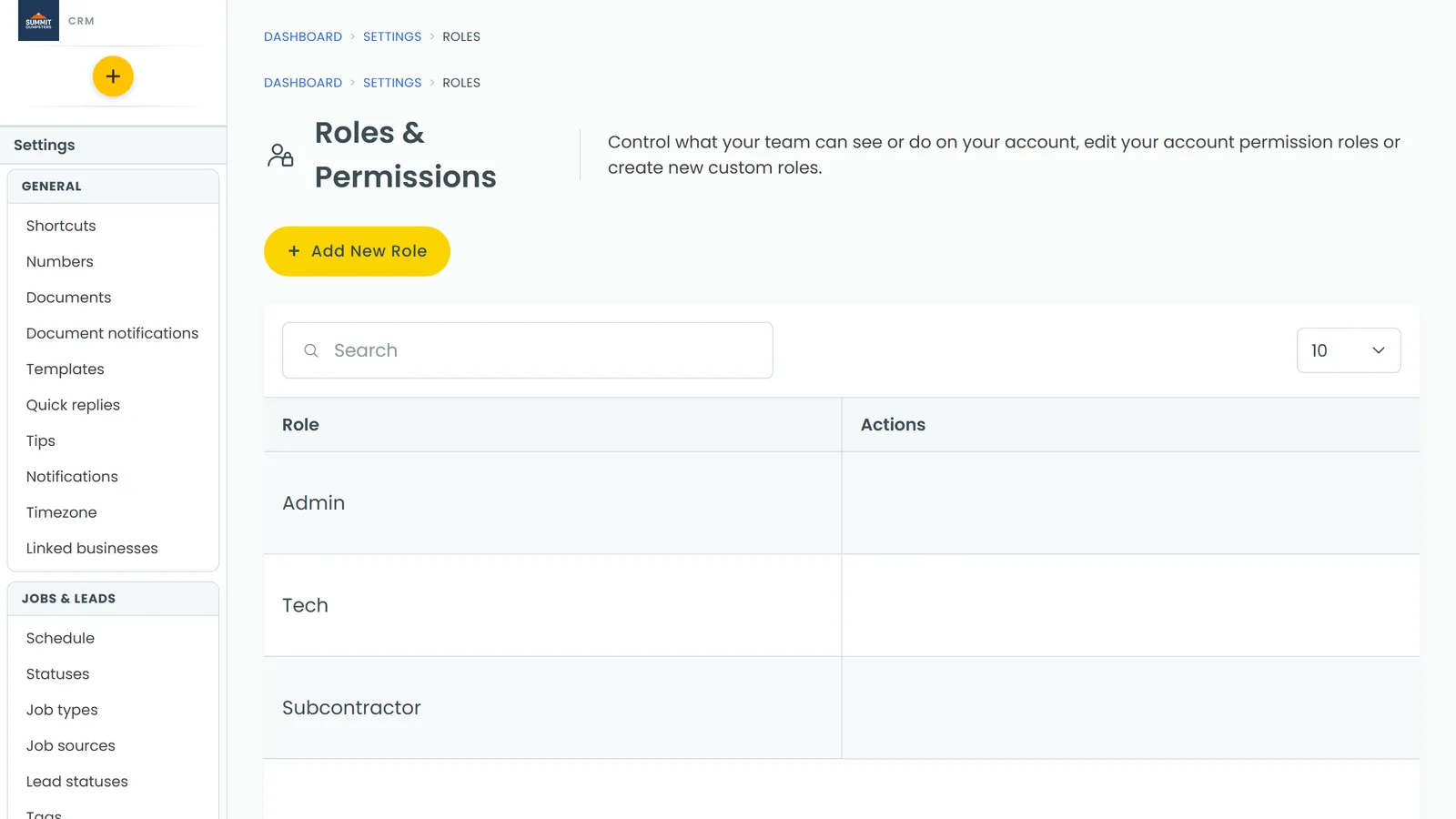
What the Financial Data switch does
The permission is called Financial Data, and its description reads "Can view prices, totals and costs on jobs and invoices." It's on for the built-in Tech role (and the Subcontractor role) until you switch it off.
With it off, people in that role:
- No longer see Estimates, Invoices or Reports in the menu, on the web or in the phone app.
- Don't get New estimate in the + menu on a customer's page.
- Lose the Finance tab on a job in the phone app.
They can still see their jobs and the schedule and do their work. Only the money screens go away.
How to switch off Financial Data for a role
- Open Roles & permissions (steps above).
- Click the role you want to restrict, for example Tech. A panel slides in called Edit permissions for role tech.
- Type "Financial" in the Search box to jump to it, or scroll down to Financial Data.
- Click the switch to turn it off. Green means on, grey means off.
- Click Save. You'll see a Permissions saved message.
Other money switches worth checking
While you're in the same panel, look at these two:
- Pricebook Access ("Access to price book"). With it off, Price book drops out of the menu and the role can't open your items and prices. It's on for Tech by default.
- Delete Job Payments ("Can delete and refund job payments"). It's on for Tech and off for Subcontractor. Most businesses turn it off for anyone who isn't in the office.
Wages on the Team Schedule are separate
Financial Data has nothing to do with pay rates. On the Team Schedule (part of the Employees feature in the Features store), only people with the Schedule Admin permission see everyone's wages and labor cost. Everyone else sees only their own. Schedule Admin is off for Tech by default.
Changing a team member's role
- In the menu, click Team (or open Settings and click Team management under Users & roles).
- Click the person.
- Under Roles and permissions, pick a role from the Role drop-down.
- Click Save.
Related articles
- How to add team members
- Assigning team members to jobs
- Finding your reports and who can see them
- How to create items and services
- How to customize your account settings