In this article, you'll learn how to disable a team member and how to turn them back on later. You'd do this when someone leaves, goes seasonal, or just shouldn't be signing in for a while. Nobody is deleted from your team, so disabling is how you take someone out. It locks them out and takes them off the work ahead, but it keeps everything they've done.
To open your team:
- In the menu, click Team.
You can also get there from Settings: under Users & roles, click Team management. It's the same list either way.
What disabling does
When you disable someone:
- They can't sign in until you turn them back on.
- They're taken off every upcoming job. That's any job that isn't Done or Canceled and starts from now on, or has no date yet.
- They stop showing up when you pick people to put on a job.
- Everything else stays. Past jobs keep them on the crew, and their profile, history and documents are kept.
Disabling someone from the Team list
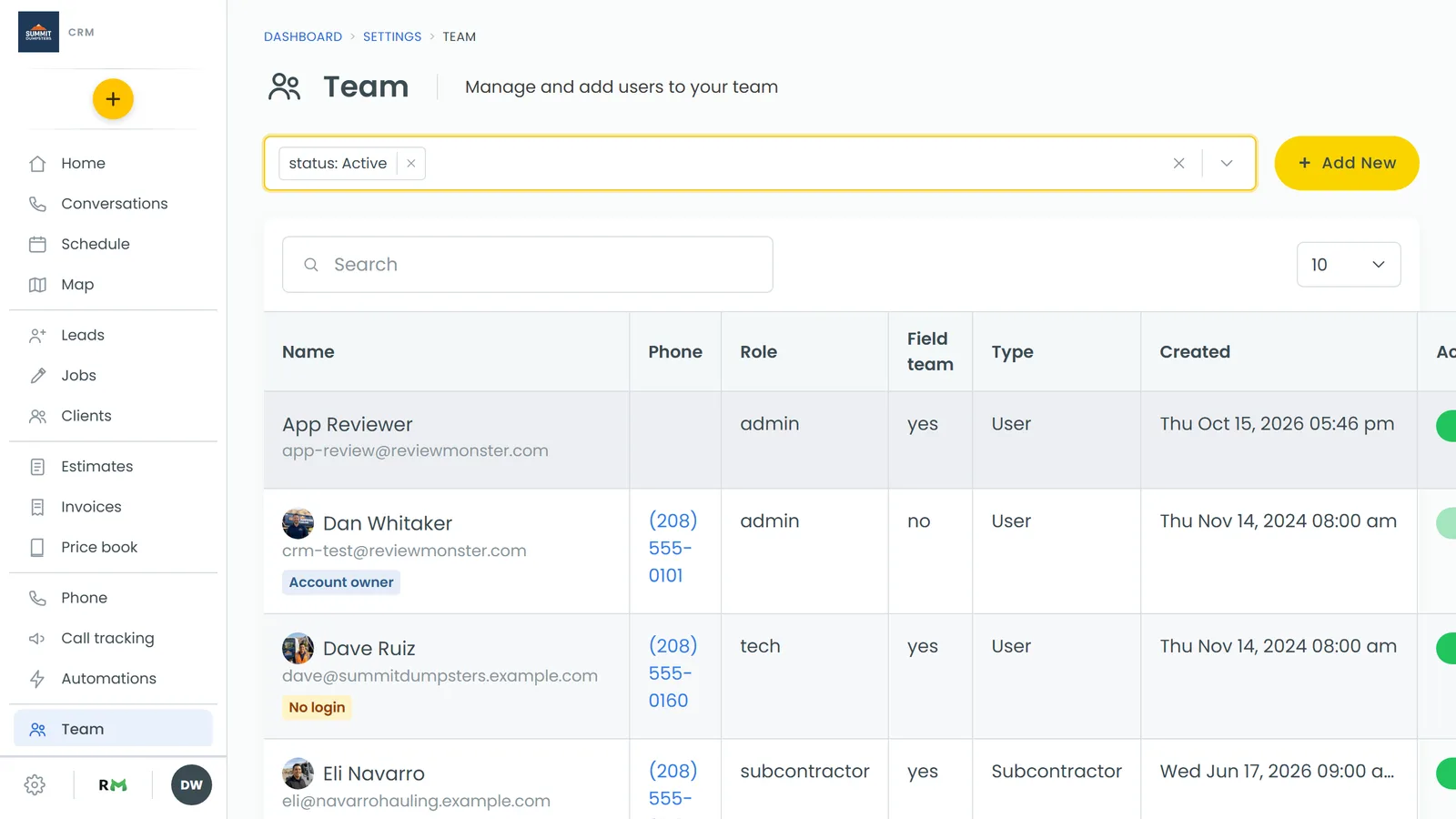
This is the quickest way. Each person on the list has a switch in the Active column.
- Find the person. Type in Search if your list is long.
- Click their switch to turn it off.
- A box asks "Disable [name]?" and explains that they come off every upcoming job and can't sign in until enabled again. Click OK to go ahead.
A message at the top tells you they're disabled and how many upcoming jobs they were taken off.
Disabling someone from their profile
- On the Team list, click the person's name. Their User Profile opens.
- Click Actions at the top right.
- Click Disable user.
- Click OK in the box that pops up.
Disabling someone on the phone app
- Open the menu and tap Team.
- Flip the switch on the person's card, or tap their card to open their profile.
- On the Profile tab, scroll down past Notes and tap Disable user.
- Tap Disable to confirm.
The app tells you how many upcoming jobs they were taken off, for example "Disabled — taken off 3 upcoming jobs".
Finding disabled team members
The Team list opens showing active people only, so disabled people seem to vanish. They're still there.
- On the Team list, click the filter bar at the top (it reads status: Active).
- Under Status, click Disabled to see only disabled people, or All to see everyone.
Disabled people show greyed out. On the phone app, tap the Disabled or All chip above the list.
Turning someone back on
- Filter the Team list to Disabled so you can find them.
- Turn their Active switch back on, or open their profile, click Actions and click Enable user. On the phone app, tap Enable user on their Profile tab.
They can sign in again right away.