In this article, you'll learn how to set the caller ID name your customers see when you call them, and how to check that your numbers are registered with the carriers. Carriers tend to send calls from unregistered numbers to voicemail or label them "spam risk", so a couple of minutes here helps people actually pick up.
Everything happens on the Calling registration card on the Phone numbers page. It's on the web CRM only, on a computer, and it appears once your company's phone account has been set up. It isn't part of the free plan.
To open the Calling registration card:
- On a computer, click Phone in the menu. (You can also open Settings, then Phone numbers under Phone & booking.)
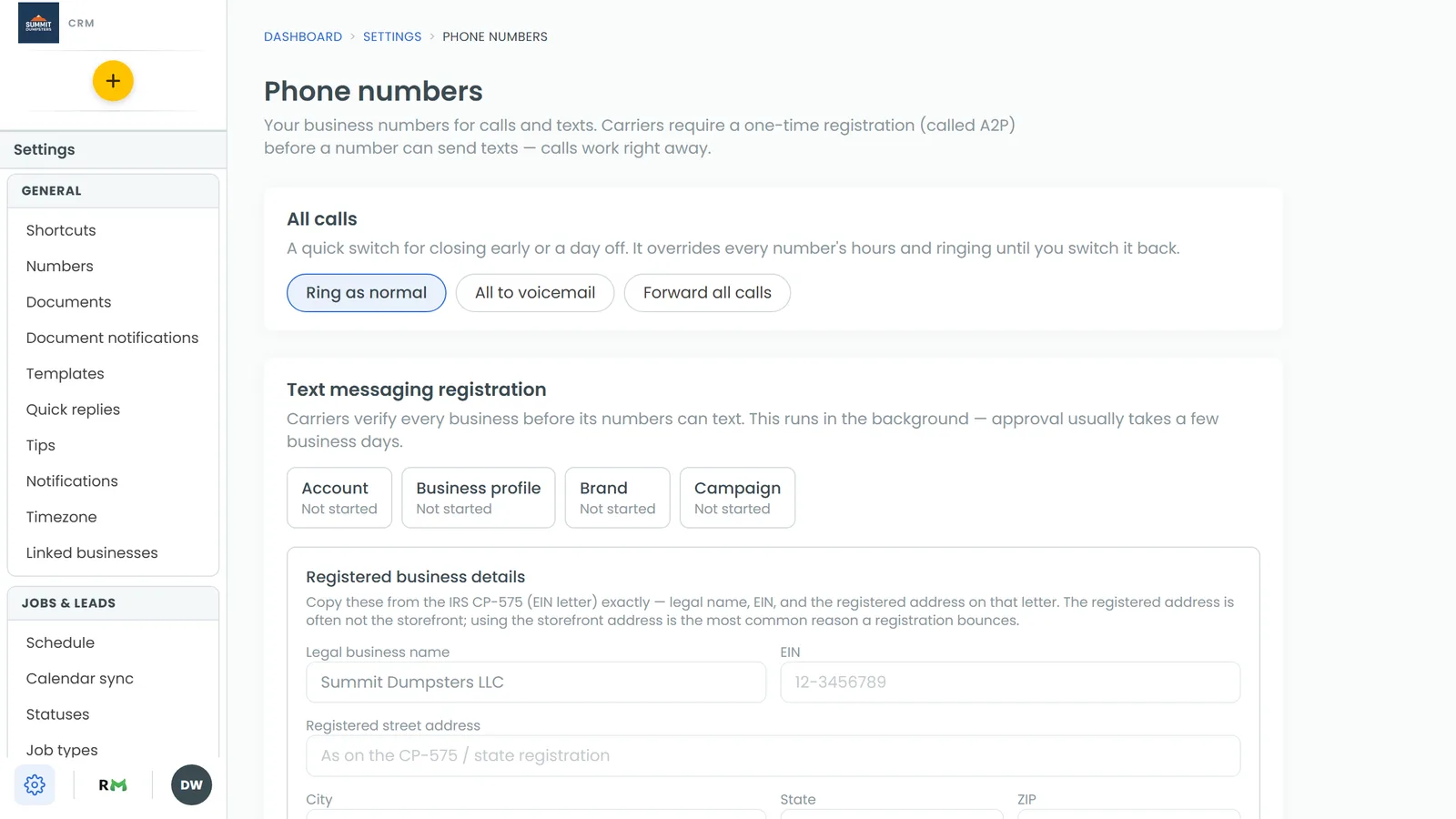
- Scroll past the All calls and Text messaging registration cards to Calling registration.
What the three registrations mean
The card shows three boxes. Each one is a separate registration with the carriers:
- Trusted calls (SHAKEN/STIR): tells carriers your calls really come from your business.
- Caller ID name (CNAM): puts your business name on the customer's screen instead of just a number.
- Spam protection (Voice Integrity): helps keep your numbers from being labelled as spam.
Each box shows where that registration stands:
- Not filed: it hasn't been sent in yet.
- In review: it's been filed and the carriers are checking it.
- Approved: it's done. The box turns green.
- Rejected: it was turned down. The box turns red.
You don't file these yourself. They file on their own once your business profile is approved, and every number you have is included, even ones you add later.
Filling in your details
Below the status boxes are three fields:
- Employees: how many people work for the business.
- Outbound calls per business day: roughly how many calls you make on a normal workday.
- Caller ID name: the name customers see when you call.
Spam protection can't file until both numbers are in. The card reminds you of that in amber until they're saved. They need to be whole numbers above 0, but your best estimate is fine.
The caller ID name can be up to 15 characters. It has to start with a letter and can only use letters, numbers, periods, commas and spaces. Whatever you type shows in capitals. Leave it blank and it's made from your business name, cut at a whole word so it doesn't end halfway through one.
To fill in your details:
- In Employees, type the number of people on your team.
- In Outbound calls per business day, type your best estimate.
- In Caller ID name, type the name you want customers to see, or leave it blank to use your business name.
- Click Save. You'll see Saved next to the button.
Changing your caller ID name later
There's one caller ID name for the whole company, not one per number. Once it's filed, the Caller ID name field locks and the card says the name is registered and that changing it means filing again. After approval it can still take two or three days before carriers show the new name.
On the phone app
The phone app doesn't have the Calling registration card, so set your caller ID name on the web. The app's Settings › Phone numbers does have a card called Caller ID for your customers, but that's a different thing: on an iPhone it shows a customer's name on your screen when they call you.