In this article, you'll learn what the CRM phone is and where each part of it lives. Your business numbers are built into the CRM, so your calls and texts with customers sit right next to their jobs, estimates and invoices.
You don't switch anything on in Features. The phone is part of the CRM from day one.
To open your phone settings on the web:
- In the menu, click Phone.
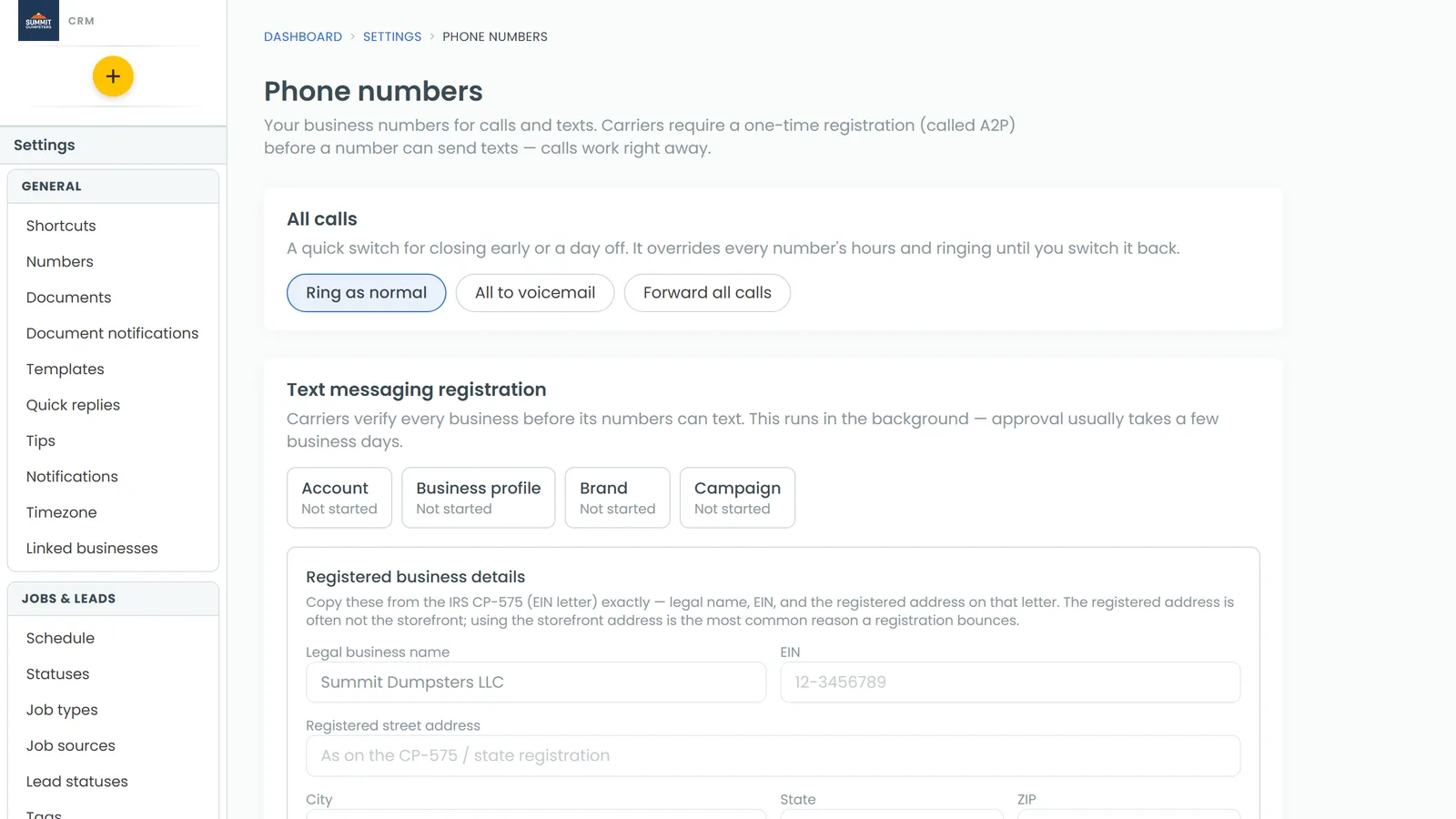
That opens the Phone numbers page under Settings. On a phone-sized screen, and in the phone app, Phone in the menu opens a keypad instead, with a Call / Text switch at the top and your recent Texts and Calls underneath. In the app, your phone settings are under the Settings gear, in the Phone & booking group, as Phone numbers.
Your numbers
The Phone numbers page groups your lines by what they're for:
- CRM number is your main line. Its calls and texts come into the CRM.
- Review requests is the line your review requests go out from. Calls to it are never answered and never ring anyone.
- Other numbers holds anything else, like tracking numbers.
Each number shows its status, like Active or Porting, and whether it's cleared for texting: A2P Verified or A2P pending. Carriers require a one-time registration, called A2P, before a number can send texts. Calls work right away. You can follow that registration in the Text messaging registration box near the top of the page. The Calling registration box covers your caller ID name and the checks that keep your calls from being marked as spam.
While carriers review your texting registration, you may see a Temporary number next to your permanent one. Texts go out from the temporary number until the permanent one is approved, then it takes over.
The star marks the number your calls and texts go out from by default. Click an empty star to make a different number the default.
To add a line, click Buy a number. To keep a number you already have, click Bring a number you already have.
Calls and texts land in Conversations
Every call, voicemail and text with a customer shows up in Conversations, grouped by who you were talking to. The Voicemail tab keeps all your voicemails in one place, and the filter lets you narrow a thread down to Calls, SMS or Email.
Each call in a thread is labelled, like Incoming call, Missed call or Voicemail, with its length. When a number records its calls, the recording plays right in the thread. When it transcribes them too, a short summary sits under the player. On a desktop browser, click View transcript to read the whole conversation. The ⋮ menu on a recording offers Forward by text, Forward by email and Download.
Making and answering calls
You can call from your web browser or from the phone app. Either way, the call goes out on your business number, never your personal one.
- On the web, open Conversations and click Dialer, or click the phone icon on a client, job or lead.
- When a call comes in on the web, a card pops up with Decline and Answer. On a phone-sized screen it's a single Answer button.
- In the phone app, use Phone in the menu or the Dialer tab in Conversations.
While you're on a call, the in-call screen has Mute, Keypad and a red end button. Turn on Schedule job and the Scheduler opens for that caller the moment you hang up. If you leave the call screen, a green bar stays at the top of every page with the timer and an end button.
Ringing, hours, voicemail and recording
On the web, click Edit next to a number to set how it behaves. In the app, tap Call settings under the number. On the web the window has five tabs:
- Basic: the number's Friendly name, Record calls with an optional recording notice for callers, and Transcribe recorded calls. Transcription only works while recording is on.
- Ringing & forwarding: who Calls go to, which other team members ring and on which devices, the Ring order, Call forwarding, and what happens If nobody answers.
- Hours: your business hours and what happens After hours, including letting callers press 1 for something urgent.
- Phone menu: a "press 1 for…" menu that plays before the call rings.
- Advanced: a whisper message for whoever answers, what shows When this line rings, and Text back when a call is missed.
Click Save when you're done. In the app the tabs are Basic, Ringing, Hours, Phone menu and Advanced, with Save at the top.
Company-wide phone settings
Some settings apply to every line at once. All calls sits at the top of the page. It's a quick switch for a day off or closing early: Ring as normal, All to voicemail or Forward all calls. It overrides every number's hours and ringing until you switch it back.
Further down, below your numbers, you'll find:
- Voicemail greetings: what callers hear During business hours, After hours, and the After-hours urgent prompt. Click Save and record and the words are recorded in a natural voice.
- Who's taking calls: switch someone off while they're off shift or on a job, and calls skip them.
- Closed days: holidays when every line answers with the after-hours greeting.
- Voicemail alerts: who gets an app notification, a text or an email about a new voicemail.
- Spam filtering: send suspected spam calls to voicemail, and ask unknown callers to press 1 before they ring through.
Blocked callers have their own page. There's a link to Settings → Blocked callers at the bottom of the Phone numbers page.
Call tracking
If you advertise in more than one place, Call tracking in the menu gives each ad its own number, so you can see which ones bring in calls. Those numbers show up under Other numbers on the Phone numbers page.