In this article, you'll learn how to go from a green dot on a chart to the Site changes panel, and how to read what each change did to your traffic. It's the quickest way to tell whether a page edit, a new blog post or a batch of new pages moved the needle.
Every save in the Website editor and every page that appears in or leaves your sitemap is logged. The Website report draws those as green dots along the bottom of its charts, sized by how much of the site changed.
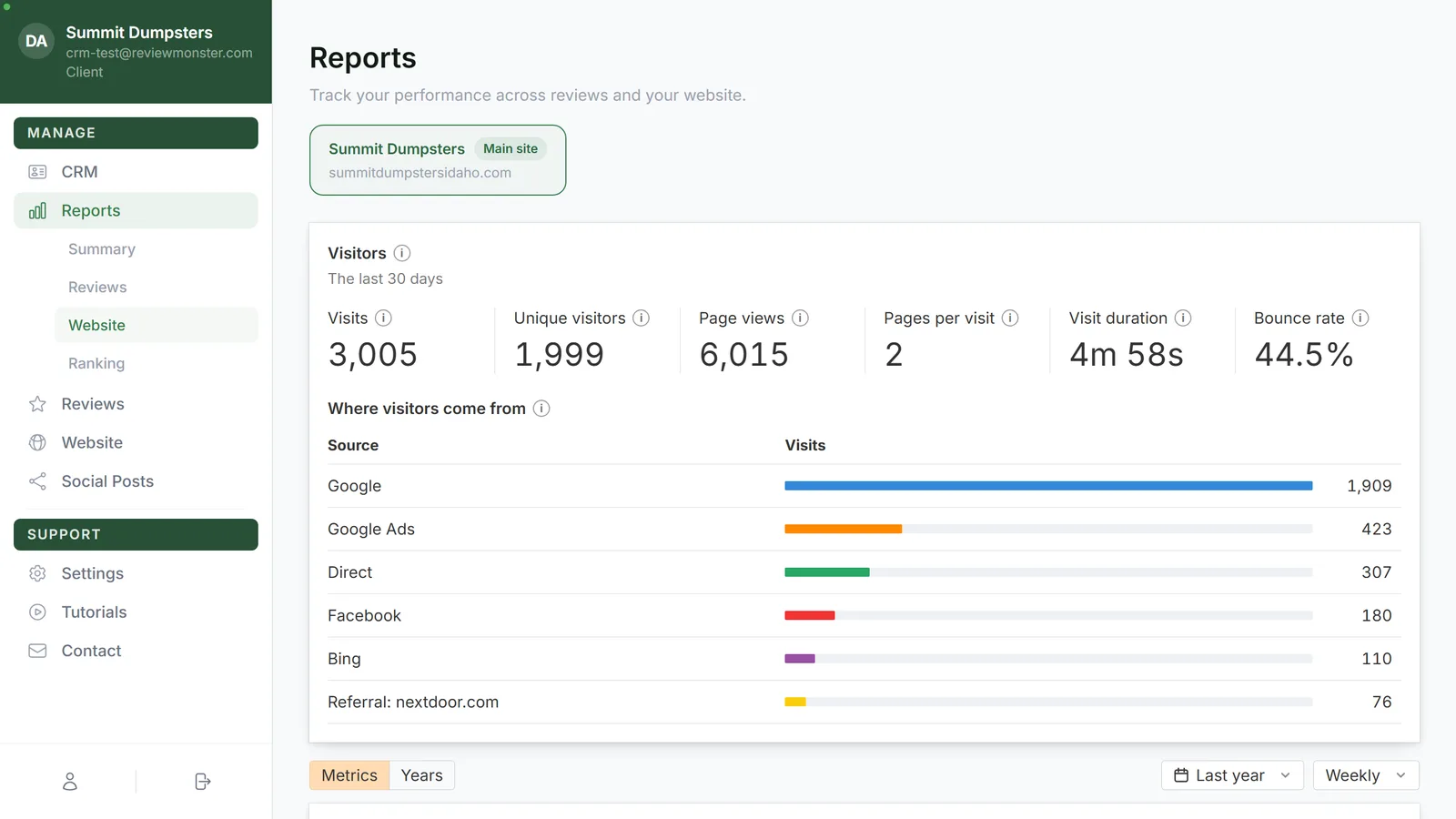
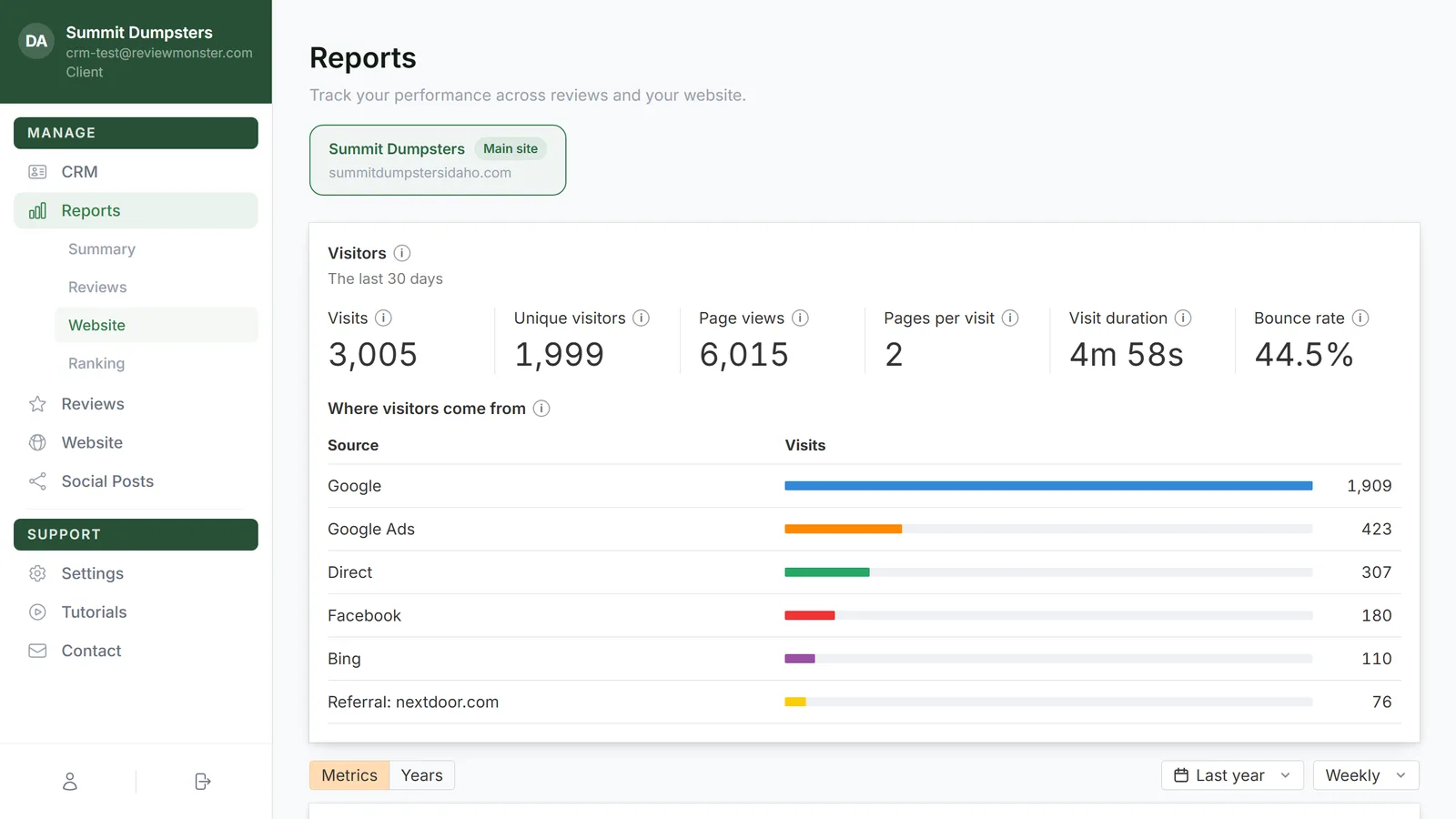
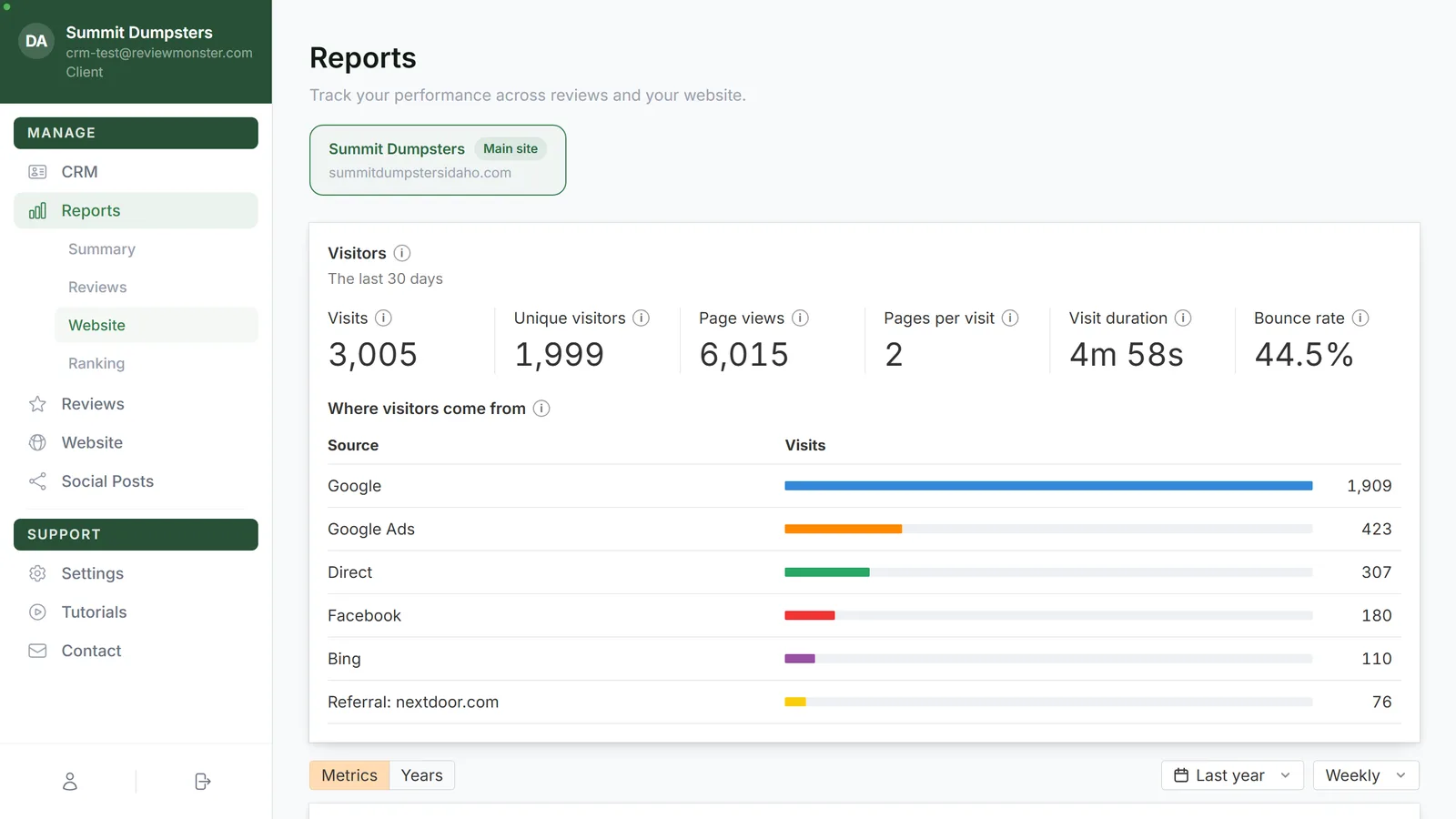
To open the Website report:
- In the dashboard menu, click Reports, then Website.
- If you have microsites, pick a site from the tabs across the top. Your main site is first, marked Main site.
Finding the green dots
The dots sit on the baseline of the Performance, Organic positions and SERP features charts, and on Sources when that chart is shown. They're the same dots on each chart, so hover whichever one you're looking at. They only show on the Metrics tab, not on Years.
- A bigger, darker dot means a bigger share of the site changed. Minor and moderate changes get a smaller, lighter green dot.
- A white circle with a G is a Google ranking update, not one of your changes. When several updates land in one period, the circle shows how many instead of the G.
Opening the Site changes panel
- Hover a green dot. A small card shows the date and the size of what landed in that period: Minor changes, Moderate changes, Major changes or Overhaul changes.
- Move onto the card and click View changes. The card waits a moment for you, so you don't need to rush.
- The Site changes panel slides in from the right, showing only the changes from that period. The line under the heading names the site and says how many are shown, "in this period".
- To see every change in the date range you have selected, click show all next to that count. The line then reads "in this range".
Reading the entries
Entries run newest first. A major or overhaul change gets its own heading with the date it happened. Smaller changes from the same week are folded into one entry under a heading that starts with "Week of".
Each entry shows:
- A label for the kind of change: Page added, Page edited, Page removed, Blog post, Post removed, Pages added, Pages removed, Settings, Theme, Menu, Service, Gallery, Team, Testimonials, Overhaul or Weekly update.
- The title of what changed. For an edited page, service or post, a figure like 18% of the text says how much of the wording moved.
- On the right, the size (Minor, Moderate, Major or Overhaul) and who made it, when that's known.
- The pages touched, up to four, then "+N more".
- Inside a Weekly update, a short list of the individual changes with their dates, text percentages and pages, up to twelve, then "+N more".
Reading the effect
Under each entry are four lines comparing before and after:
- Clicks and Impressions: Google Search Console totals for the 14 days before the change against the 14 days after. The note reads 14d before → after.
- Keywords and Top 10: the weekly ranking readings taken either side of the change. The note reads reading before → after.
The difference shows in green when it went up and red when it went down. A dash means no change, or nothing to compare yet.
If the after figure says waiting, there's nothing to compare yet. Clicks and impressions wait until at least a day has passed. Keywords and Top 10 wait until the next weekly reading lands.
Closing the panel
- Click the × at the top right of the panel, press Escape, or click anywhere outside it.
On the phone app
The Website report is in the app too, under Reports, then Website, when your plan includes it. Hover becomes touch:
- Put a finger on a chart at a green dot. The card for that period shows the size of the change and View changes. The card stays after you let go.
- Tap View changes. The list opens as a sheet called Site changes, with the same count and show all link.
- Entries show the kind, the title, the weekly items and the four before-and-after lines. The pages touched, the size label and who made the change aren't listed on the phone.
- Tap Close at the top of the sheet, or tap outside it, to put it away.