In this article, you'll learn how to choose which phone numbers and email addresses get the office's alert texts and emails. It's handy when you want a manager or your front desk to hear about things like missed calls or voicemails, not just you.
These are two company-wide lists: one for texts, one for emails. Every event with Text or Email ticked on the Notifications page goes to everyone on the matching list. The same two lists are used by the chat widget, online booking, voicemail, on-my-way and document pages, so if you change them in one place, you've changed them everywhere.
To open the lists on the web:
- Open Settings.
- Under General, click Notifications.
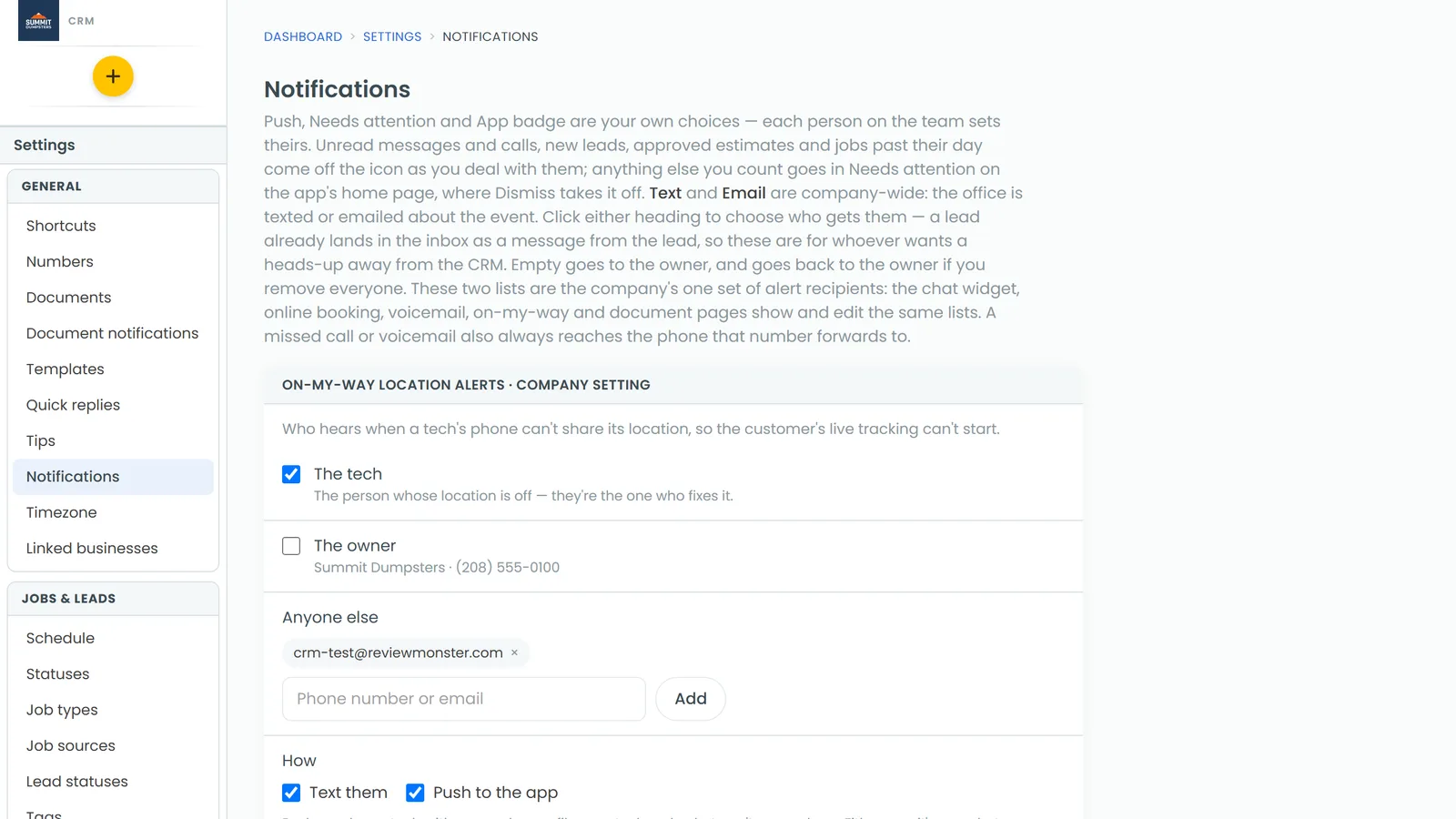
Add someone to the texts or emails
On the Notifications grid, the Text and Email column headings are links. Under each one you'll see who gets them right now: a single number or address, a count like "3 numbers", or "owner:" followed by the owner's number or email when the list is empty.
- Click the Text heading to open Who gets the texts, or the Email heading to open Who gets the emails.
- Type a phone number or an email address in the box at the bottom.
- Click Add (or press Enter). Add as many as you like.
- Click Save.
A phone number needs at least 10 digits. If it's short, or an email address isn't valid, you'll see "Enter a 10-digit number" or "Enter a valid email address" and nothing is added.
Remove someone
- Click the Text or Email heading.
- Click Remove next to the number or address.
- Click Save.
What happens when a list is empty
While a list is empty, those alerts go to the owner. The box shows "Owner only" with the owner's number or email, so you can see where they're going. If you remove everyone, the alerts go back to the owner.
Who can change the lists
Only an admin, or someone whose role has the Notifications permission, can change these lists or tick the Text and Email boxes. Anyone else can open the lists to see who's on them, but there's no Add, Remove or Save, just Close.
On the phone app
The same lists sit at the top of the app's Notifications screen.
To open the lists on the app:
- Open Settings.
- Tap Notifications.
- The Who gets the texts and emails card is at the top, with Texts go to and Emails go to.
To add someone, type a number or email address in the box under the list and tap Add. To take someone off, tap Remove next to them.
Related articles
- How to customize your account settings
- Getting voicemail alerts by text and email
- How to add team members
- Turning on the chat widget
- How to turn on online booking