In this article, you'll learn how to use the Contact page to reach us. You can send a quick note and get a text back, write Eric a plain email, or book a Zoom call. Every conversation you've had with us stays on the same page, so you can always pick one back up.
To open the Contact page:
- In the dashboard menu, under Support, click Contact.
The page has three cards: Account Portal, Contact and Zoom Meet. Only one is open at a time. Account Portal is open when you arrive. Click another card's title to open it, and the one that was open folds shut.
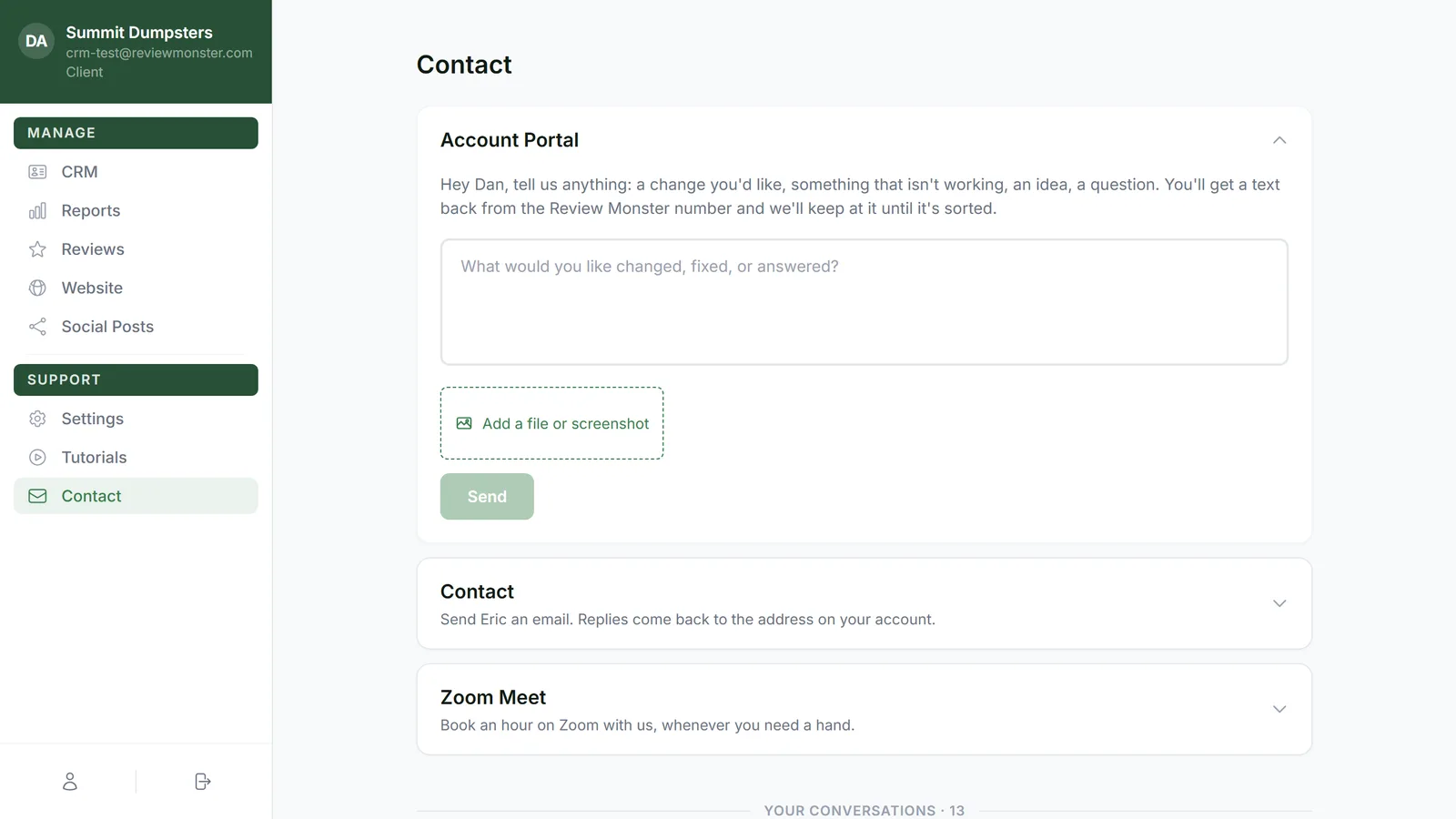
Send a note through the Account Portal
Use this for anything: a change you'd like, something that isn't working, an idea, a question. You get a text back from the Review Monster number, and we keep going until it's sorted.
- In the Account Portal card, type in the box that says What would you like changed, fixed, or answered?
- To add screenshots or files, click Add a file or screenshot. You can add up to five. Click the × on one to remove it.
- Click Send.
You'll see Sent — we'll text you shortly. Your note also shows up under Your conversations at the bottom of the page.
Email Eric
The Contact card is a plain email to Eric. Replies come back to the email address on your account, not to the dashboard.
- Click Contact to open the card. The To line already says Eric at Review Monster.
- Fill in Subject and Message. You need both before you can send.
- To add images, click Add a screenshot. This form takes pictures only, up to five.
- Click Send.
You'll see Sent. Eric will reply to your email.
Book a Zoom call
Open the Zoom Meet card to book an hour on Zoom with us. For the steps, see Booking a Zoom support call.
Read and reply to your conversations
Your conversations at the bottom of the page lists every note you've sent us, newest first, with the count next to the heading. Each one shows a title, a short summary, the date, and a status:
- we're on it: we have it, or you were the last to write.
- waiting on you: we've replied and are waiting to hear back.
- with a person: a member of our team is handling it.
- done: it's been sorted.
To read or reply:
- Click a conversation to open it. You'll see every message, yours and ours, with whether each one came by text or email.
- Type in the reply box at the bottom. You can add files with Add a file or screenshot.
- Click Reply, or press Enter. Use Shift+Enter for a new line.
Every conversation has a reply box, even one marked done. On a finished one it says Pick this back up any time…, so you can carry on without starting over.
On the phone app
In the CRM phone app, tap the + button, then Contact. You get two things:
- Account Portal: type a note, tap Add a screenshot or Attach a file, or record a voice memo, then tap Send feedback. We text you back from the Review Monster number, same as on the web.
- Email Eric: a Subject and a message, then Send email. There's no attachment option on this one.
The app doesn't have Zoom booking or the list of past conversations. Use the Contact page in your dashboard for those.
Related articles
- Booking a Zoom support call
- How to customize your account settings
- How to reset your own password
- Sending feedback and feature requests
- Getting help with the CRM