In this article, you'll learn how to set your sales tax rate, change it when your rate changes, and turn sales tax off if you don't charge it. Set it once and every new job and estimate adds the right tax on its own, so nobody has to work it out by hand.
The CRM keeps one company rate: your state or local rate. You don't build a list of rates for different towns. Each item in your price book says whether it's taxed, and this rate is what gets charged on the items that are.
To open the Sales tax page:
- At the bottom of the menu, click the Settings gear.
- Under Money, click Sales tax.
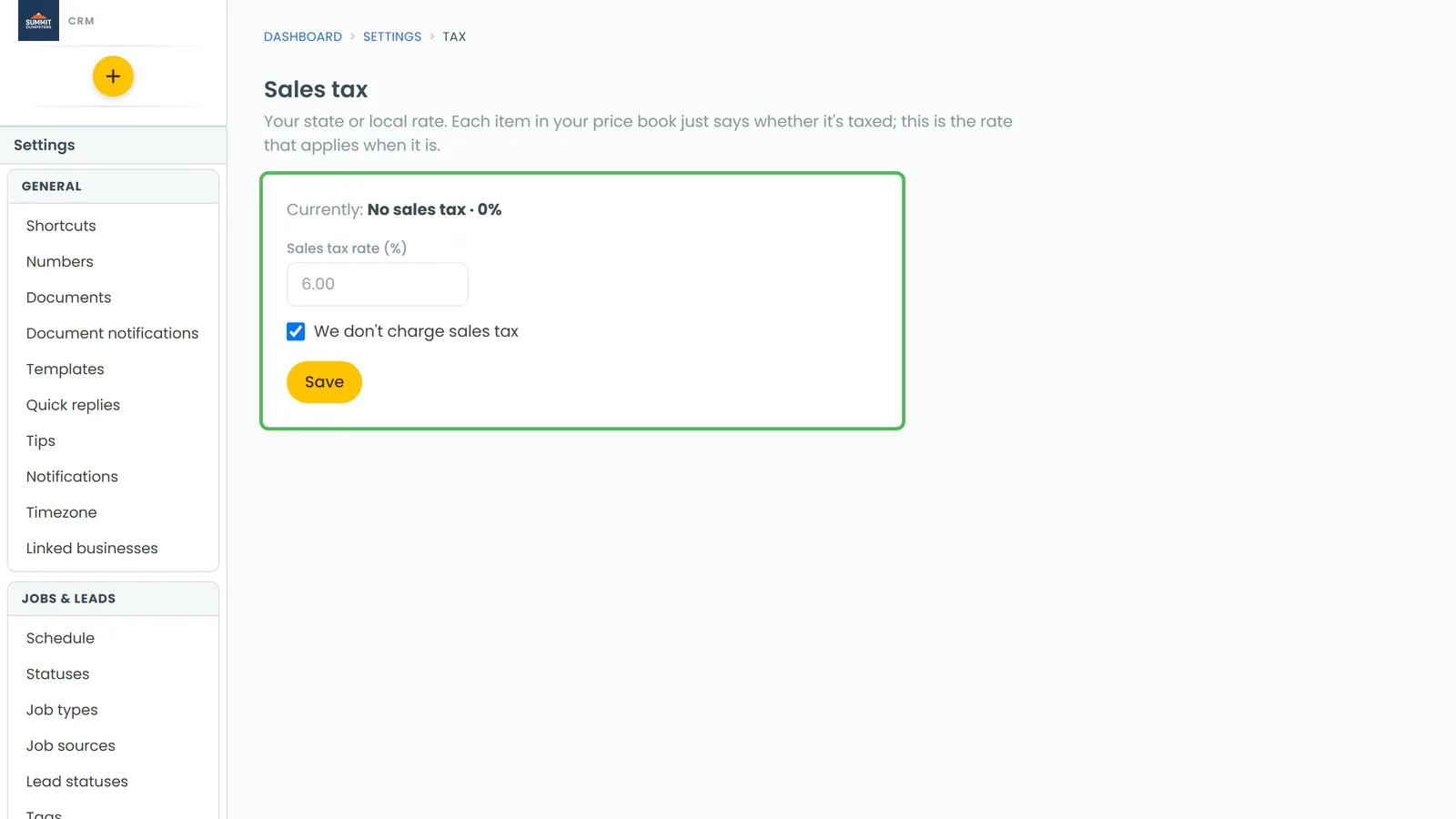
Setting or changing your rate
The line at the top, Currently:, shows the rate in use right now, or "not set" if nobody has entered one.
- In Sales tax rate (%), type your rate as a percentage. For 6%, type 6. Decimals like 6.25 are fine.
- Click Save.
Once it's saved, Saved. appears next to the button and Currently: shows the new rate. The rate has to be between 0 and 30.
If you don't charge sales tax
- Tick We don't charge sales tax. The rate box greys out.
- Click Save.
Currently: then reads "No sales tax · 0%". That counts as an answer, so the CRM won't keep asking you for a rate.
What happens to jobs that already have a rate
A new rate only applies from then on. New jobs, new estimates and jobs made from leads pick up whatever rate is current when they're created. An estimate added to an existing job uses that job's rate.
Your old rate isn't deleted. It steps down and stays on file for the jobs that already use it, so their totals don't change. Once you've saved more than one rate, an On file list appears under the form with every rate, and a default tag on the one in use now.
Changing the tax on one job
On a phone, in the app or the CRM in your phone's browser, you can switch a single job to a different rate. Open the job, then tap Tax rate in its totals. The Choose tax list shows None (0.000%) and every rate you have on file. Tap the one you want.
You can only pick a rate that's on file here. You can't type a new one on the job.
Customers who don't pay tax
If a customer is tax exempt, turn on the Tax exempt switch in their client details. Their jobs, estimates and invoices then total with no tax, whatever rate the job carries. Turn it off again and the tax comes straight back.
Choosing which items are taxed
The rate only applies to taxable items. Whether an item is taxed is set on the item in your price book with the Taxable item switch. When you add the item to a job, the line starts with the item's setting, and you can change it for that one job.
If an item never adds tax, check that switch first. See How to create items and services.
On the phone app
The phone app has the same page. Open the menu, tap the Settings gear at the bottom, then tap Sales tax under Money. It works the same way, except We don't charge sales tax is a switch instead of a tick box. Both save to the same place, so a change on one shows up on the other.
Related articles
- How to offer discounts to your clients
- How to create items and services
- Adding items from your price book to jobs and estimates
- How to create and send invoices
- How to customize your account settings