In this article, you'll learn how to offer your customers financing through Sunbit. It helps when a customer wants the work done but can't pay for a bigger job all at once.
Setup is short. You save your own Sunbit apply link once. After that, you can text it to a customer from the Collect payment screen, and they apply with Sunbit directly.
How it works
Sunbit is a buy now, pay later company. Your customer fills out Sunbit's application on Sunbit's site. If they're approved, they pay Sunbit over time. Sunbit runs the application, the approval and the payment plan.
Here's what the CRM does, and what it doesn't:
- It keeps your Sunbit apply link and texts it to a customer when you ask it to.
- It isn't connected to your Sunbit account. It can't see whether a customer applied, got approved or paid.
- It doesn't record the payment for you. When the money comes in, record it on the job yourself.
Get your Sunbit apply link
Every business has its own link. It usually looks like https://apply.sunbit.com/YourBusinessName. If you don't have one yet, ask your Sunbit rep for your merchant apply link.
Add your link to the CRM
Only an admin can save the link.
To add your link on the web:
- At the bottom of the menu, click the Settings gear.
- Under Money, click Financing.
- In the Sunbit card, paste your link into Sunbit apply link.
- Click Save. Saved appears next to the button.
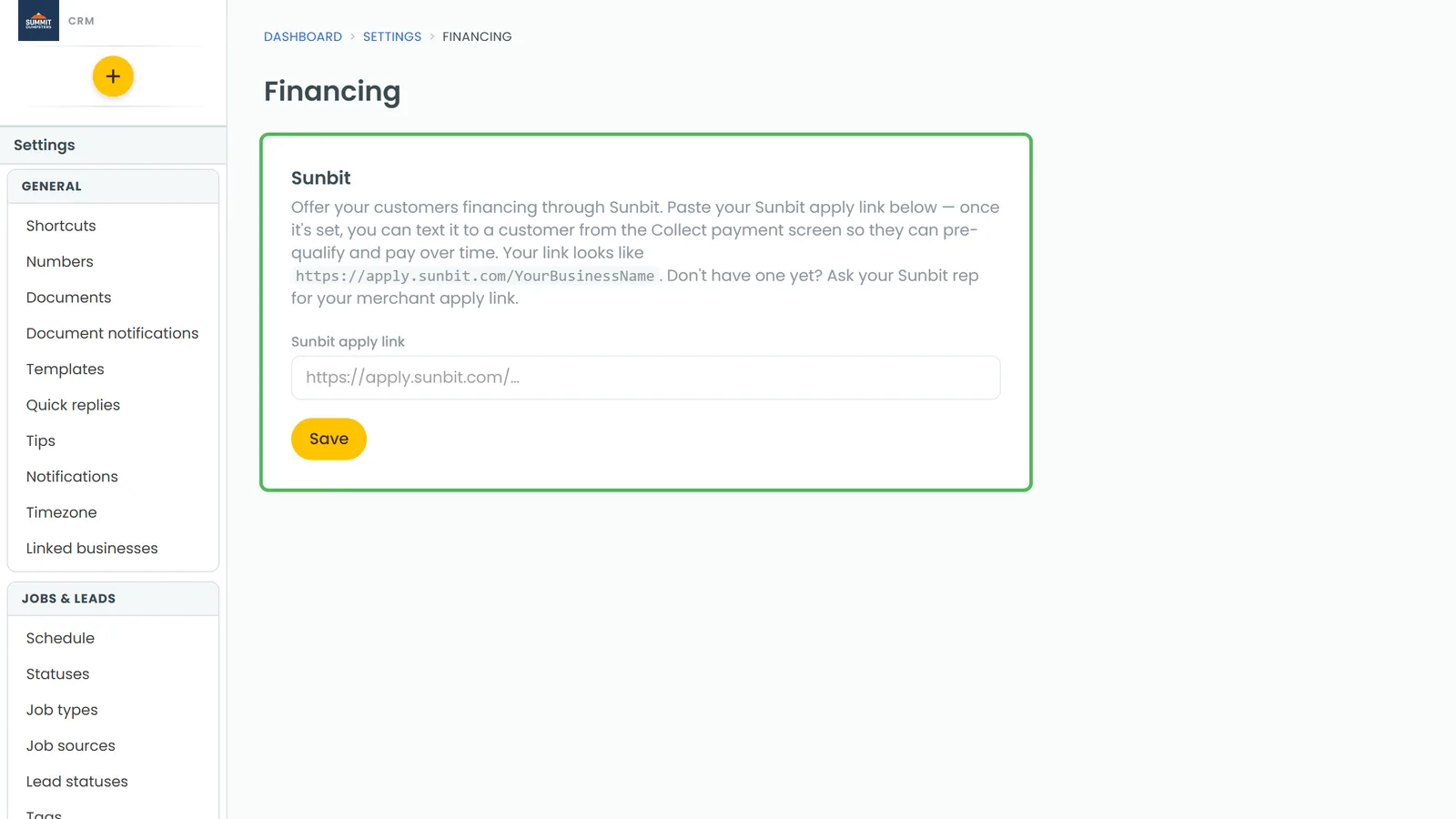
To add your link on the phone app:
- Open the menu and tap the Settings gear at the bottom.
- Under Money, tap Financing.
- Paste your link into Sunbit apply link.
- Tap Save.
The link has to be a full address that starts with https://. If it doesn't, the CRM won't save it and asks you to enter a full https:// link.
Text a customer your financing link
The financing option only shows up when your link is saved, the job still has money owed, and the customer has a phone number on file. It goes out as a text, so the number needs to be a mobile.
To send the link on the web:
- Open the job and click Create Invoice (it says View Invoice if the job already has one). From an invoice page, click Collect payment instead.
- In the Collect payment panel, scroll down to Offer financing (Sunbit).
- Click Text financing link. You'll see Financing link texted. once it's sent.
To send the link on the phone app:
- Open the job, and in its Payments section tap Add payment. From an invoice, tap Collect payment.
- Tap Offer financing (Sunbit). It sits under the other payment buttons while there's a balance due.
- Financing link texted. appears under the button.
Change what the text says
When you send from the web, the text uses the Financing template. You'll find it in Settings › Templates, under Payments. Out of the box it reads "Hi {first_name}, you can apply for financing to cover your service here:", and your apply link goes after it. You can also use {company} for your business name. Change the wording and save.
After the customer applies
From here the customer deals with Sunbit directly, and Sunbit tells you how it goes. Once you're paid, open the job and record the payment so the balance clears.
Related articles
- Recording cash and other offline payments
- Sending payment links
- Collecting payments on the phone app
- Editing the messages sent with estimates and invoices
- Tracking what a client owes