In this article, you'll learn how to set what happens when a client pays the deposit on an estimate. You can have the deposit keep their card on file, and you can let clients approve now and pay the deposit later. That way the deposit step fits how you like to get paid.
Both switches start off. Until you turn either one on, a client who signs a deposit estimate goes straight to paying the deposit, and saving the card is up to them.
To open the deposit settings:
- At the bottom of the menu, click the gear icon (Settings).
- Under Jobs & leads, click Estimates.
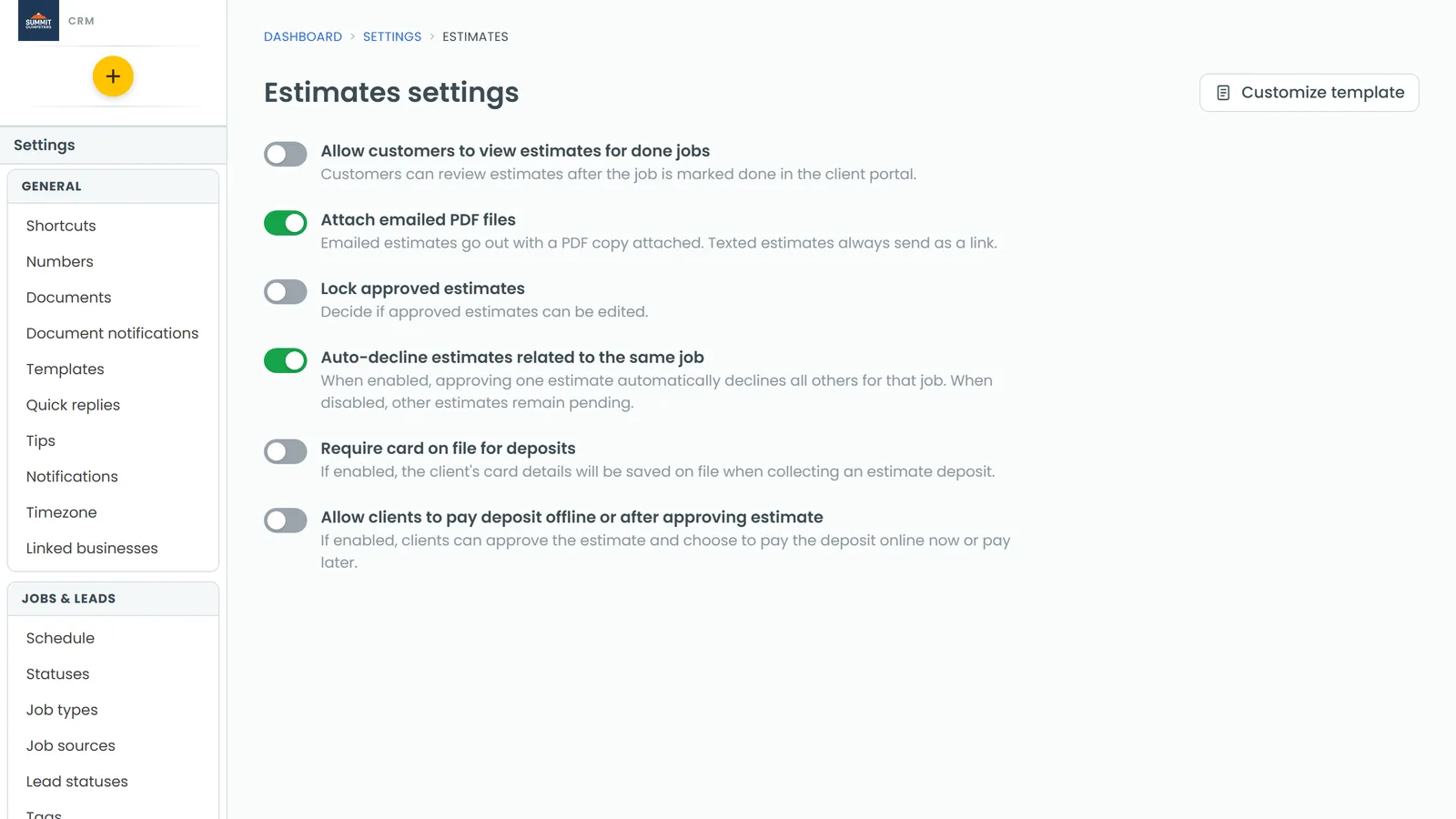
- Scroll to the last two switches on the Estimates settings page.
You can also click Estimates settings at the top of the Estimates list. In the phone app, open Settings and tap Estimates. The phone shows the same switches and saves to the same place, so a change on one shows up on the other.
Each switch saves as soon as you flip it. There's no Save button. If a change doesn't save, the switch flips back and a short message under the switches tells you why.
Require card on file for deposits
Turn on Require card on file for deposits when you want every online deposit to keep the client's card. You'll have it for the final bill or any follow-up work, and you won't need to ask for it again.
- Open Estimates settings.
- Turn on Require card on file for deposits.
What your clients see
When a client pays a deposit online, the box under the card form is already ticked and they can't untick it. It reads This card is kept on file for the deposit. Under that, a line tells them you may charge the card for future invoices they approve and that they can ask you to remove it any time.
The card details stay with Stripe, so you never see the full number. The card is saved to the client's record, and you can charge it later. See How to charge credit cards and How to add a card on file for clients.
With the switch off, the box is still there but it's the client's choice. It reads Save this card for future charges, or Replace my card on file with this one if you already have a card saved for them.
Allow clients to pay deposit offline or after approving estimate
By default, approving a deposit estimate and paying the deposit happen together. The client signs, clicks Continue, and goes straight to the deposit payment.
Turn on Allow clients to pay deposit offline or after approving estimate if some clients are ready to say yes but not ready to pay right then.
- Open Estimates settings.
- Turn on Allow clients to pay deposit offline or after approving estimate.
What your clients see
With the switch on, the client still signs the estimate first. After that, a Make a deposit step tells them the estimate is approved and signed, shows the deposit amount, and says the deposit stays in their inbox until it's paid. They get two buttons:
- Pay deposit, which takes them to the payment now.
- Pay later, which leaves the estimate approved with the deposit still owed.
The estimate then shows as Approved - Pending Deposit, and the client portal shows a Pay deposit button whenever they come back to it. If they'd rather hand you cash or a check, record it on the deposit invoice like any other offline payment. See Recording cash and other offline payments. Once the deposit is paid, the estimate moves to Approved.
Related articles
- How to request deposits on estimates
- How to add a card on file for clients
- Recording cash and other offline payments
- Turning off card payments on an invoice or estimate
- What your customers see when you send an estimate