In this article, you'll learn how clients and leads differ in the CRM and how they fit together. Once you know which is which, it's easier to follow up on work you haven't won yet without cluttering your jobs.
To open your leads:
- In the menu, click Leads.
To open your clients:
- In the menu, click Clients.
What is a lead?
A lead is a job that might happen. Someone called about a quote, filled in a form or asked for a price, and you don't know yet whether the work will go ahead.
Every lead gets its own number, like LEAD-0089. That number stays with the lead for good, and you can type it into the search box on the Leads page to find the lead wherever it sits.
Use a lead when you:
- Get a new inquiry
- Need to go out and quote the work
- Aren't sure yet whether the customer will book
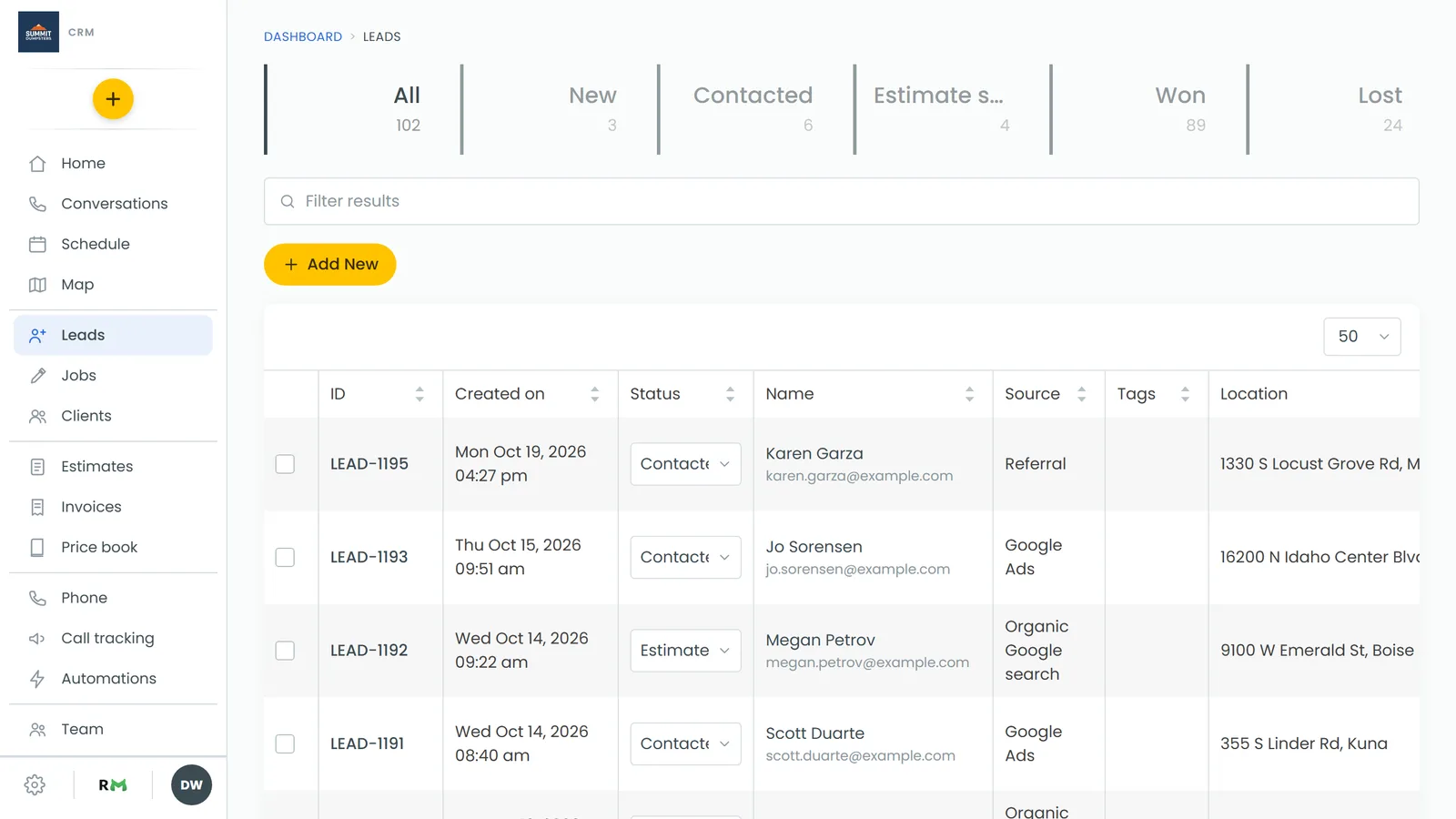
The tiles across the top of the Leads page are your pipeline, in the order you set them in Settings. Each tile shows how many leads are at that stage, and clicking one filters the list. Lost leads aren't counted under All, because they've left the pipeline.
Why leads matter
Keeping maybes as leads means your Jobs list and your job numbers only show real work. A lead you don't win never becomes a job, so it never has to be canceled.
When a lead doesn't work out, open it and click Mark lost. You'll pick a reason (Price too high, Went with another company, No response, Not a fit for us, Timing didn't work or Other) and can add a note. That tells you why you're losing work, which is a different question from why a booked job fell through.
What is a client?
A client is the person or business: their name, phone number, email and address. It's one record per customer, however many leads or jobs they have.
A lead always belongs to a client. When you add a lead, the CRM looks for a client with the same phone number or email. If it finds one, the lead goes on that client. If not, it makes a new client from the name, phone and email you entered. Either way, you don't end up with the same person in Clients twice.
What happens when a lead becomes a job
When the customer says yes, open the lead from the Leads page and click Convert to job.
Here's what the CRM does:
- It makes a new job with its own JOB- number. The lead's number doesn't carry over.
- The job is for the same client and copies the lead's address, phone, email, job type, source, notes, tags and anyone you'd put on the lead. If the lead already had a date, the job gets the same date.
- You're taken straight to the new job.
- The lead isn't deleted. It stays on the Leads page under its LEAD- number, moves to Won and remembers the job it became. Its panel then says This lead already became a job, and the Convert button is gone, so it can't be converted twice.
Related articles
- How to create leads
- Converting a lead into a job
- Marking leads as lost
- How to add new clients
- Your job, estimate and invoice numbers