In this article, you'll learn how to see an estimate or invoice the way your customer will see it, before you send it. It's the quickest way to catch a wrong price, a missing item or a layout that looks off.
Your customers open estimates and invoices in their customer portal, where they can see every document you've sent them. They only ever see what you've actually sent: an estimate shows up once it's no longer Unsent, and an invoice once it's no longer a draft. The preview lets you look first.
Previewing an estimate
The estimate preview opens the customer's portal in a new tab, right on that estimate, even if you haven't sent it yet.
To preview an estimate:
- Open the estimate you want to check.
- Click Actions.
- Click Preview as customer.
The estimate opens in a new tab the way it'll look in the customer's portal, with the same Approve and Decline buttons they'll see.
An unsent estimate only opens through this preview. It isn't listed in the customer's inbox, so they can't come across it on their own.
Previewing an invoice
To preview an invoice:
- Open the invoice.
- In the row of buttons under the invoice card, click Preview.
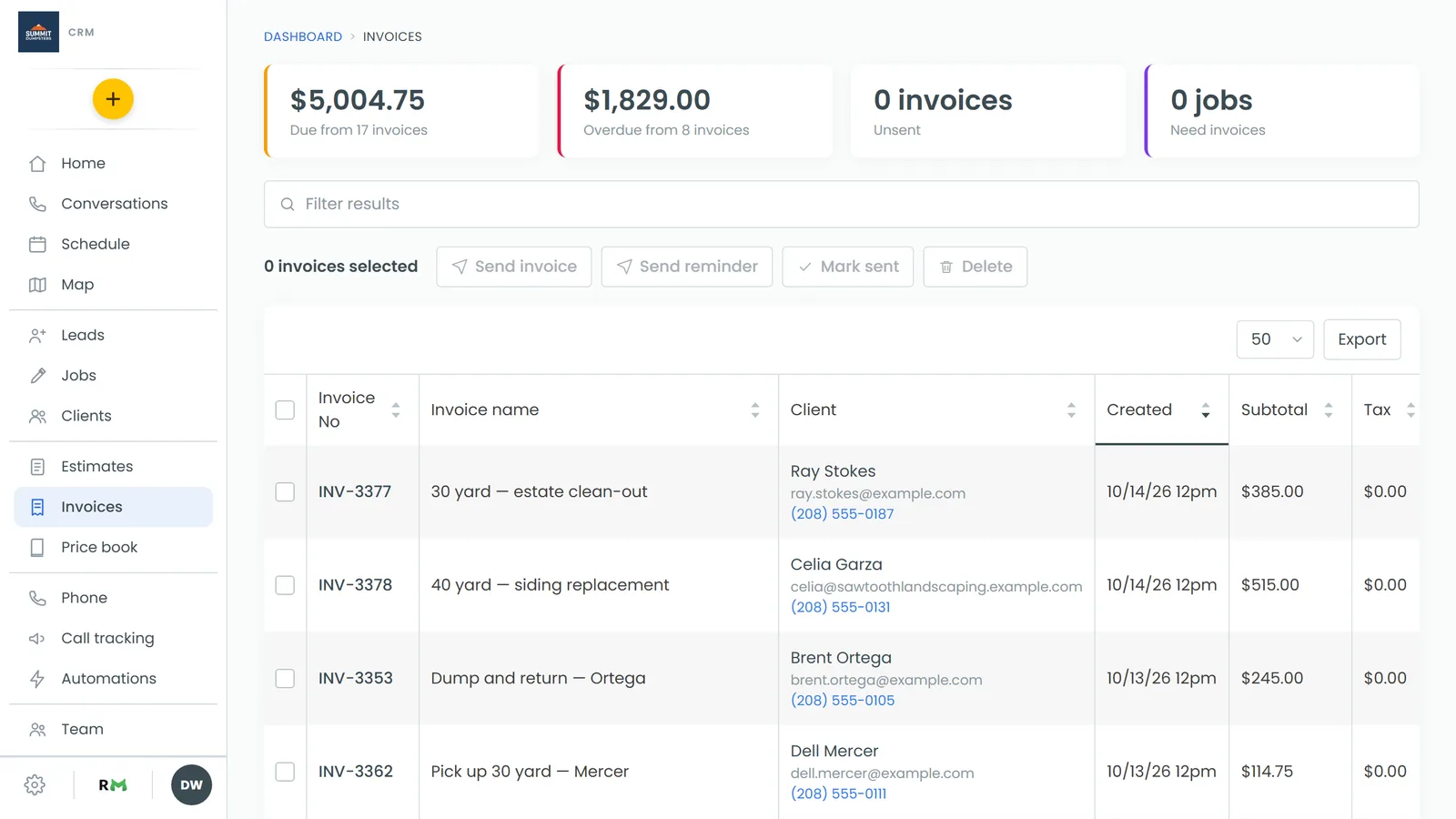
The Preview button only shows when the invoice has a customer on it.
This preview works differently from the estimate one. It opens the customer's portal, and the portal only shows invoices that have been sent. So:
- On an invoice you've already sent, the preview opens that invoice.
- On a draft invoice, the preview lands on the customer's inbox, and the draft isn't there.
To check how a draft invoice will look before it goes out, use the template preview further down.
On the phone app
The app has the same previews:
- On an estimate, tap the ⋮ menu at the top right, then Preview as customer.
- On an invoice, tap the ⋮ menu at the top right, then Preview. View as client in the same menu opens the same portal page.
They open the same customer pages as on the web, so the same rules about unsent estimates and draft invoices apply.
Checking the layout with the template preview
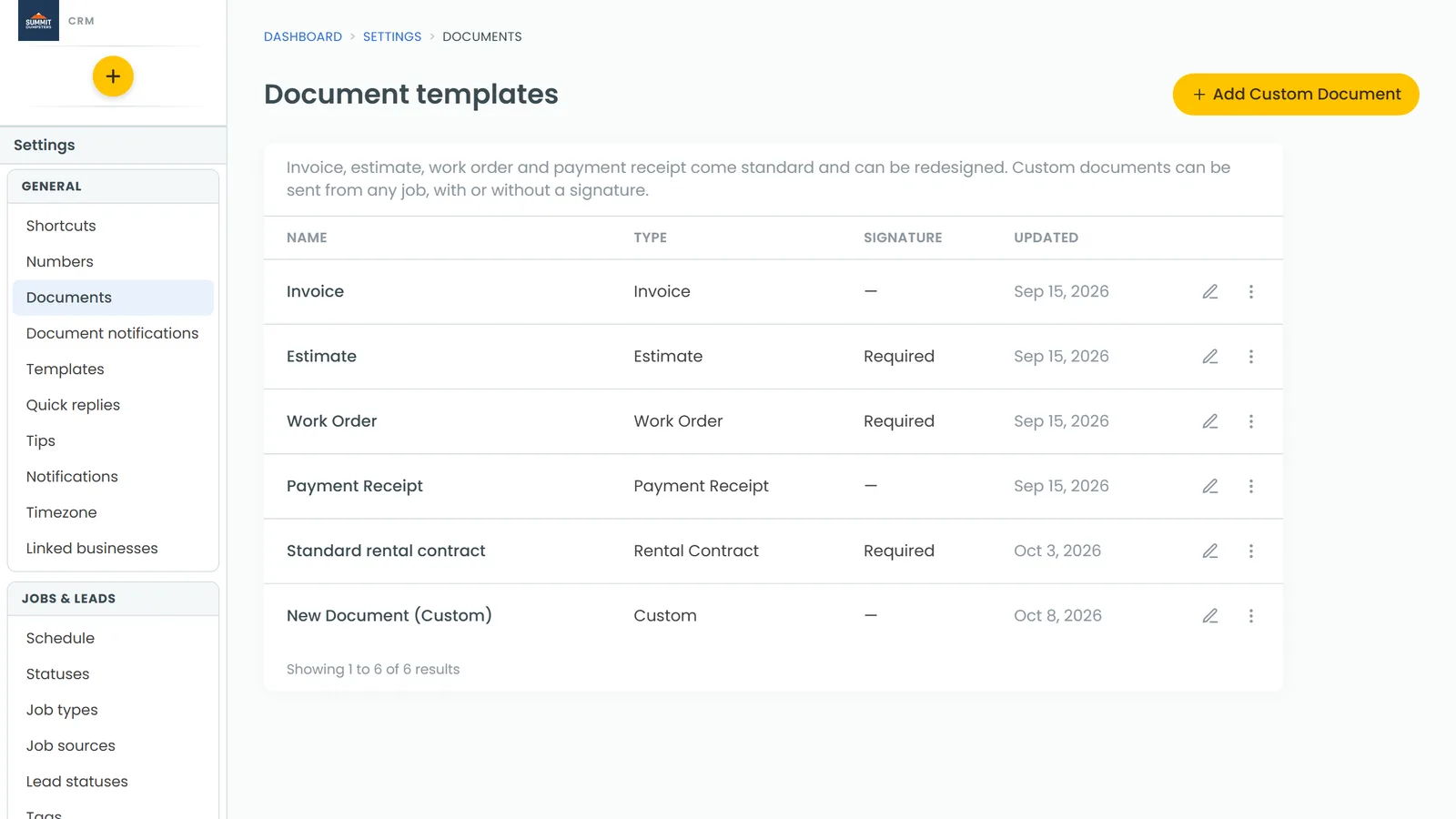
Every estimate, invoice and payment receipt is drawn from its template, so the template designer is where you check how the page is laid out: your logo, the headings, where the items list sits. Its preview fills the page with sample details, not a real customer's.
To preview a template:
- Go to Settings › Documents.
- Click the template's name, for example Estimate or Invoice.
- At the top of the designer, click Preview.
The page opens in a preview window. It shows your changes even before you click Save, so you can try something, look, and undo it if you don't like it. Close the window with the ×.
Related articles
- Customizing estimate, invoice and receipt templates
- Customer portal overview
- What your customers see when you send an estimate
- What your customers see when you send an invoice
- How to know when a customer has viewed an estimate