In this article, you'll learn the two most common ways to move work through the CRM. You can quote first and then book the job, or you can book the job straight away. Pick the one that matches how you sell. Your job numbers stay clean, and nobody has to guess what stage a customer is in.
To start anything new:
- In the menu, click the yellow + button.
- Pick New job, New lead or New client.
If you're on a customer's page, the same + offers New job, New lead and New estimate for that customer, and their details are already filled in. The yellow Create new button on their page has Job, Estimate and Lead too.
Workflow 1: Quote first (lead, estimate, job, invoice)
This one suits businesses that give free quotes. A lead is a possible job, not booked work. If you lose a lead, it never counts as a canceled job, so your job numbers only show real work.
Log the lead
- Click the + and pick New lead.
- Under Client Details, type the customer's name. If they're already in your list, pick them and their details fill in.
- Fill in the Service Location.
- Under Lead Details, add a Job name, Job type, Job source and Job description if you have them.
- Under Scheduled, leave Schedule it now? on No. If you're going out to look at the job, switch it to Yes and set a time.
- Click Create. The lead shows up on your Leads page.
Write the estimate
- Open the customer's page, click Create new and pick Estimate.
- Fill in the form. The middle card is called Estimate Details here. Click Create and the new estimate opens.
- Click Add item to add what you're quoting, or Price book to pick from your saved items.
- Click Send, then Send email or Send text.
When the customer approves
Your customer approves the estimate by signing it in their customer portal. You choose who hears about it, and how, in Settings › Document notifications.
To turn the approved estimate into a job:
- Open the estimate.
- Click Actions, then Copy to job.
- Confirm. You land on a new job with the estimate's customer and items. Optional items don't come across, so add any the customer picked on the job yourself.
The lead is marked as won by that job, and the estimate shows which job it became. Once that happens, Copy to job is gone from the menu and the estimate can't be edited.
You can also click Convert to job in the lead's panel on the Leads page. That makes the job from the lead's details only, without the estimate's items.
Invoice the job
- On the job page, click Create Invoice. The Collect payment panel opens with the invoice ready.
- Click Send invoice to text or email it, or take the payment right there.
Once an invoice exists, the same button reads View Invoice.
Workflow 2: Straight to a job (job, invoice)
This suits businesses that don't do free quotes, or that charge for the visit. The work is booked, so you skip the lead.
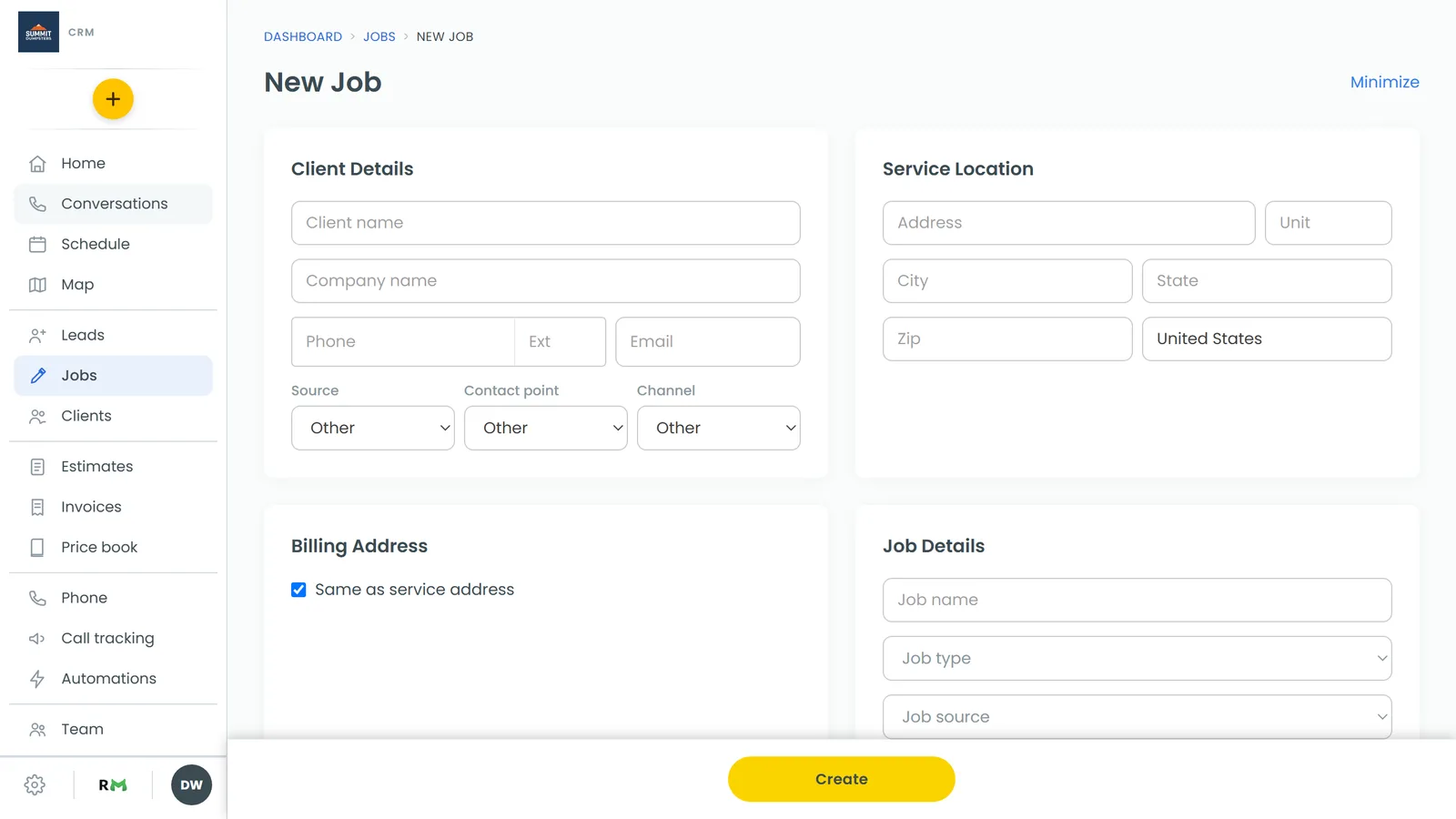
- Click the + and pick New job.
- Fill in Client Details, Service Location and Job Details.
- Under Scheduled, set the date, time and who's going.
- Click Create. The job page opens.
Need to quote extra work while you're there? Open the job's Estimates tab and click Add estimate. Then click Add item, and send it with Text estimate or Email estimate. Once the customer has signed, click Create job from this to make a separate new job with those items.
Nothing copies an estimate's items back onto the job it was written on. If the work goes on this same job, add the items on the job's Items tab.
When the work's done, click Create Invoice on the job and send it the same way as above.
Keeping track with statuses
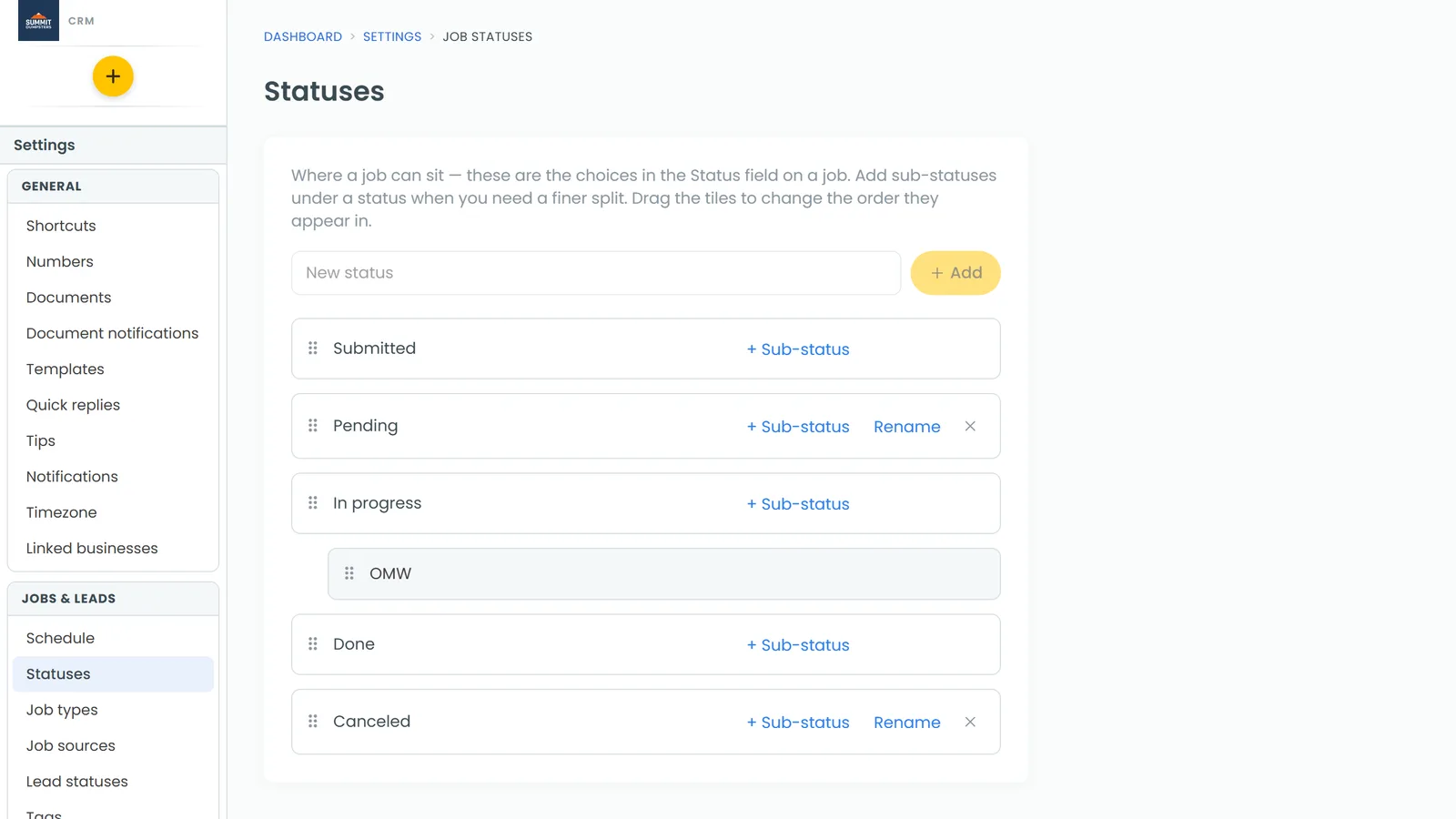
Every job has a Status near the top of its page. Click it to pick a new one. New companies start with Submitted, Pending, In progress, Done and Canceled, plus an OMW sub-status under In progress. When the job is finished and paid, set it to Done.
To change the list:
- Click the Settings gear at the bottom of the menu.
- Under Jobs & leads, click Statuses.
- Click New status to add one, or New sub-status to add a finer step under one you already have.
Whatever's on this page, in this order, is what a job's Status menu offers.
Related articles
- How to schedule and manage jobs
- Understanding clients vs leads
- Creating a job from an estimate
- How to create and send invoices
- How to create sub-statuses