In this article, you'll learn what to check when your CRM phone isn't behaving: calls that don't ring, callers who see a spam warning, and texts that won't go through. Each check tells you where the setting lives and what it should look like.
Most of these settings sit under Settings, which needs the Account Settings permission. Blocked callers is the exception: anyone signed in can block or unblock a number.
To open your phone settings:
- At the bottom of the menu, click the Settings gear.
- Under Phone & booking, click Phone numbers or Blocked callers.
The phone app has the same two pages: open the menu, tap the Settings gear, then Phone numbers or Blocked callers under Phone & booking.
Calls don't ring
Work through these in order. The first two are quick switches that often get left on by mistake.
Check the All calls switch
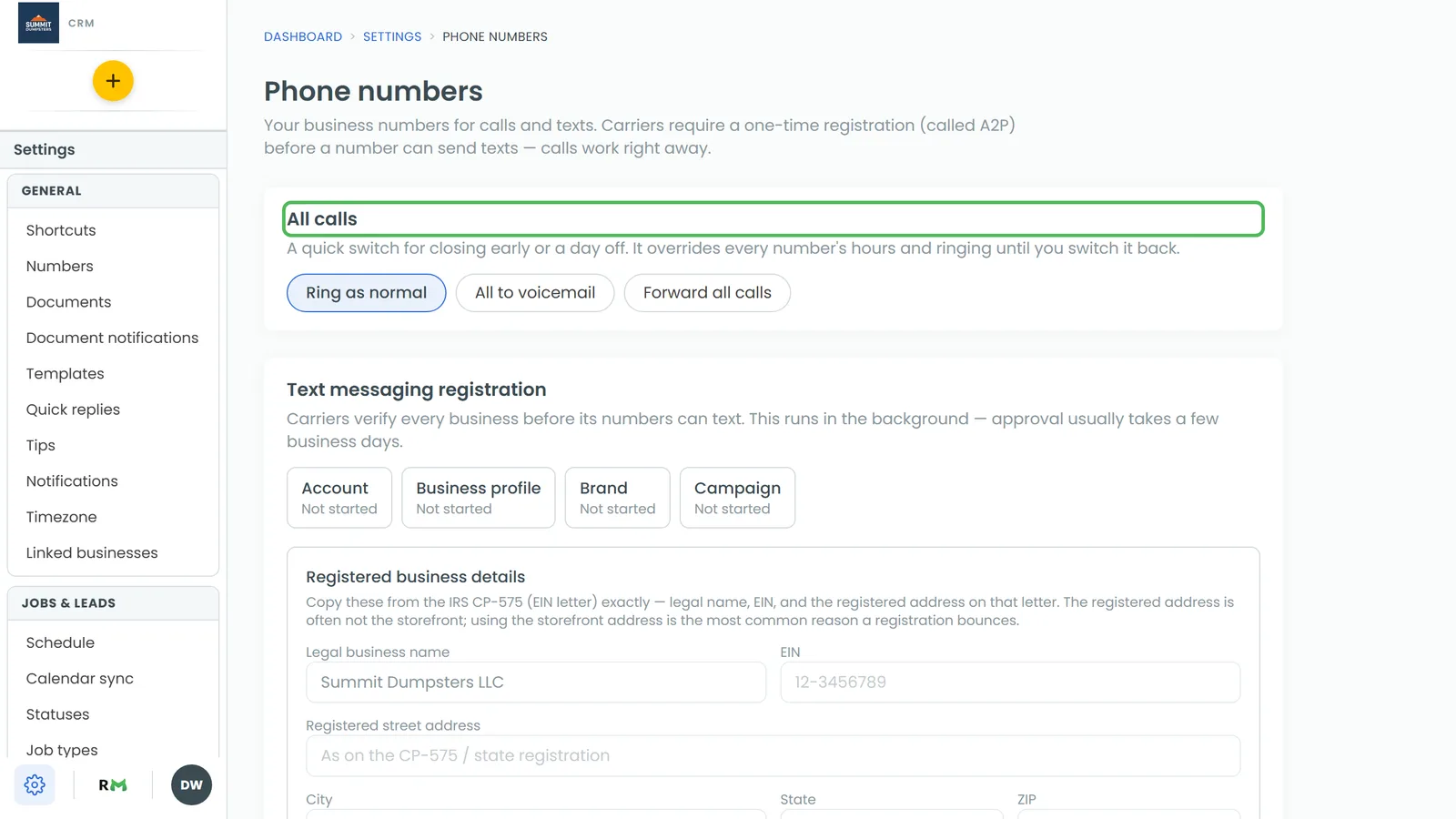
The All calls card at the top of Phone numbers overrides every number's hours and ringing until you switch it back.
- Look at which choice is selected: Ring as normal, All to voicemail or Forward all calls.
- If it isn't Ring as normal, the card is highlighted and tells you, for example Every call is going straight to voicemail. It also names who switched it on.
- Click Ring as normal to turn it off.
Check you're taking calls
- Scroll to Who's taking calls.
- Find your name. It should read Taking calls. If it reads Not taking calls, calls skip you until you tick the box again.
Check closed days and the number's hours
A closed day makes every number answer with the after-hours greeting all day, even a number set to always open.
- Scroll to Closed days and look for today's date. Click Remove next to a day that shouldn't be there.
- In the Phone numbers list, click Edit on your CRM number and open the Hours tab.
- Check today's hours, or tick Always open — ring at any hour.
Check who the number rings
On the same number, open the Ringing tab. Calls go to is the first person or number rung. Also ring these team members lists who else rings, and on which device: Web app, Mobile app or Phone number. If your name isn't ticked, or the wrong device is, your phone stays quiet. The full steps are in Choosing who your calls ring and Setting up call forwarding.
Check the caller isn't blocked
Calls from a blocked number get a busy signal, and nobody's phone rings. Blocking a number from a conversation adds it to this list, so it's easy to do without remembering.
- Under Phone & booking, click Blocked callers.
- Find the number. If it shouldn't be there, click Unblock.
- A box titled Unblock caller asks you to confirm. Click Unblock.
Unblocking lets their calls and texts through again and brings their conversation back to the inbox. The app's Blocked callers page works the same way. For more, see Blocking unwanted calls and texts.
Check for spam filtering
If a call went straight to voicemail and shows in Conversations as Suspected spam, the Spam filtering card caught it. Anyone saved as a customer always rings through, so if a filtered caller is real, save them as a client.
Calls don't ring the phone app
The app signs up for business calls every time you open it or bring it back to the front, so the first thing to try is opening the app. On Android the app also checks two phone settings, at most once a week, and offers the fix. On an iPhone there's nothing to check: a business call rings on the phone's own call screen.
On Android: allow the microphone
Android won't show an incoming business call at all if the app can't use the microphone. If it's off, you'll see a prompt titled Let business calls ring this phone.
- Tap Allow.
- If you tapped Not now, the app tells you Calls won't ring here. Tap Open settings and allow the microphone for the app there.
On Android: turn on full-screen notifications
Newer Android phones can be set to show a business call as a small banner only, with no ringing screen while the phone is locked. When the app spots this, it shows Let calls ring on your lock screen.
- Tap Turn on.
- In the screen that opens, allow full-screen notifications for the app.
Customers see "spam" when you call
Carriers are more likely to label calls from unregistered numbers as spam or send them to voicemail. The CRM files three registrations for you once your business profile is approved, and you can see where each one stands.
To check your calling registration (desktop web only):
- At the bottom of the menu, click the Settings gear.
- Under Phone & booking, click Phone numbers.
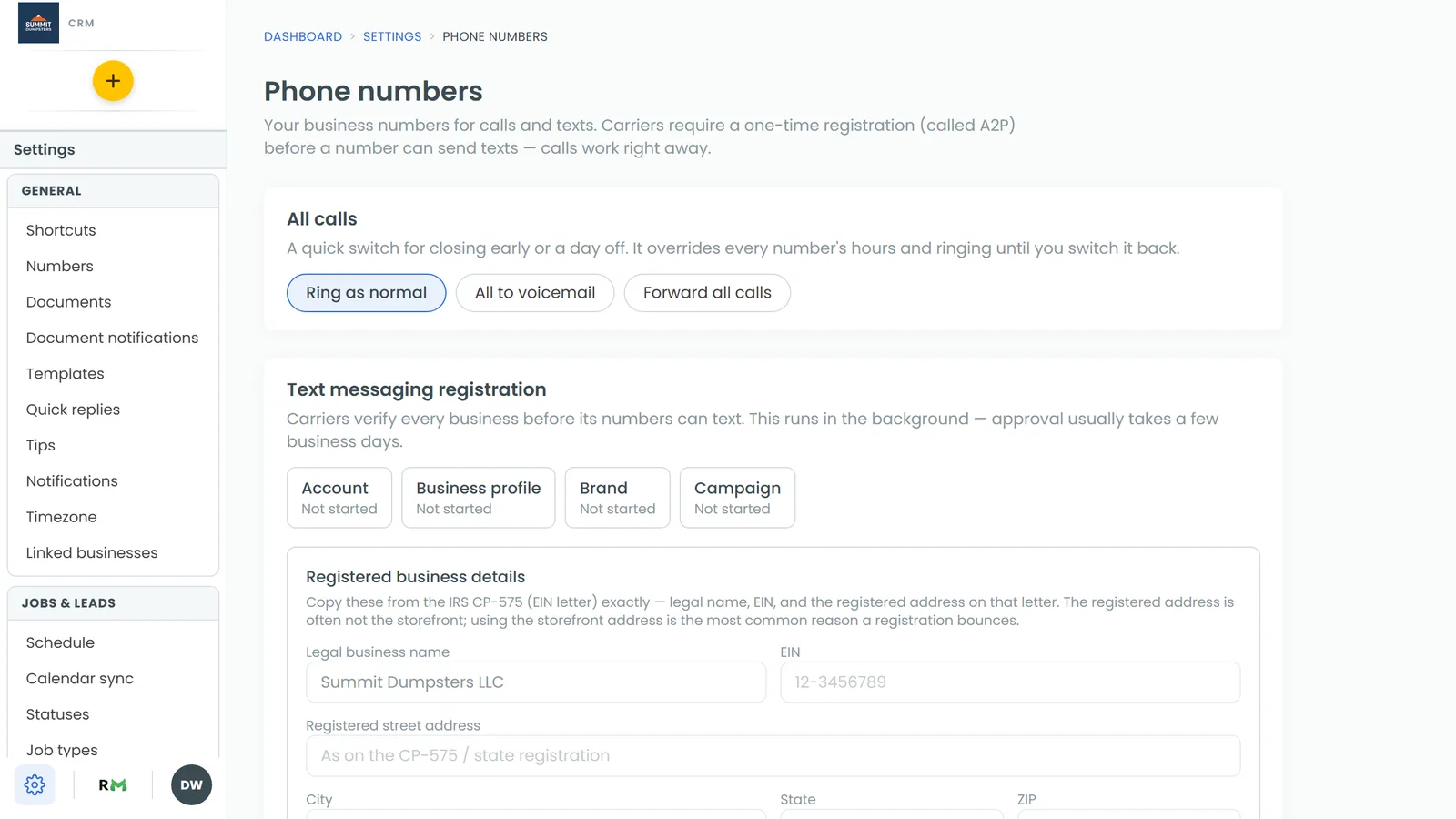
- Scroll to the Calling registration card. It shows Trusted calls, Caller ID name and Spam protection, each marked Not filed, In review, Approved or Rejected.
- If Spam protection hasn't filed, fill in Employees and Outbound calls per business day and click Save. It files once both are in.
If people say your calls show up without your business name, set your caller ID name. Setting your caller ID name to avoid looking like spam explains how.
Texts fail or don't arrive
First look at the message's status in the conversation. Understanding message statuses and failed texts explains what each one means and what to do about a failed text.
If many texts are failing, or you've just set up your number, your texting registration may not be approved yet. On Phone numbers, the Text messaging registration card shows an A2P Verified badge once it's through. Until then you can click Continue registration there, on the web or in the app. The desktop web page also has Refresh status. See Understanding texting registration (A2P).
Still stuck?
If none of this sorts it out, reach out to us. Getting help with the CRM shows you how.