In this article, you'll learn where your review link is and how to copy it. It's the page your customers open to leave you a Google review. Once you have it, you can print it on invoices and receipts or send it to a customer yourself.
Your review link is the address of your review filter page. Your review request texts and emails open the same page. They add a short code to the end of the link so you can see who clicked, but the plain link works for anyone.
To find your review link:
- Sign in to your Review Monster dashboard.
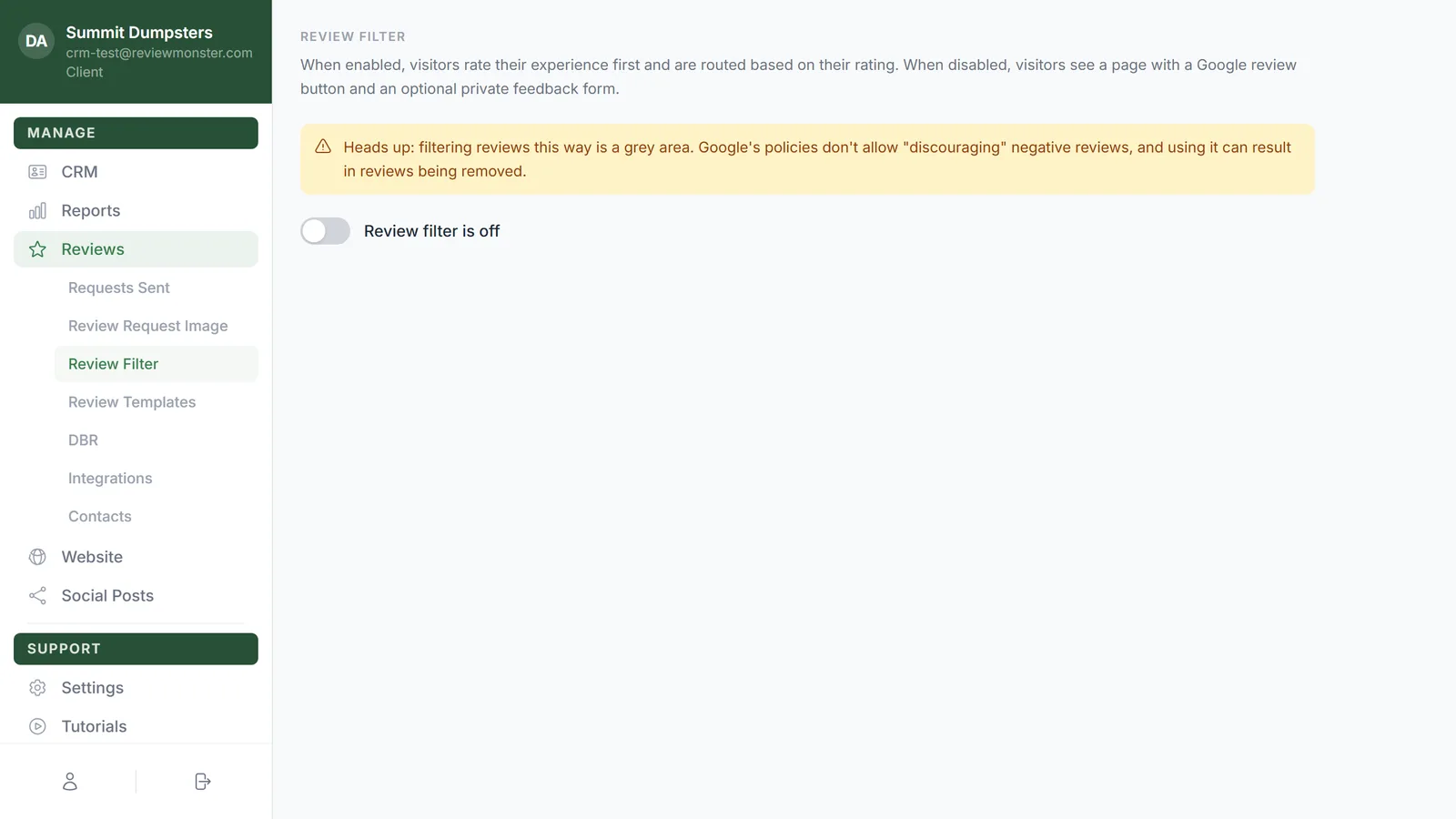
- In the menu, click Reviews, then click Review Filter.
- Scroll down to Your review filter page. You'll see a small preview of the page, and your link is just under it. It starts with https://.
Copy your review link
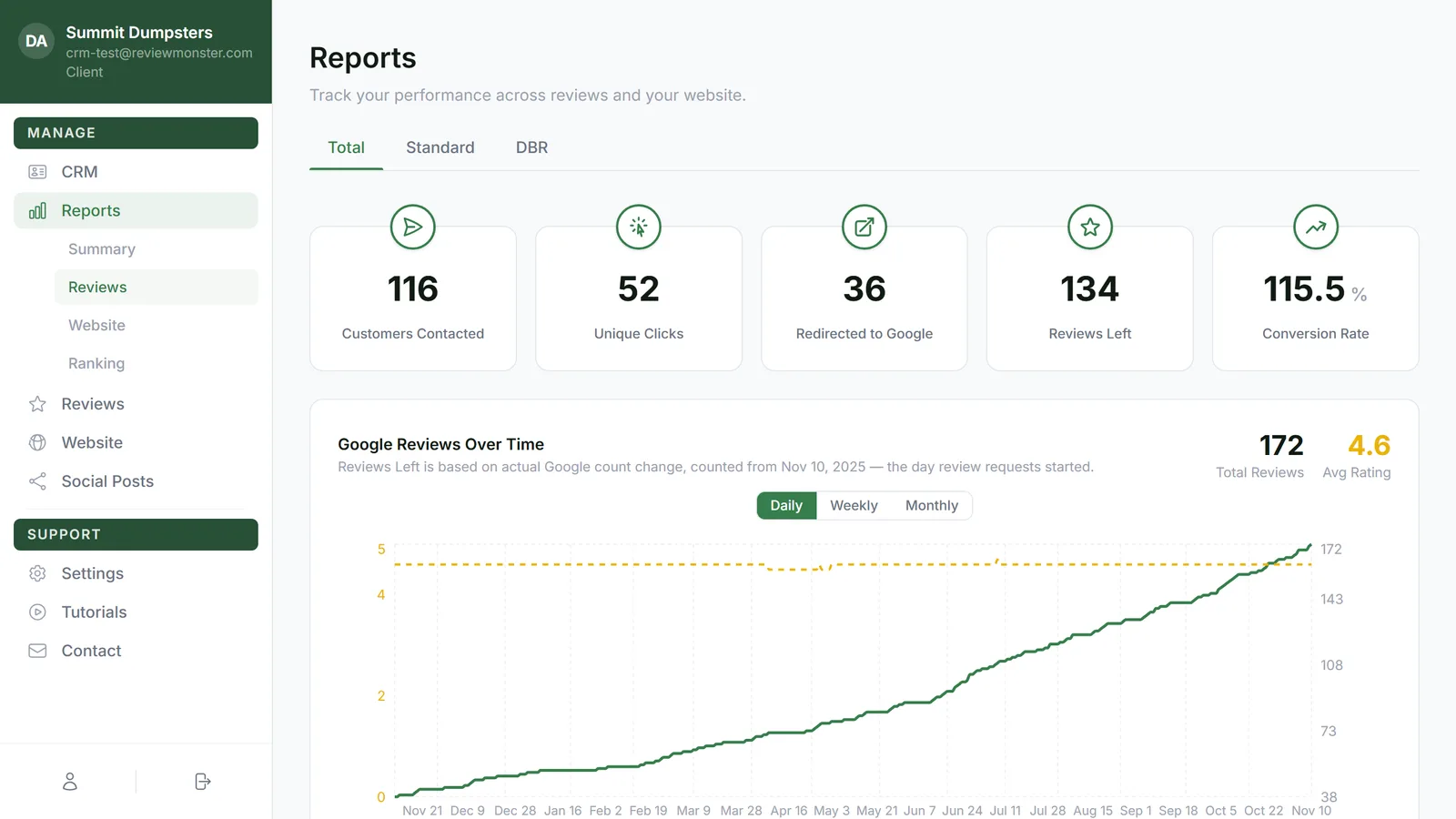
- Go to Reviews > Review Filter, as above.
- Right-click the link under the preview.
- Choose Copy link address. Some browsers call it Copy link.
You can also click the link or the preview. Your review filter page opens in a new tab, and you can copy the address from your browser's address bar.
What customers see when they open it
What the page shows depends on the switch at the top of the same screen:
- Review filter is off: customers get a page with a button to leave you a Google review and an optional form for private feedback.
- Review filter is on: customers rate their visit first, and their rating decides whether they're sent to Google or to a private feedback form. You choose which ratings go to Google under Review routing, which appears below the switch while the filter is on.
The link stays the same either way, so you can flip the switch whenever you like without reprinting anything.
Put it on your invoices
Paste the link anywhere your customers will see it: a printed invoice, a receipt, a business card or a thank-you note. Copy it exactly as it shows on the dashboard so no letters go missing.
If you send invoices from the CRM, you can add the link to your Invoice template in a text block. It'll then show on every invoice your customers open or download.
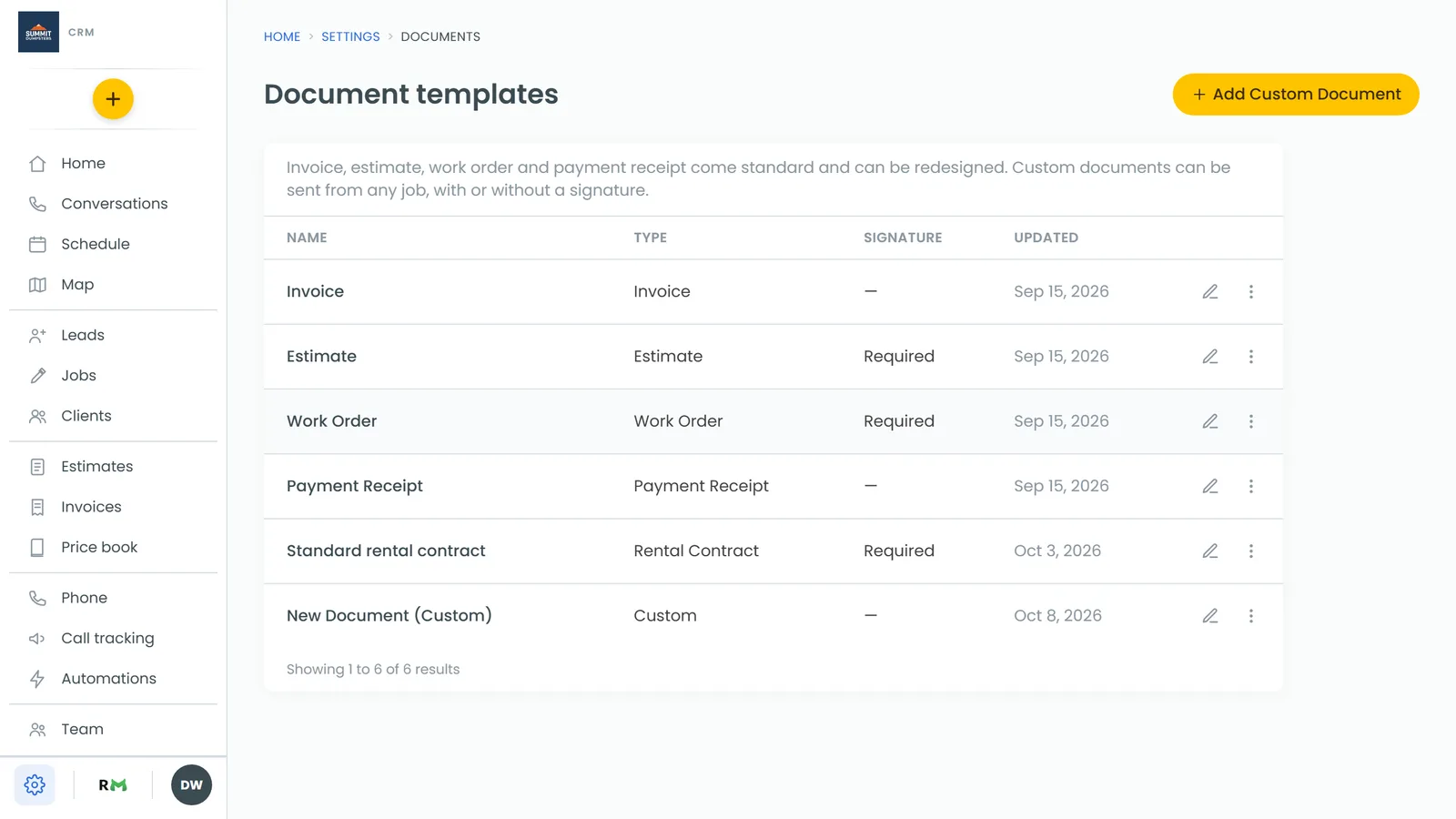
- In the CRM, go to Settings > Documents.
- Click Invoice to open it in the designer.
- On the right, click the Layout tab and drag a layout onto the page where you want the link. Dropping it below the last row adds it to the bottom.
- Click the Tools tab and drag TEXT into an empty box. Empty boxes say Drag Something Here.
- Paste your link into the text block, then click Save.
Customizing estimate, invoice and receipt templates walks through the designer in more detail.