In this article, you'll learn how to create, edit and use quick replies. A quick reply is a message you save once and can then add to any text in a couple of taps, so you're not typing "sorry we missed your call" for the tenth time this week.
Quick replies work the same on the web and in the phone app, and your whole company shares one list. Your account starts with a few ready-made ones you can edit or delete: Missed your call, On our way, Running late, Follow up on estimate and Thanks.
To open your quick replies:
- In the menu, click Conversations.
- At the top of the screen, click Quick replies in the switch (Conversations | Dialer | Quick replies).
You can also get there from Settings: under General, click Quick replies. It's the same list either way, on the web and in the app.
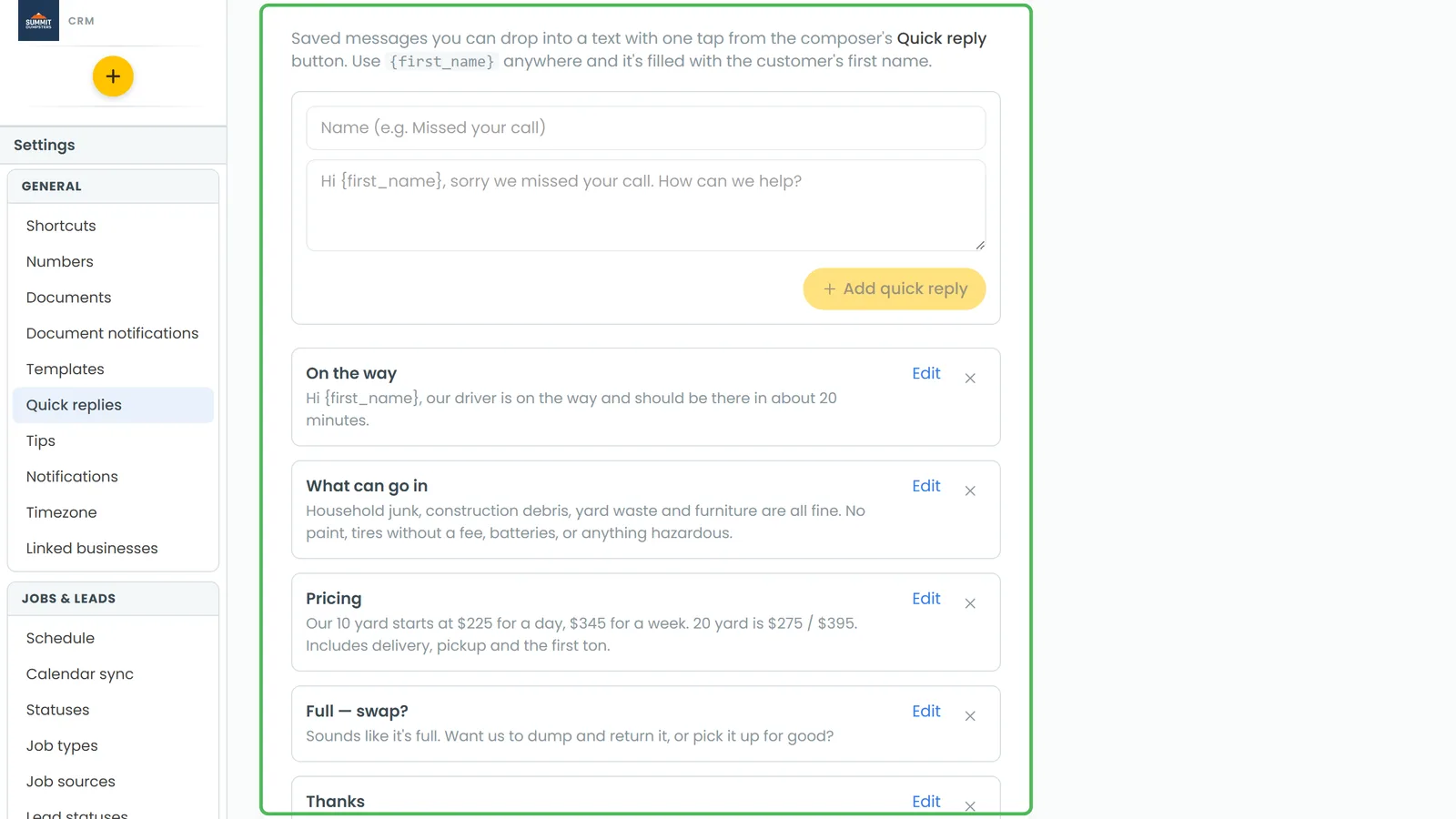
Creating a quick reply
- Open your quick replies (see above).
- In the Name box, type a short name you'll recognize in the list, like Missed your call.
- In the message box under it, type the message exactly the way the customer should read it.
- Click Add quick reply.
The new quick reply shows up at the bottom of the list right away. Add quick reply stays greyed out until both the name and the message have something in them.
Filling in names for you
You can type these placeholders anywhere in a message:
- {first_name} becomes the customer's first name when you use the reply. "Hi {first_name}, we're on our way" goes out as "Hi Sarah, we're on our way."
- {owner} becomes the account owner's first name.
- {business} becomes your business name.
Type them just as shown, curly brackets included. {owner} and {business} get filled in as soon as the quick reply is saved, so in your list you'll see the real names, not the placeholders. {first_name} stays a placeholder until you pick the reply in a conversation.
Editing or deleting a quick reply
Every saved quick reply has Edit and an X next to it.
To edit one:
- Click Edit next to the quick reply.
- Change the name or the message.
- Click Save. Click Cancel to leave it as it was.
To delete one:
- Click the X next to the quick reply.
- You'll be asked to confirm. Click Delete.
Using a quick reply in a conversation
- Open a conversation.
- Click the + next to the message box.
- Choose Quick reply.
- Click the one you want.
Each message in the list already has the customer's first name filled in, so you see exactly what they'll get. The quick reply goes into the message box but doesn't send by itself, so you can change it first. When it looks right, send it like any other message.
On the web, the Send message drawer that opens when you click a Text button works the same way: on the Via SMS tab, click Quick reply under the message box and pick one.
If the list says "No quick replies yet", none have been saved. Add some from Quick replies first.