In this article, you'll learn how to read and reply to customer texts and emails from the phone app. It's the same inbox you have on the web, so you can answer a customer from the truck instead of waiting until you're back at a desk.
To open your conversations:
- In the bar at the bottom of the app, tap Conversations.
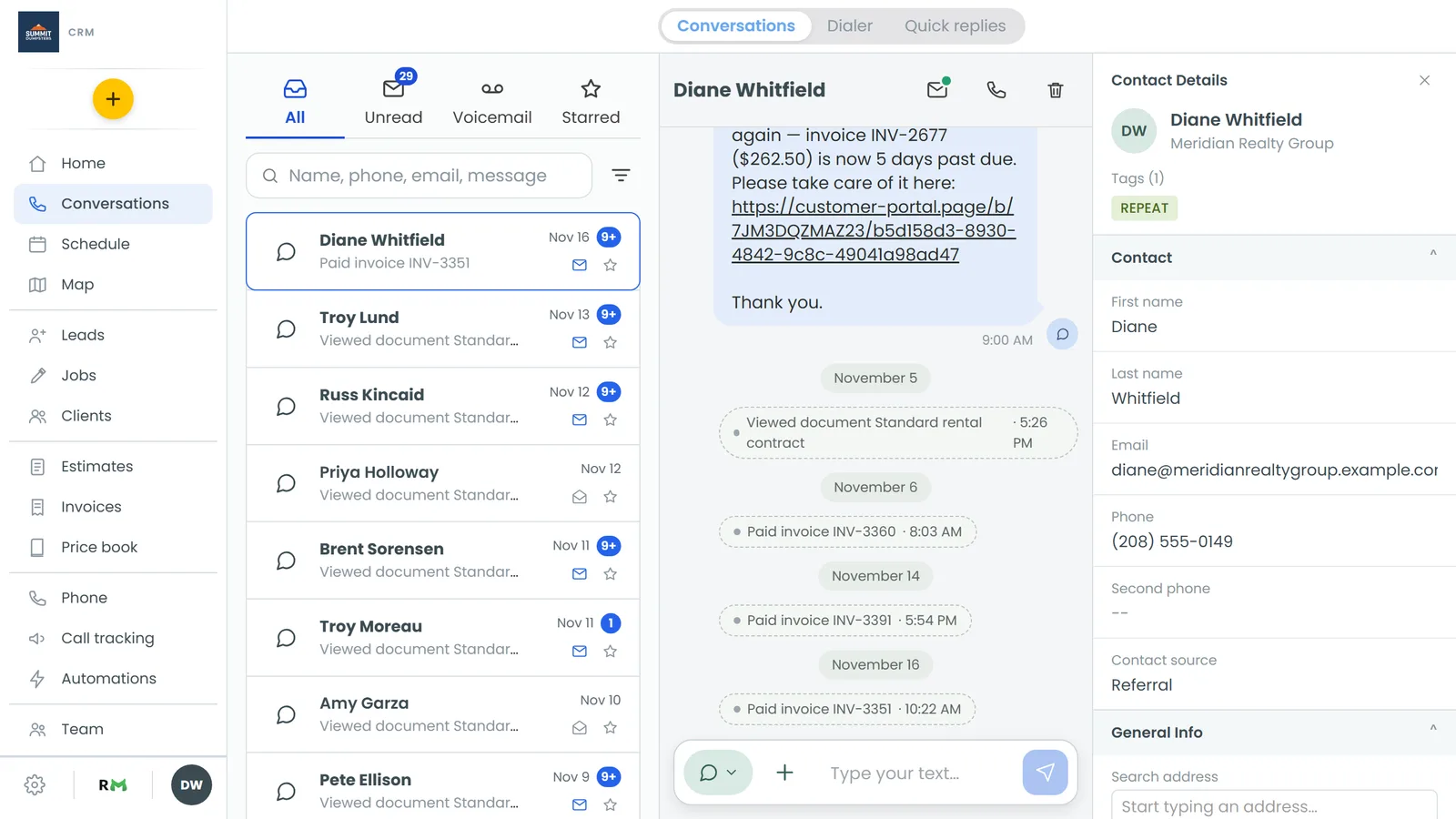
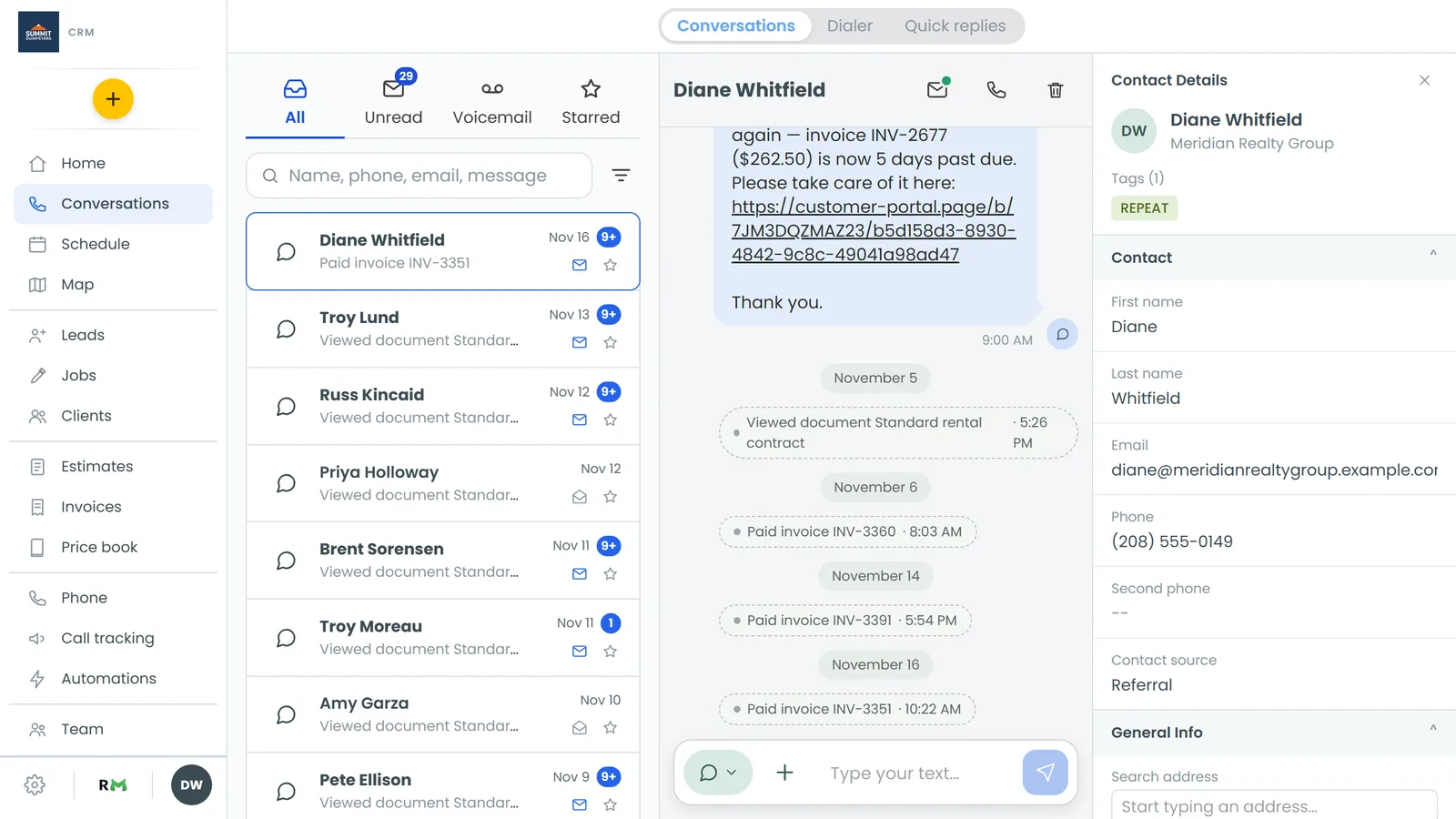
At the top of the screen there's a switch with three pages: Conversations, Dialer and Quick replies. Conversations is your inbox. Quick replies is covered further down. The Dialer has its own article.
Finding the conversation you want
Every conversation sits on its own tile, newest first, grouped by day. The icon on the left shows what happened last: a text, an email, a Facebook message, or a call (green for answered, red for missed, a small tape icon for a voicemail). The second line shows the time and a preview of the last message. Your own messages are marked You:.
Under the page switch you'll see four tabs:
- All: every conversation.
- Unread: only conversations with something you haven't read. The number on the tab is how many.
- Voicemail: calls that left a voicemail. The number is how many you haven't listened to.
- Starred: conversations you've starred. The number is how many.
To narrow it down by channel:
- Tap the filter icon to the right of the search box. A sheet called Show opens.
- Pick Everything, Calls, SMS, Email or Facebook.
The same sheet has three checkboxes under a line: Active (your inbox, on by default), Deleted (conversations you've deleted or blocked) and Hidden (voicemails you've swiped away).
The channel filter goes by the most recent message on each tile. So SMS shows conversations whose last message was a text.
You can also type in the search box (it says Name, phone, email, message) to find a customer by name, number, email address or something they wrote. On All and Unread, tap Show more at the bottom to load older conversations. Starred keeps loading on its own as you scroll.
Reading and replying
- Tap a conversation to open it. It opens at the newest message.
- Tap the message box at the bottom (it says Type your text…) and type your reply.
- Tap the send arrow.
Your message shows up in the thread right away and goes out from your business number. If it doesn't go through, the app says Message not sent and puts your words back in the box so you don't have to retype them. A text that failed later shows Retry and Remove inside its bubble.
To scroll back further, tap Load earlier at the top of the thread. To call the customer back, tap the phone icon at the top right. On a tablet, the thread opens beside the list instead of on its own screen.
Switching between text and email
A reply goes out as a text by default. If the customer has an email address saved, you can email them from the same thread instead.
- In the thread, tap the + button to the left of the message box.
- At the top of the menu, tap Email. You'll see Text, Email and Facebook message, depending on how you can reach this customer. A dot marks the one you're using.
- Fill in the Subject line that appears above the message box.
- Type your email and tap the send arrow.
A line above the box reads Emailing followed by the address, so you know where it's going. If you leave the subject blank, the email goes out with "Message from" and your business name.
Emails show in the thread with their subject line. Tap one to open the full message.
Sending photos and videos
You can add up to five photos or videos to a text.
- In the thread, tap +.
- Tap Camera to take a new photo, or Photos and videos to pick from your phone.
- Wait for the little spinner on each picture to finish.
- Add a message if you want, then tap the send arrow.
To take a picture back off before you send, tap the × on its corner. A video too big to text goes out as a link at the end of your message instead.
Using quick replies
Quick replies are saved messages you can drop into a reply with one tap.
To use one in a conversation:
- In the thread, tap +.
- Tap Quick reply.
- Tap the one you want. It goes into the message box with {first_name} swapped for the customer's first name. If you'd already typed something, it's added after your words.
- Change anything you need, then tap the send arrow.
To add or edit them:
- On the Conversations screen, tap Quick replies in the switch at the top.
- Give it a name, type the message, and tap Add quick reply.
- To change one, tap Edit next to it, make your changes and tap Save. To remove one, tap the ✕ next to it, then tap Delete to confirm.
Saving a new number as a contact
When someone texts or calls you who isn't saved yet, the top of their thread says Tap to save as a contact. Tap it, then tap Save to add them to your contacts. Their contact page opens so you can fill in the rest. If they're already a contact, the top of the thread says Tap to view Contact info instead, and tapping it opens their page. A Facebook chat with no contact behind it says Tap to link to a contact.