In this article, you'll learn where your customers sign and where to find their signatures afterward. A signature is your record that the customer agreed to the work you described and to the total they paid.
Signatures aren't kept on the client record. They're collected in three places:
- Online, when a customer approves an estimate in their customer portal
- Online, on a custom document you send from a job
- In person, on a phone, when the customer pays with Tap to Pay
Signatures on estimates
A customer can't approve an estimate in the portal without signing it. There's nothing to switch on.
Here's what the customer does:
- They open the estimate from your text or email and click Approve. If the estimate asks for a deposit they can pay by card, the button says Approve & pay deposit instead.
- A drawer opens called Sign & Approve, or Sign & Pay when there's a card deposit. Under Add your signature, they draw in the Sign box with a finger or a mouse. Clear wipes the box so they can start over.
- If you have their email address, they can tick Get a copy via email to get the signed estimate in their inbox.
- They click Approve, or Continue when a deposit comes next.
If they click before signing, they're asked to sign in the box first. Once approved, the signature is stamped into the signature box on the estimate itself, so you'll see it on the estimate and on its PDF.
Signatures on custom documents
Custom documents can ask for a signature too. You set that up in one of two ways:
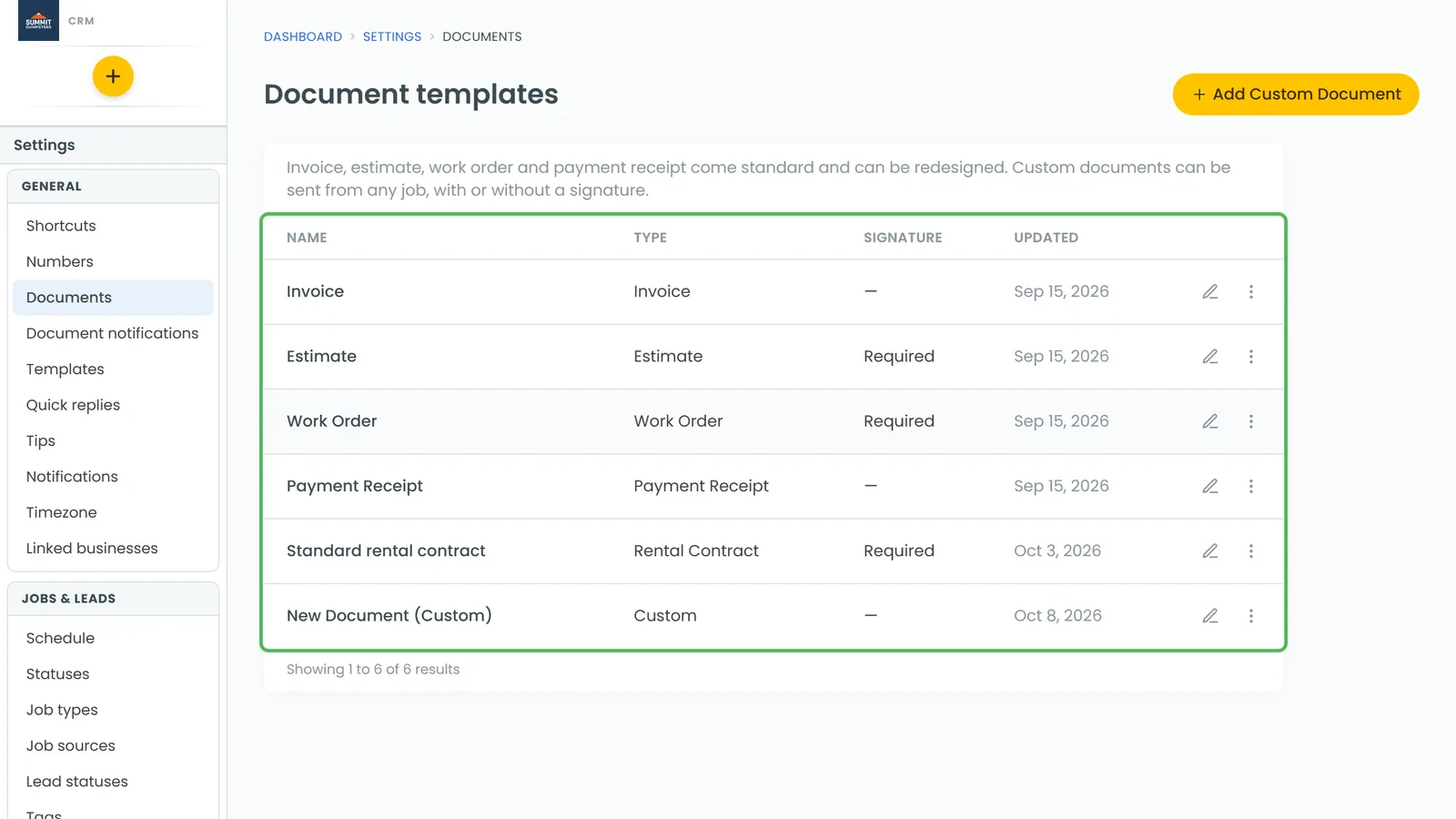
- On the template. Drag the Signature tool onto the page when you design the template in Settings > Documents. The template list then shows Required in its Signature column on the web, and Signature required under the template name in the phone app.
- When you send. In the Send document window, tick Ask the customer to sign it. In the phone app it's a switch with the same name. It starts on for templates that have a signature, and you can change it for any one send.
When the customer opens the link, the page says Your signature is needed below. Under Sign to approve, they draw in the Sign above box, type their full name and click Sign document. After that, the top of the page shows the date they signed.
Checking whether it's been signed
Every document you send from a job is listed in that job's Documents section. On the web, it's on the job's Attachments tab. In the phone app, it's on the job page, under the attachments.
- A document that still needs a signature has awaiting signature after its name.
- Once it's signed, the line underneath says Signed by, the name they typed, and the date.
- Click or tap a document to open it the way your customer sees it, signature included.
Signatures in person with Tap to Pay
When you take a card with Tap to Pay in the phone app, the customer signs on your phone before they tap their card. On an iPhone the button is Tap to Pay on iPhone. On Android it's Tap to Pay. Stripe has to be connected first. If it isn't, the button opens your Payments settings instead.
- On the Collect payment screen, tap the Tap to Pay button and hand the phone to the customer.
- They check the amount and tap Approve Amount. If you collect tips, they pick one and tap Add tip, or Continue for no tip.
- Under Add your signature, they tap the box that says Tap to sign.
- A full-screen pad opens that says Please sign below. They sign with a finger and tap Done. Clear starts over, and Cancel closes the pad.
- They tap Pay and the total, then hold their card to the phone.
The Pay button stays greyed out until they've signed. The signature is saved to the invoice the moment they tap Pay, before the card is charged.