In this article, you'll learn how to upgrade, switch or cancel your Review Monster plan. Plan changes and cancellations go through our team rather than a self-serve button, so someone can check what you'd keep, what you'd lose, and make the change cleanly.
To open your subscription:
- At the bottom of the dashboard menu, click the person icon (Account). It sits to the left of Sign out. On a phone, open the menu first.
- In the Account sub-menu, click Subscription.
Under Current Plan you'll see your plan's name, Active subscription, its monthly price and the features that come with it.
Upgrading or switching plans
There's no button that changes your plan on the spot. You tell us what you want and we set it up.
If a bigger plan is available, you'll see Upgrade Options below your current plan. Each option lists the features you already have, marked (included), and the ones you'd add under You'd also get.
- Under Upgrade Options, find the plan you want.
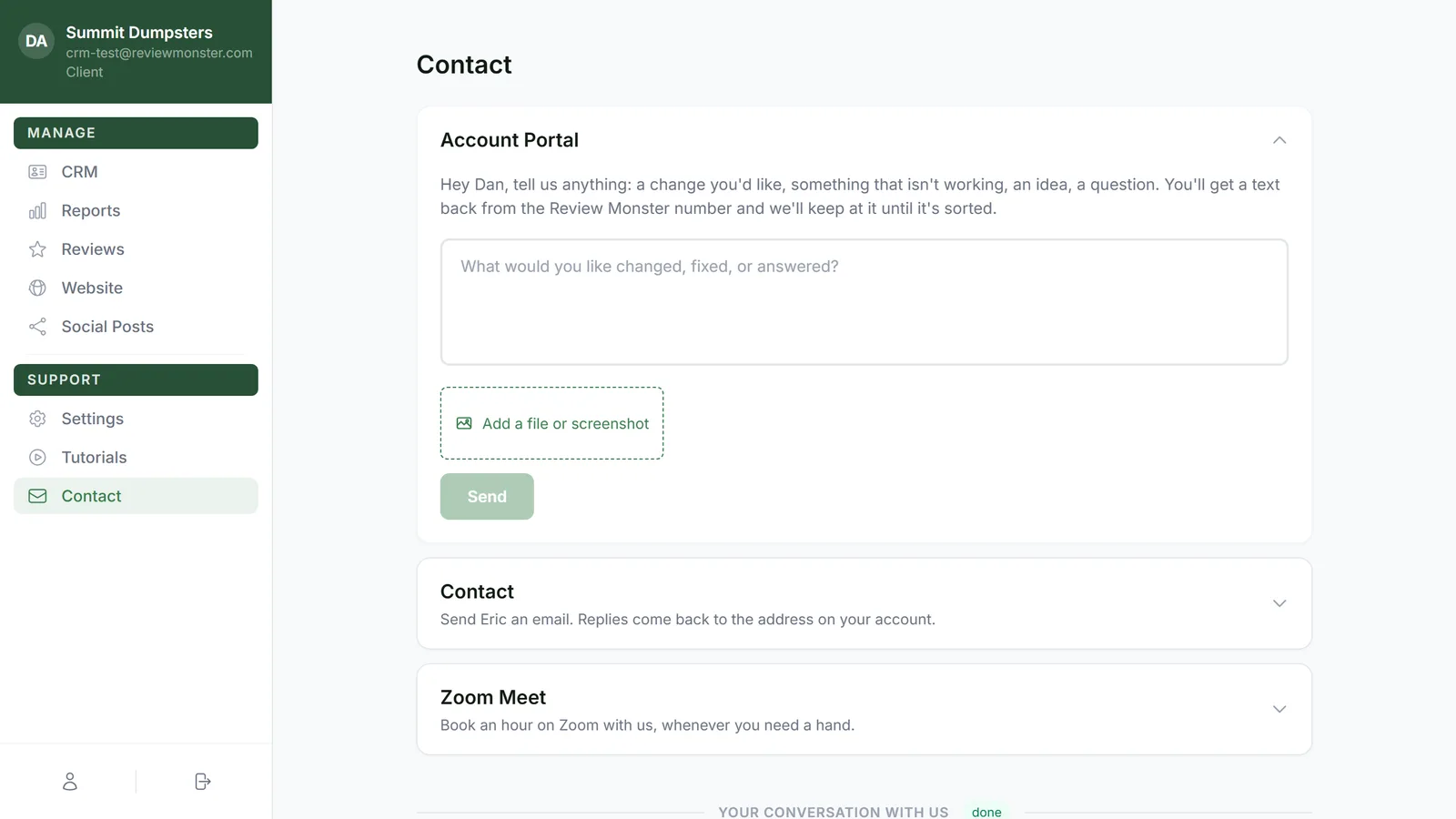
- Click Contact us to upgrade. This opens the Contact page.
- Account Portal is open at the top. Type which plan you want in the box and click Send. You'll see Sent — we'll text you shortly, and the reply comes as a text from the Review Monster number.
- Your message also appears under Your conversation with us at the bottom of the page, with a reply box if you want to add anything.
- If you'd rather email, click Contact to unfold it, fill in Subject and Message, and click Send.
A team member finishes the switch with you.
Cancelling your subscription
Cancelling is a request, not an instant switch-off. You fill in a short form and a team member follows up to finish it with you.
- At the bottom of the Subscription section, click Cancel subscription.
- An Are you sure? window explains what cancelling means:
- Your review history and customer data will be permanently deleted.
- Your website will be taken down and removed (on plans that include a website).
- All automated review workflows will stop.
- It can't be undone.
- Click Never mind to stop here, or Continue canceling to go on.
- If you're on the SEO or Reviews + Website plan, you'll see Would a different plan work better? with the smaller plans you could switch to, their monthly prices and their main features.
- To switch instead, click Contact us to switch. This takes you to the Contact page.
- To keep cancelling, click No, I want to cancel.
- In We're sorry to see you go, type why you're cancelling. The Submit cancellation button stays greyed out until you've written something.
- Click Submit cancellation, or Keep my subscription if you've changed your mind.
- You'll see Request received. Click Close.
What happens after you submit
Your request and your reason come straight to our team by email, along with your name, business and current plan. A team member will follow up with you shortly to confirm the details and complete the cancellation. Nothing changes on your account until that happens.