In this article, you'll learn how to check what you're paying Review Monster, change the card on file, and find or pay your invoices. It's all on one page in your dashboard, so you don't have to email anyone for a receipt or wait for a card-expired notice.
Billing is on the web dashboard only. The phone app doesn't have it.
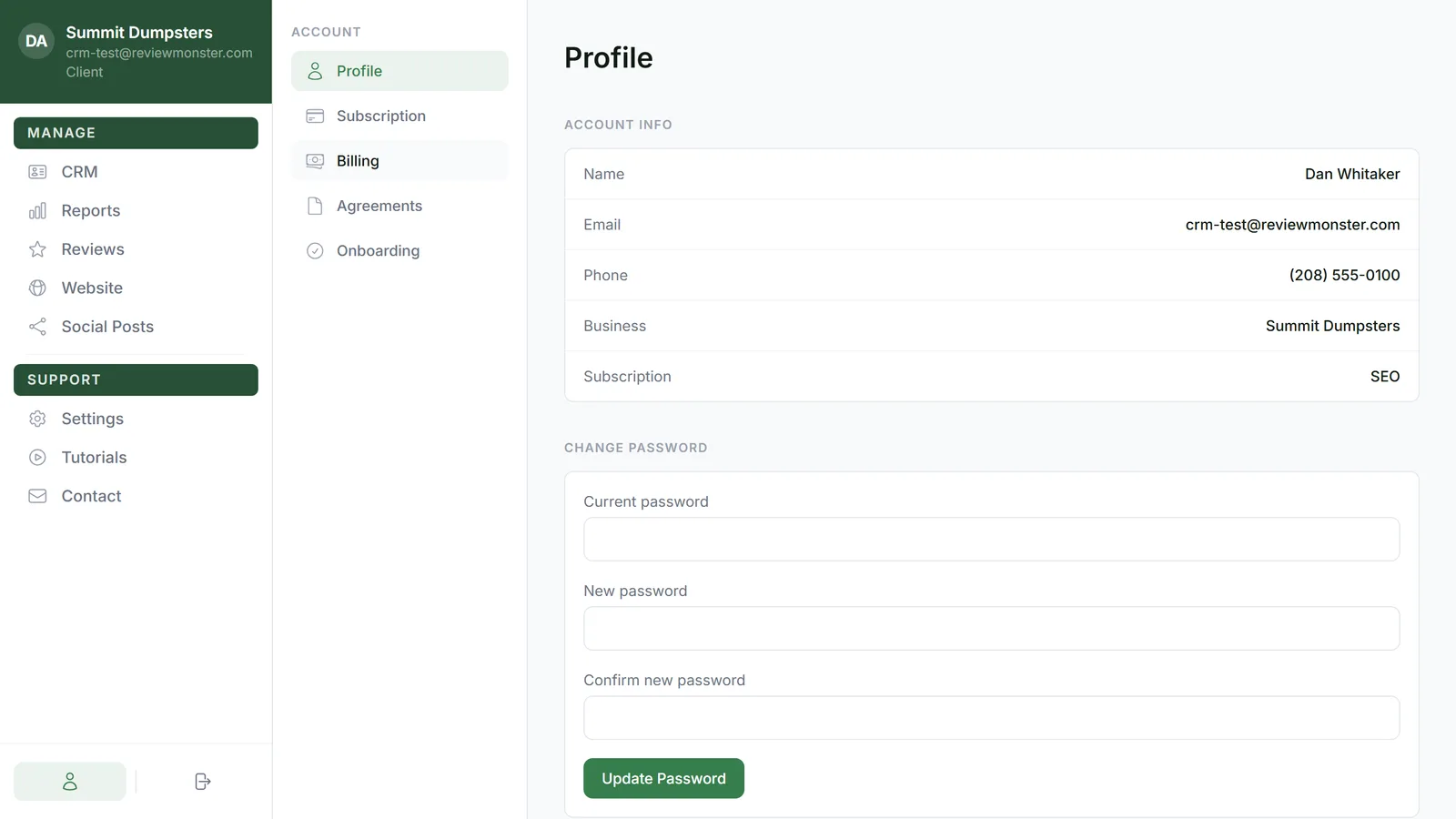
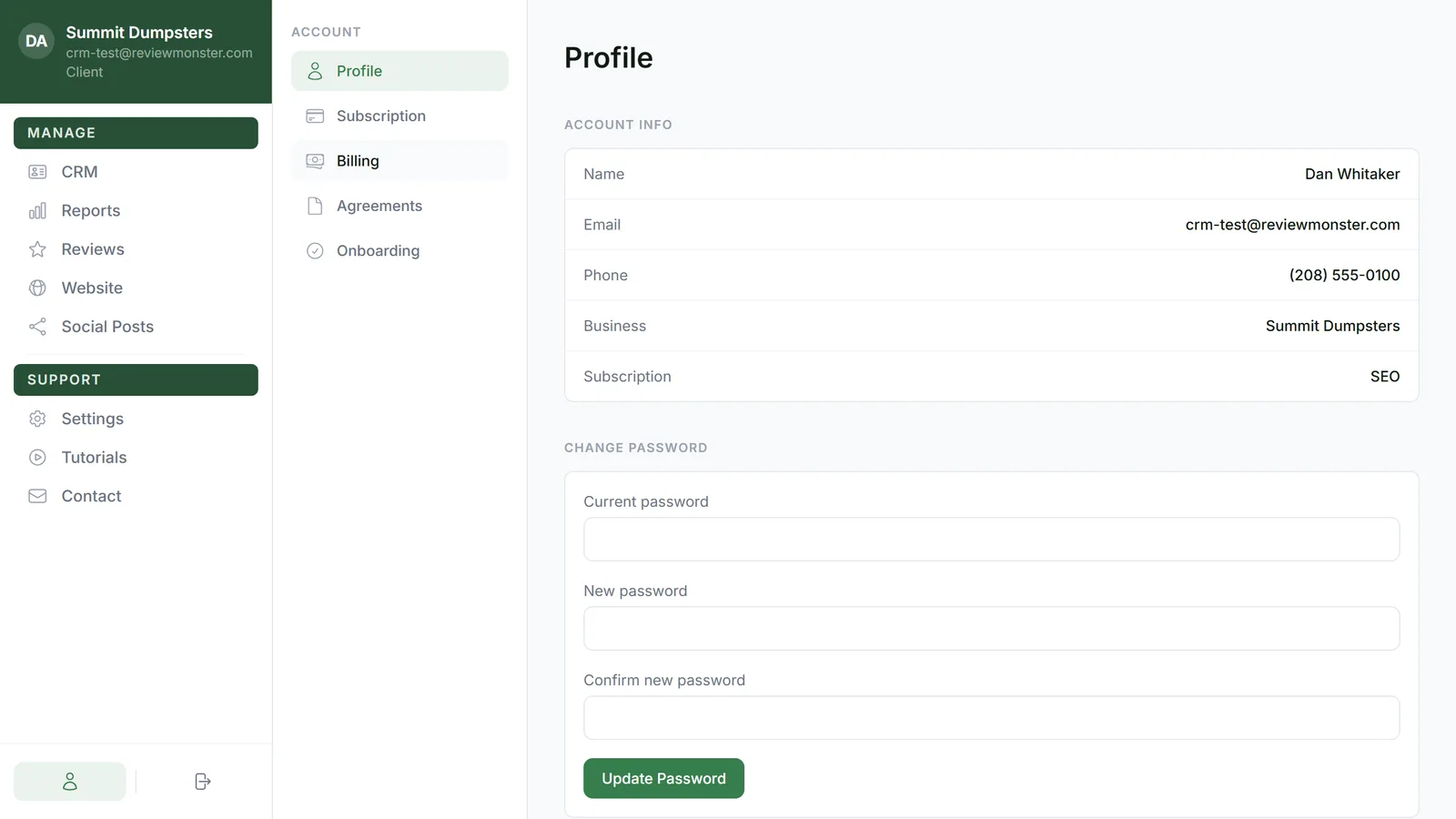
To open Billing:
- At the bottom of the dashboard menu, click the person icon labelled Account. It sits to the left of Sign out.
- In the Account menu, click Billing.
The page has four cards, top to bottom: Your plan, Payment method, Invoices and Billing portal.
Check your plan
The Your plan card lists each subscription on your account. Each line shows the service name and its price per billing period, like "$95.00/month". If a line covers more than one of something, such as several call tracking numbers, the price shown is the total for all of them, not the price of one.
Under the price you'll see one of these dates:
- Renews and a date, when the subscription will bill again.
- Ends and a date, when it's set to stop at the end of the current period.
On the right of each line is a status badge:
- Active: billing normally.
- Trial: in a trial period.
- Past due: a payment didn't go through. Update your payment method (below) to fix it.
- Unpaid: payments kept failing.
- Scheduled: a service that hasn't started yet. It shows Starts and the start date instead of a renewal date.
- Canceled: a subscription that has ended. These sit at the bottom, faded out.
If nothing is running, the card says No active subscription.
Add or update your payment method
The Payment method card shows everything saved for billing. A card shows its brand and last four digits (for example, Visa •••• 4242) with its expiry date underneath. A bank account shows Bank account and its last four digits. A Link account shows Link and the email on it. The one we charge is marked Default.
- Click Update payment method. If nothing is saved yet, the button says Add payment method.
- You're taken to a secure billing page run by Stripe, opened straight to the payment method form.
- Enter the new card and save it there.
- When you're done, return to your dashboard. You land back on your Account page, on the Profile tab, so click Billing again to check the new card is there.
View, pay or download invoices
The Invoices table lists your recent invoices with these columns:
- Date: when the invoice was created.
- Invoice: the invoice number. This column is hidden on narrow screens like a phone.
- Amount: the invoice total.
- Status: Paid, Due, or occasionally Void if an invoice was cancelled. Uncollectible means we've stopped trying to collect it.
On the right of each row:
- Click Pay on an invoice marked Due to open it and pay it in a new tab. On paid invoices this link says View and opens a copy you can look over.
- Click PDF to download the invoice as a PDF for your records.
If you haven't been billed yet, the card says No invoices yet.
Use the billing portal
The Billing portal card is for everything else: updating your billing details, seeing your full invoice history, and managing every saved payment method.
- Click Open portal.
- Make your changes on the billing page that opens.
- Return to your dashboard when you're done. You come back to your Account page.
If you see "No billing on file"
If the page says No billing on file, billing hasn't been set up for your account yet, so there's no plan, card or invoice to show. If you think that's wrong, send us a message from Contact and we'll get it fixed.