In this article, you'll learn how to put the people on your crew on your website, with a name, role, short bio and photo. Customers like knowing who's going to show up at their door, and a few friendly faces make a new visitor more likely to call.
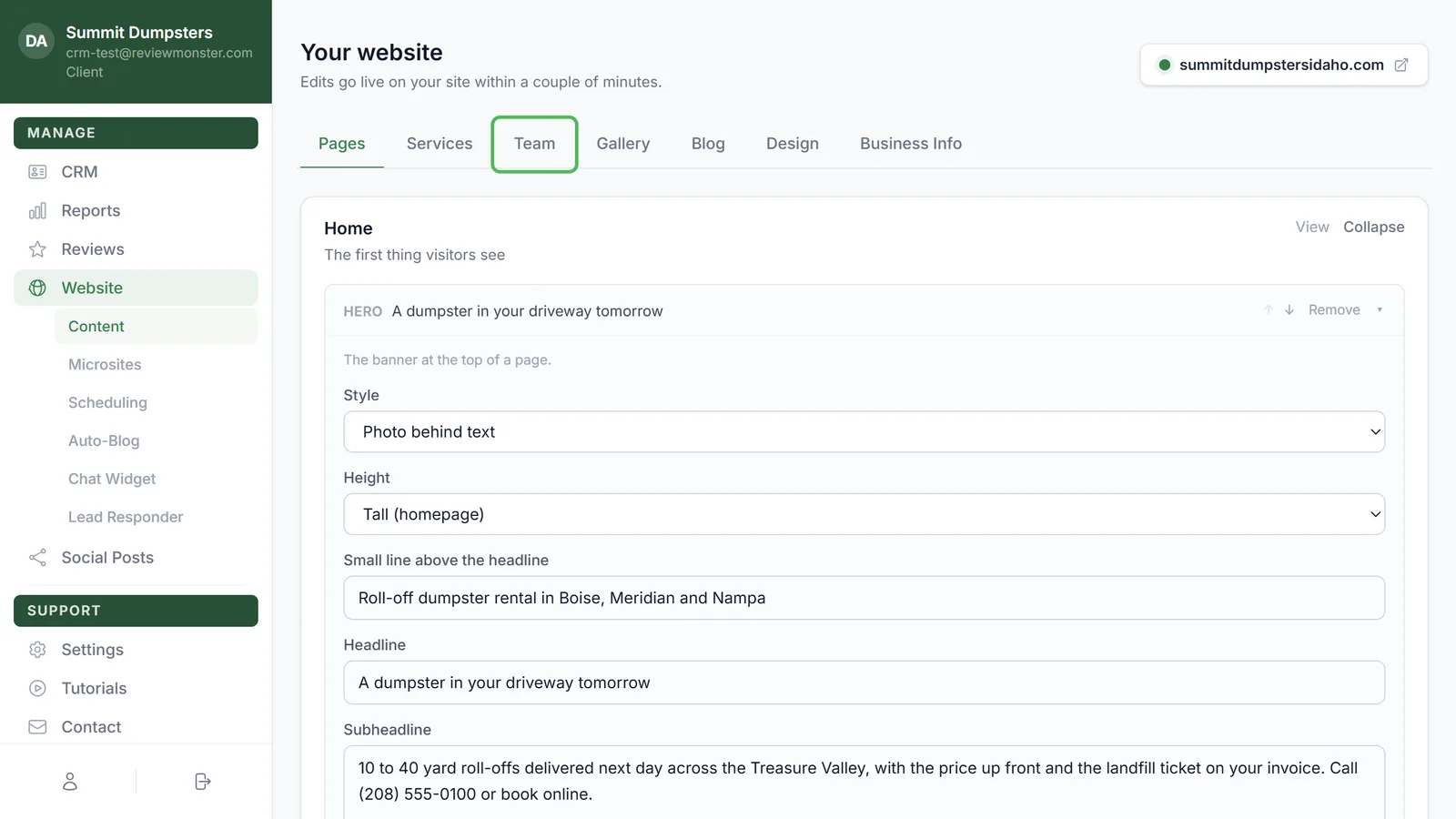
To open your team list:
- In the dashboard menu, click Website, then Content.
- Click the Team tab.
If nobody's been added yet, you'll see "No team members yet. Faces build trust — add the crew."
Add a team member
- On the Team tab, click Add team member.
- Type their Name.
- Type their Role, like Office Coordinator or Crew Lead.
- Write a Short bio. A sentence or two is plenty.
- Click Add to team.
The Add to team button only shows up once you've typed a name. If you change your mind, click Cancel instead.
Add their photo
You add the photo after the person is saved, right on their card.
- Find the person's card on the Team tab.
- Click the Photo square on the left of the card.
- Pick a picture from your computer or phone (JPG, PNG, WebP or GIF, under 12 MB).
The photo uploads and saves on its own, so there's nothing else to click. While it's working, the square says Uploading…. To swap it later, hover over the photo and click Replace photo.
Edit a team member
- On the Team tab, find the person's card.
- Change their Name, Role or Short bio.
- Click Save changes.
Save changes only appears once you've changed something on that card. While it's working the button reads Saving…, and when it's done you'll see Saved next to it. If it didn't go through, you'll see "Couldn't save — try again."
Remove a team member
- On the person's card, click Delete.
- You'll be asked "Remove (their name)?" Click Yes, delete.
Click Cancel instead if you clicked Delete by mistake.
Where your team shows up on the site
Your team appears wherever a page has a Team section. Each person gets a card with their photo, name, role and bio. If someone has no photo yet, the card shows the first letter of their name instead.
If your list is empty, the Team section stays hidden, so a page never shows an empty box. To put the section on another page, open the Pages tab, click + Add a section on that page and pick Team. It always pulls from this list, so you never type a name twice. Changes you make here show up on your live site within a couple of minutes.