In this article, you'll learn three ways to add job photos to your daily-post library from your phone. Each day one photo from that library becomes a post on your Google Business Profile. Your best photos are usually the ones you take on the job, so it helps to add them while you're still there.
All three ways fill the same library, and your daily posts draw from it. Use whichever is easiest at the time.
Option 1: The Photos screen in the phone app
To open Photos in the app:
- Tap the menu button at the top left.
- Tap Photos.
At the top of the screen is a short note explaining that these photos feed your daily Google Business Profile posts. Under it are two icon buttons: a camera on the left and a gallery on the right.
Take a photo
- Tap the camera button.
- If the app asks, allow camera access.
- Take the photo and confirm it. It starts uploading right away.
Pick photos you've already taken
- Tap the gallery button.
- If the app asks, allow access to your photos.
- Pick up to 10 photos and confirm.
You don't need to shrink anything first. Photos are resized automatically, so full-size ones are fine.
If a photo still won't go after a few tries, a yellow bar at the top of the screen says how many didn't upload. Tap Retry to send them again, or Discard to let them go.
Your photo library
Under the buttons is Your photo library, with a count next to it, for example "24 photos · 9 ready to post". Ready to post means the photo hasn't been used yet. A photo that's already gone out as a post has a small posted label in the corner.
Pull down on the screen to refresh the library.
Delete photos
To delete one photo:
- Tap the ✕ in the corner of the photo.
- Tap Delete to confirm.
To delete several at once:
- Tap Select.
- Tap each photo you want to remove. A check mark shows on each one.
- Tap Delete in the bar at the bottom, then tap Delete again to confirm.
Tap Cancel to leave Select without deleting anything.
Option 2: Media Upload in your phone's browser
You can also sign in to your dashboard in your phone's browser.
To open Media Upload:
- Tap the menu button at the top left.
- Under Social Posts, tap Media Upload.
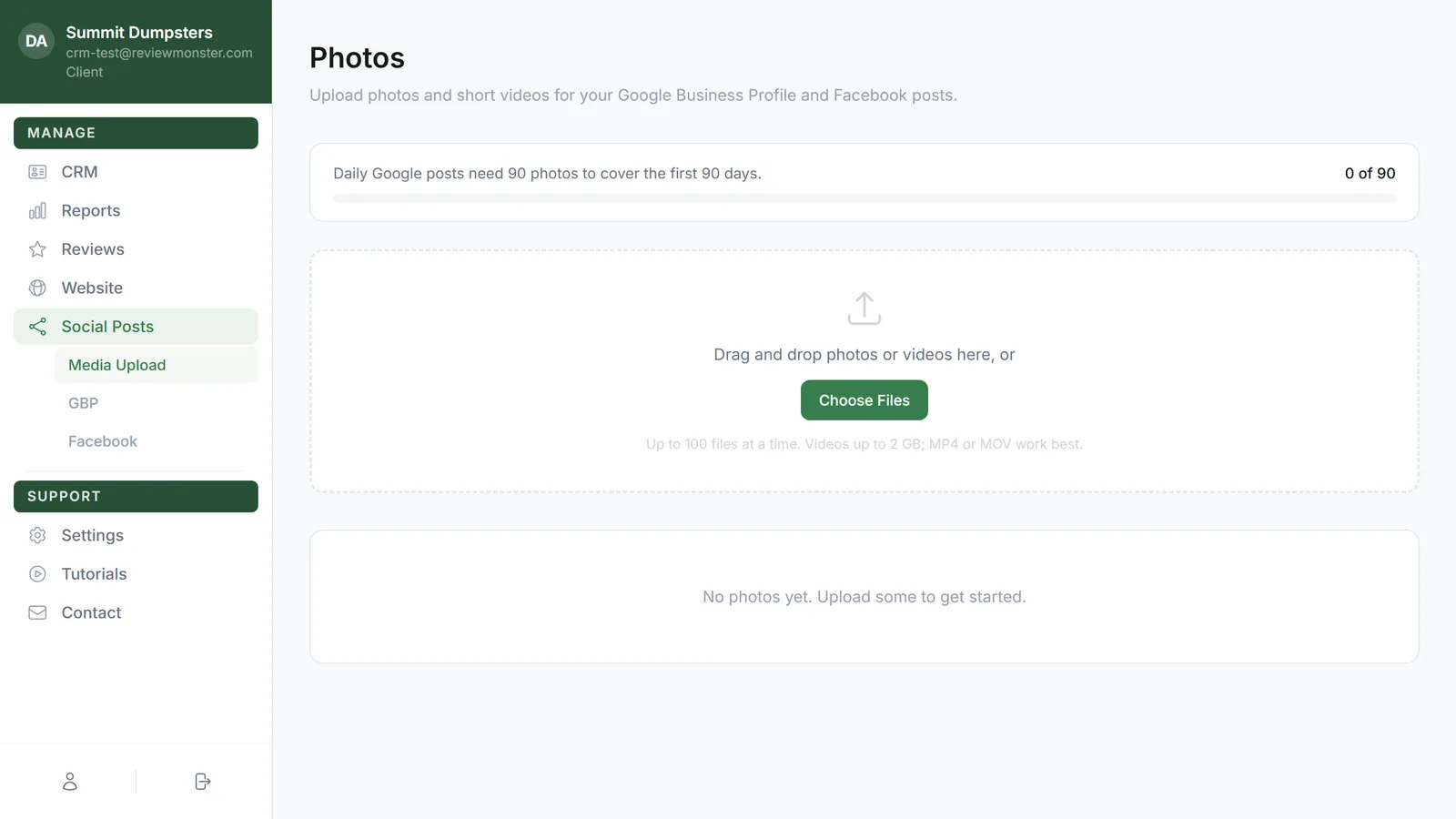
- Tap Take Photo to open your camera, or Choose Files to pick photos or videos you've already taken. You can add up to 100 files at a time.
- Keep the page open until your uploads finish.
The Take Photo button only shows on a phone-sized screen. On a computer you'll see Choose Files, and you can drag files onto the page too. A file with the same name as one already in your library is skipped. For more on this page, see Uploading photos and videos for your posts and website.
Option 3: The link in our message
When a daily post leaves your library with 10 or fewer unused photos, we'll send you a text (sometimes an email instead). It says how many photos are left and includes a link. Tap it and an Add photos page opens. You don't need to sign in.
- Tap Take a photo to use your camera, or Choose photos or videos to pick from your phone.
- Keep the screen open while they send. Each file shows Sending… and then Added. A photo you've already sent shows Already had this one.
- When the page says everything uploaded and it's safe to close, you're done.
If any fail, the page tells you how many didn't make it. Tap the Retry button while you're still there. This page doesn't keep trying on its own once it's closed.