In this article, you'll learn how to keep a client's card on file so you can charge it later. Your regulars don't have to read out their card every time, and it's what lets recurring jobs bill themselves.
A card gets saved one of three ways: you type it in yourself, the client ticks a box when they pay online, or a recurring job asks them for one. Each client keeps one card, so saving a new one replaces the old one.
Adding a card yourself
Use this when the client reads you their card over the phone or hands it to you.
To add a card from the client page:
- Open the client's page.
- Find the Payment methods (0) row on the client card. With nothing saved, it reads No card on file.
- Click the + at the right of the Payment methods row. The row opens with the card form in it.
- Type the card details into the form.
- Click Save card.
Once it's saved, the row reads Payment methods (1) and shows the card brand, the last four digits and the expiry, like Visa ending 4242 · exp 12/27. If the client already had a card, the form tells you a card ending in those digits is on file and that a new one replaces it. Click Cancel if you change your mind before saving.
Letting the client save it when they pay online
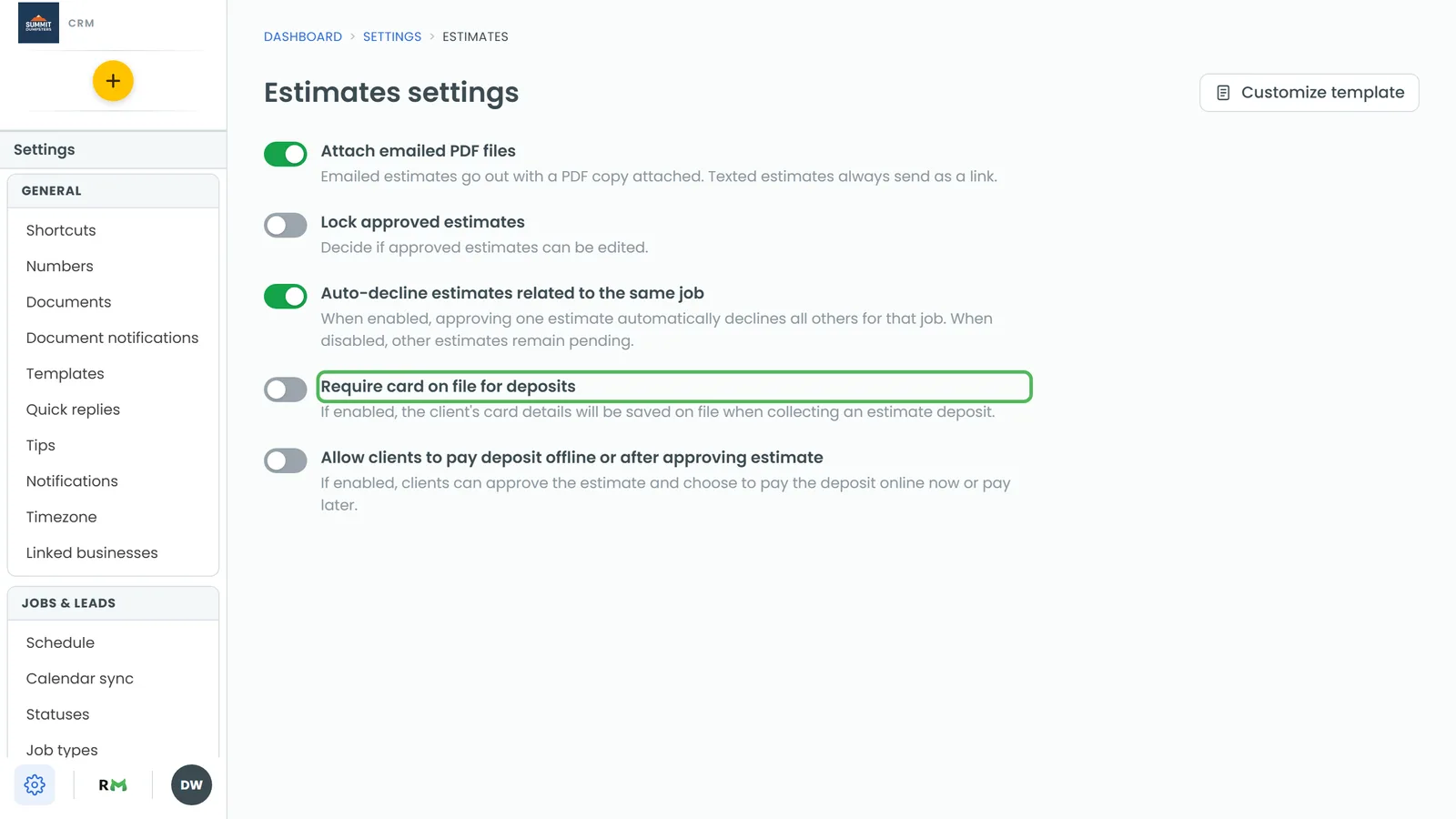
When a client pays an invoice or a deposit from the link you send them, the card form has a Save this card for future charges checkbox. If they tick it and the payment goes through, that card becomes their card on file. If they already have one saved, the box reads Replace my card on file with this one instead.
Asking for a card on a recurring job
When you set up a recurring job, click Set recurring schedule on the new job form and pick Charge the card on file under Billing. If the client doesn't have a card saved yet, they get a text (and an email, if you have their address) with a link to add one. The link opens an Add a card on file page in their customer portal, where they enter the card and tap Save card. Once it's saved, the page tells them which card you'll charge when each visit is complete. The phone app offers the same Billing choices.
If a visit is marked Done and there's still no card, the CRM sends them that visit's invoice link and asks for a card again.
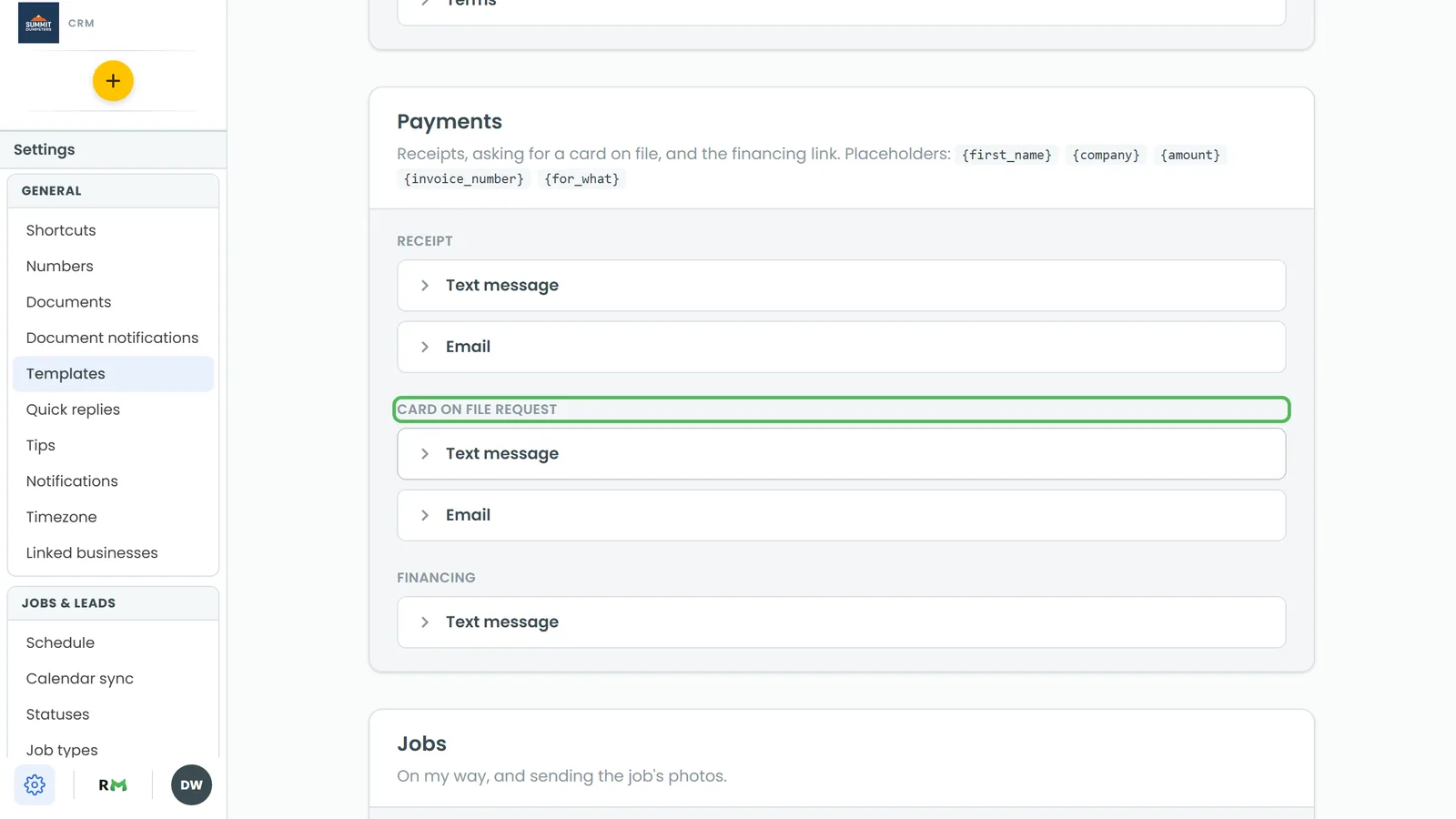
You can change the wording of that request under Settings › Templates, in the Payments group, as Card on file request. It has a text message and an email, and the link to add a card is added after your words. See How to create recurring jobs.
Charging the card on file
Once a client has a card saved, you can charge it without a form.
To charge it on the web:
- Open the job.
- Click Create Invoice (or View Invoice if the job already has one). The Collect payment panel opens.
- Under Card on file, click Charge card ending 4242 (with their real last four). The balance is charged right away.
On the phone app, open the job, go to Finance and tap Add payment. The Collect payment screen has the same Charge card ending … button at the top. You need the Charge Credit Cards permission to see it.