In this article, you'll learn how Receipts and Bookkeeping work together. A receipt you scan can be paired with the bank charge that paid for it. The charge then shows the receipt behind it, and it can be filed under the receipt's category without you lifting a finger.
You need both Bookkeeping and Receipts switched on in Features. Bookkeeping brings in the bank charges and Receipts holds the scans, so there's nothing to match unless you have both.
To open the matching settings:
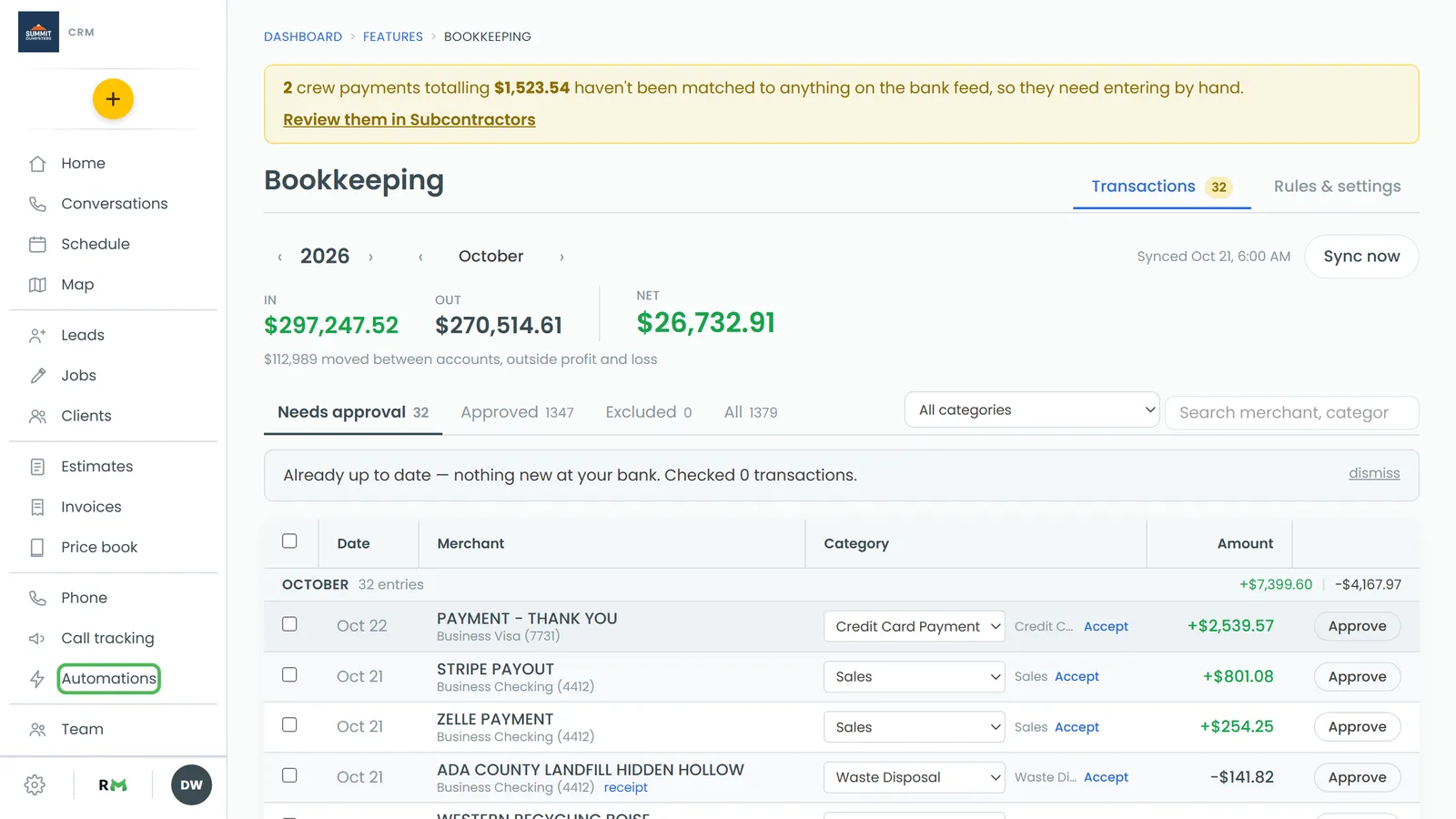
- In the menu, click Bookkeeping.
- Click the Rules & settings tab.
- Find Match scanned receipts to bank charges in the Automation card.
Which receipts can match
A receipt is only in the running when:
- Paid from is set to Business account. That's what a new receipt starts on.
- It's finished being read and has an amount and a purchase date.
- It isn't already paired with another charge.
On the bank side, only money going out counts. The charge has to be from an account marked in the books under Accounts, it can't be excluded, and it can't already have a receipt.
Turning matching on and setting how close is close enough
Matching goes by amount and date only. The merchant name on a receipt comes off a photo and rarely looks like the name on your bank statement, so it isn't used.
- On Rules & settings, turn on Match scanned receipts to bank charges.
- In the box after Match within, type how many days apart the receipt and the charge can be. It starts at 5.
- In the box after days and, type how many dollars apart the two amounts can be. It starts at 0.02, which covers a cent or two of rounding.
- Click out of the box. Each number saves as soon as you leave it.
The phone app has a Match receipts to charges switch too, but the day and dollar boxes are only on the web.
How a matched receipt files the charge
Every charge works down the same order. Your rules go first, and the first rule that matches wins. If no rule decided, a matched receipt's category is used. If there's still nothing, you may get an AI suggestion to accept. A category you set by hand always wins and is never overwritten.
So the receipt only fills in the category when nothing has already. It won't touch a charge that's been split, and it only files anything while Auto-categorize with rules is on. With that off, the charge still gets paired with the receipt, it just isn't filed.
Filing isn't approving. A matched charge still waits in Needs approval unless it fits something on your always-approve list.
Where you see the match
On the Transactions tab:
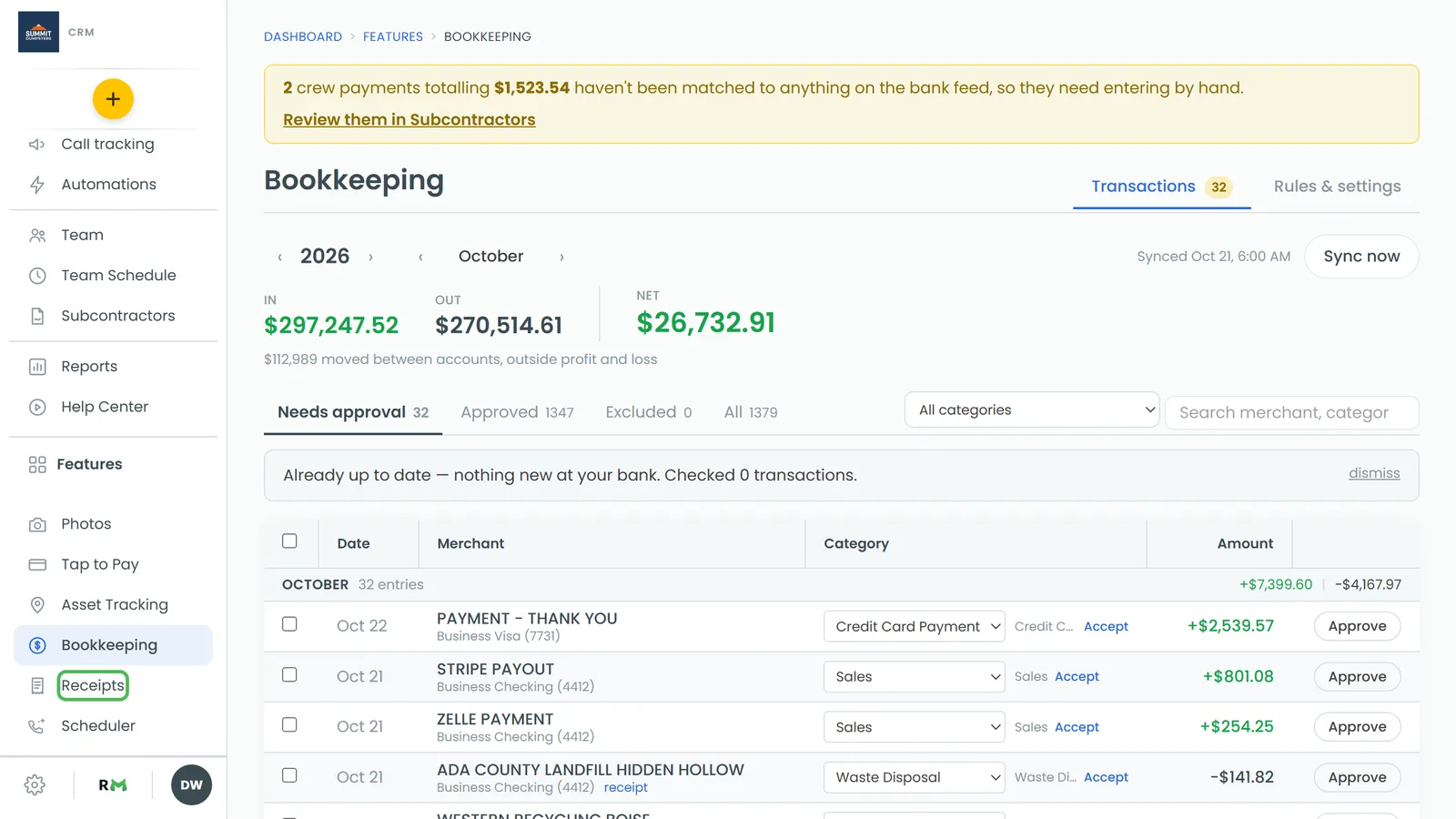
- A matched row shows a blue receipt tag after the account name.
- If the receipt set the category, receipt shows next to the category picker as where the category came from.
- Click the row's description to open it. A Matched receipt card shows the merchant, amount, date and what the receipt was filed as.
When matching runs
Matching runs every time your rules run, and the message afterward tells you how many were paired:
- On Transactions, click Sync now. The message counts how many charges were matched to receipts, along with what your rules filed and what was suggested.
- On Rules & settings, click Re-run rules on this month. That message counts matched to receipts too, and anything you set by hand is left alone.
So if you scan a receipt after its charge already came in, the next sync or re-run will pair them.
Categories are shared
Receipts and Bookkeeping use one list of categories, so a receipt and the charge that paid for it end up filed the same way. If you rename a category on Rules & settings, every transaction, split, receipt and rule that used it changes with it.