How Do I Verify My Business on Google? Step-by-Step Guide
By Eric Hinderager, owner of Review Monster · Updated
How do I verify my business on Google? Here's each verification method Google offers, how long it takes, and what to do when your profile won't verify.
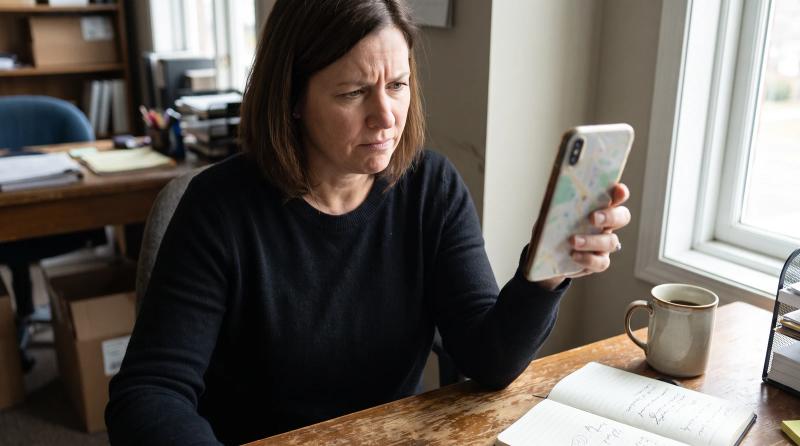
If you're asking "how do I verify my business?", the answer is to verify your Google Business Profile: sign in to the Google Account that manages it, open your profile, select Get verified and use whichever method Google gives you. That could be phone or text, email, a live video call, a recorded video, or a postcard. You can't pick the method yourself.
Google reviews what you submit, and that review can take a while. If it doesn't go through, the sections below cover the problems Google itself points to.
How to verify Google Business Profile ownership, step by step
First, why it matters. The Google Business Profile help page says that to edit your business info, such as your name or hours, and interact with customers, you need to verify your business. Until you're verified, you can't fix your hours, correct your name or update any other information on the listing. Verifying is also what puts you in control of how your listing shows in Search and on Google Maps, which matters for local SEO.
Here's the basic process, step by step:
- Create a Google account if you don't have one. You need one to sign up for a Business Profile in the first place.
- Sign in with the account that actually manages the profile.
- Go to your Google Business Profile, select Get verified, then choose a method.
- Follow the prompts for each step of that method.
- Watch your inbox. You'll get a confirmation email when your business is verified.
Step two causes more trouble than you'd expect. If a web designer, a family member or an old marketing company set up your listing, it might be sitting under their login, not yours. Check that before you do anything else. If you can't get it back, create a Google account of your own and request access to the listing.
You don't get to choose the method
This catches a lot of business owners off guard. Google's help page puts it bluntly: verification methods are automatically determined by Google and can't be changed.
If you were hoping for a postcard and only video shows up, there's no setting you can change. Postcard verification isn't available for every business, and live video isn't offered to everyone either.
What each method looks like
- Phone or text. A code goes to your business phone number. You need to be able to answer that number or receive texts on it. If your calls go to an answering service, or through a forwarding line that rings somewhere unexpected, sort that out first.
- Email. A code goes to your email. Use an address you actually check.
- Live video call. You show your business live on a call instead of recording a clip.
- Recorded video. You film a clip on your phone and upload it. This method has the most rules, so it has its own section below.
- Postcard. A code is mailed to the address on your listing, and you enter it once it arrives.
Sometimes it's instant
Now and then the whole process gets skipped. Google's help page says a profile is sometimes verified instantly, for example when you've verified your website in Search Console or when you use bulk verification. You can't count on it, but if your site is already in Search Console, it doesn't hurt.
Recording a verification video Google will accept
If you get the recorded video option, don't wing it. Video has more rules than any other method, and breaking any one of them can get you rejected.
Google's video verification page lists the basics:
- It has to be at least 30 seconds long.
- It has to be one unedited, complete recording with no breaks.
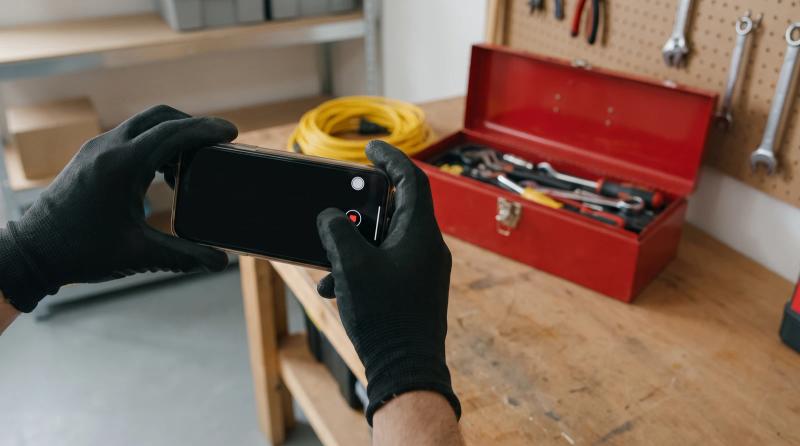
- It has to be recorded and uploaded from a mobile device through your Google Business Profile.
The no-breaks rule trips people up. You can't film the sign, stop, walk inside and start a new clip. Sterling Sky's guide says the same thing: record in one continuous take, and don't edit or combine clips.
What the video needs to show
BrightLocal says your video needs to include your business location, the business itself, and proof of management. For the location part, they suggest filming signage, street signs or neighboring businesses.
What counts as proof depends on how your business works.
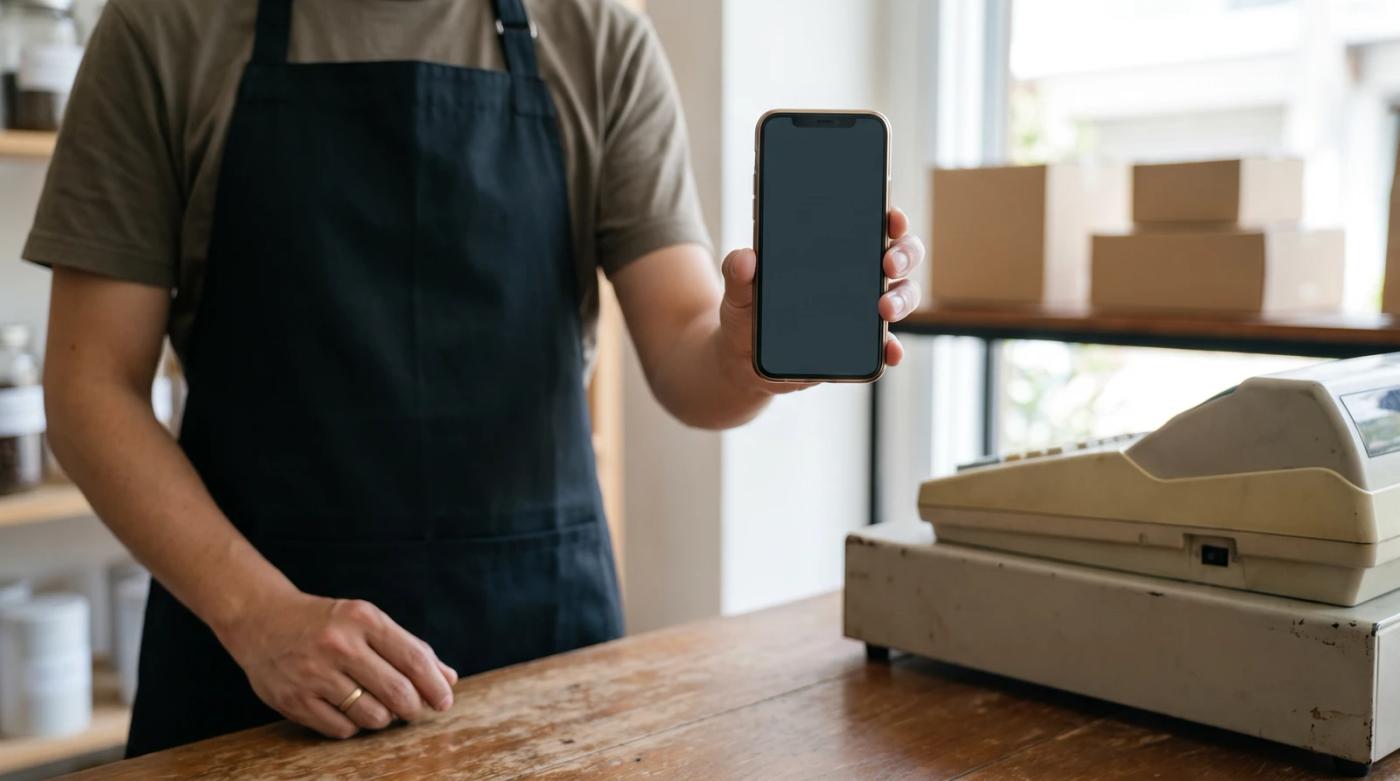
If customers come to you (a salon, a dental office, an auto shop, a restaurant), start outside with your name in the shot, then go in. Show things only an employee can access, like opening a cash register, kitchen, or storage room.
Don't skip the sign. One reason Google lists for rejecting videos is that the business name isn't visible on the storefront. Get close enough that someone could actually read it on the video, and make sure it matches the name on your listing.
If you go to customers (a plumber, a roofer, a cleaning company), there may not be a storefront to film. In that case you can show the professional tools, equipment, or products you use for work. To prove you run the business, show a document like a business permit, invoice, or utility bill.
A roofer might film ladders and materials, then a permit with the company name on it. Use whatever plainly says "this is a real business and I'm the one running it."
What to keep out of the shot
The video can't show sensitive information like bank account, tax, or ID numbers, and private details and other people's faces should stay out of it too.
If you're holding up an invoice, cover the account numbers. If you're filming during business hours, wait for a quiet moment or point the camera away from customers.
Tip: Walk the whole route once without recording: the sign, the street, the front door, the back room, the document. Then record it all in one take.
How long does it take to verify a Google Business Profile?
Google's help page says reviews can take a few business days. BrightLocal points out that it can take longer.
Postcards are slower, since the code comes by mail, and codes expire after a while. Tell whoever collects the mail to look out for it. A postcard is easy to mistake for junk mail and throw away, and then you're starting over.
Entering a phone, text or email code is a quick step on your end. When the whole process is finished, the confirmation email is your proof of verification.
While you wait, leave the listing alone as much as you can. Recent changes to your business information can trigger a request to re-verify, so don't stack up edits halfway through.
Why can't I verify my Google Business Profile?
Here are the problems Google's own help pages point to, and what you can do about each one.
Your business info doesn't match
Google's guidelines say your name should reflect your business's real-world name, as used consistently on your storefront, website, stationery, and as known to customers.
Say your Google Business Profile reads "Smith Plumbing Best Plumber Near Me" while your website, your invoices and your sign all just say "Smith Plumbing." That breaks the naming guideline, and it isn't worth the SEO risk. Make the name, address and phone information match everywhere before you try again.
Your address isn't eligible
Some addresses won't pass verification no matter how good your video is. P.O. boxes or mailboxes at remote locations aren't acceptable. A virtual office, meaning a mailing address you rent but don't actually operate out of, isn't eligible either.
If you run a service-area business from home, the answer isn't a fake office. The guidelines say service-area businesses should hide their address from customers. You still verify the real location. Customers just don't see it on your listing or on Google Maps.
Your video was rejected
A "Review issues" notification after uploading a video means your video wasn't accepted. Select Review issues and follow the on-screen instructions.
Then go back through the video section above. Was the name readable on the sign? Was it one continuous take, at least 30 seconds? Did you show proof that you run the business, and not just the building? Fix whatever was missing and record it again.
The Get verified button came back
If the Get verified button shows up again after you thought you were done, it means your business profile couldn't be completely verified. The advice is to try again.
Before you do, check the problems above. If the same mismatch is still there, a second try will probably fail the same way.
No option to verify your existing profile
Sometimes the business profile is right there, but there's no button and no way to start the process. Google doesn't publish a clear explanation of this that we could confirm, so here's what we'd check, in order:
- Are you signed in to the account that owns the listing, or one that was only given limited access?
- Did someone else (an old employee, a past agency) set it up and still own it? If so, they'll need to add you or hand it over.
- Did you recently change your name, address, category or other information? That can trigger a re-verification request.
If none of that explains it, the help page points you to the support team when you can't verify with the methods you're given.
Google asked you to verify again
It's usually routine. A request for more information to re-verify likely means some of your business details were recently updated. Go through the same steps again with the same care.
Frequently asked questions
How do I verify my business on Google Maps?
It's the same process. Your Google Maps listing comes from your Google Business Profile, so once the profile is verified, the Maps listing is too.
Can I verify my business on Google without a video?
Only if you're offered another method. Phone, text, email and postcard show up for some businesses and not others, and you can't switch.
What if my business doesn't have a physical address?
You still need a real location to verify, but service-area businesses can hide it. A P.O. box or virtual office won't pass.
Does a verified listing help local SEO?
It's a starting point, not a ranking boost on its own. Being verified means you can keep your Google Business details accurate and reply to reviews, which is the groundwork local SEO depends on.
Related reading: Google Business Profile Not Showing Up After Verifying? and How to Verify Google Business Profile With Video From Home.
Once you're verified, the real work starts: keeping the listing accurate and getting a steady stream of honest reviews. Managing a Google Business listing and automating review requests is a big chunk of what Review Monster does. Plenty of owners handle verification on their own just fine, but if you'd rather hand it off, take a look at reviewmonster.com.
Sources
- Verify your business on Google — Google Business Profile Help
- Verify your business with a video recording — Google Business Profile Help
- Google Business Profile Verification – 9 Easy Steps to Avoid Video Verification Failure — Sterling Sky, Colan Nielsen
- How to Verify Your Business on Google — BrightLocal, Jamie Banks
- Guidelines for representing your business on Google — Google Business Profile Help
Want help with your Google Business Profile?
Review Monster runs your review requests, listings and website in the background, so you can stay on the job.