In this article, you'll learn how to get your phone and your computer ready to make and take calls on your business line. Calls run over the internet, so the app or the browser needs a few permissions first. If you set them up now, you won't find out about a problem by missing a customer's call.
What every device needs
These apply on the phone app and on the web:
- A steady internet connection, either good Wi-Fi or a strong cell signal
- Permission to use the microphone, because a call can't connect without it
- A working speaker and mic, or a headset
- The latest version of the app, or an up-to-date browser
On the phone app (iPhone and Android)
The first time you open the app after signing in, it asks for everything it needs, one prompt at a time. Notifications come first, then the microphone, then the camera, photos and location. On Android 12 and up it also asks to connect to Bluetooth devices so calls can go to your earbuds. At the very least, say yes to notifications and the microphone.
After that, the app sets your phone up to ring for your business line. On iPhone, a business call shows on the phone's own incoming-call screen, the same as a regular call. On Android, it shows as an incoming-call notification. If the app is already open, you also get an Incoming call card with an Answer button.
Extra checks on Android
Android can stop a business call from ringing without telling you. So once your phone is set up to ring, the app checks for two things.
If the microphone is off:
- A prompt titled Let business calls ring this phone appears.
- Tap Allow.
- If you tap Not now, you'll see Calls won't ring here. Tap Open settings to turn the microphone on for the app.
If full-screen calls are off (Android 14 and up):
- A prompt titled Let calls ring on your lock screen appears. Without this, a call to a locked phone only shows as a small banner.
- Tap Turn on. Android's settings page for full-screen notifications opens.
- Switch it on for the app, then come back.
On the web
On the web, calls work in your browser wherever you're signed in to the CRM. There's nothing to install.
- Keep the CRM open in a browser tab. The browser phone connects when the CRM loads, and it only rings while that tab is open.
- When your browser asks to use the microphone, allow it.
- While the browser phone is still connecting, call buttons are greyed out. Point at one and it says Connecting the browser phone…
- When a call comes in, a card shows Incoming call with the caller and two buttons, Decline and Answer.
- If your company's line isn't set up for browser calling yet, the call buttons hand the number to your computer's own calling app instead.
Choosing whether the browser rings out loud
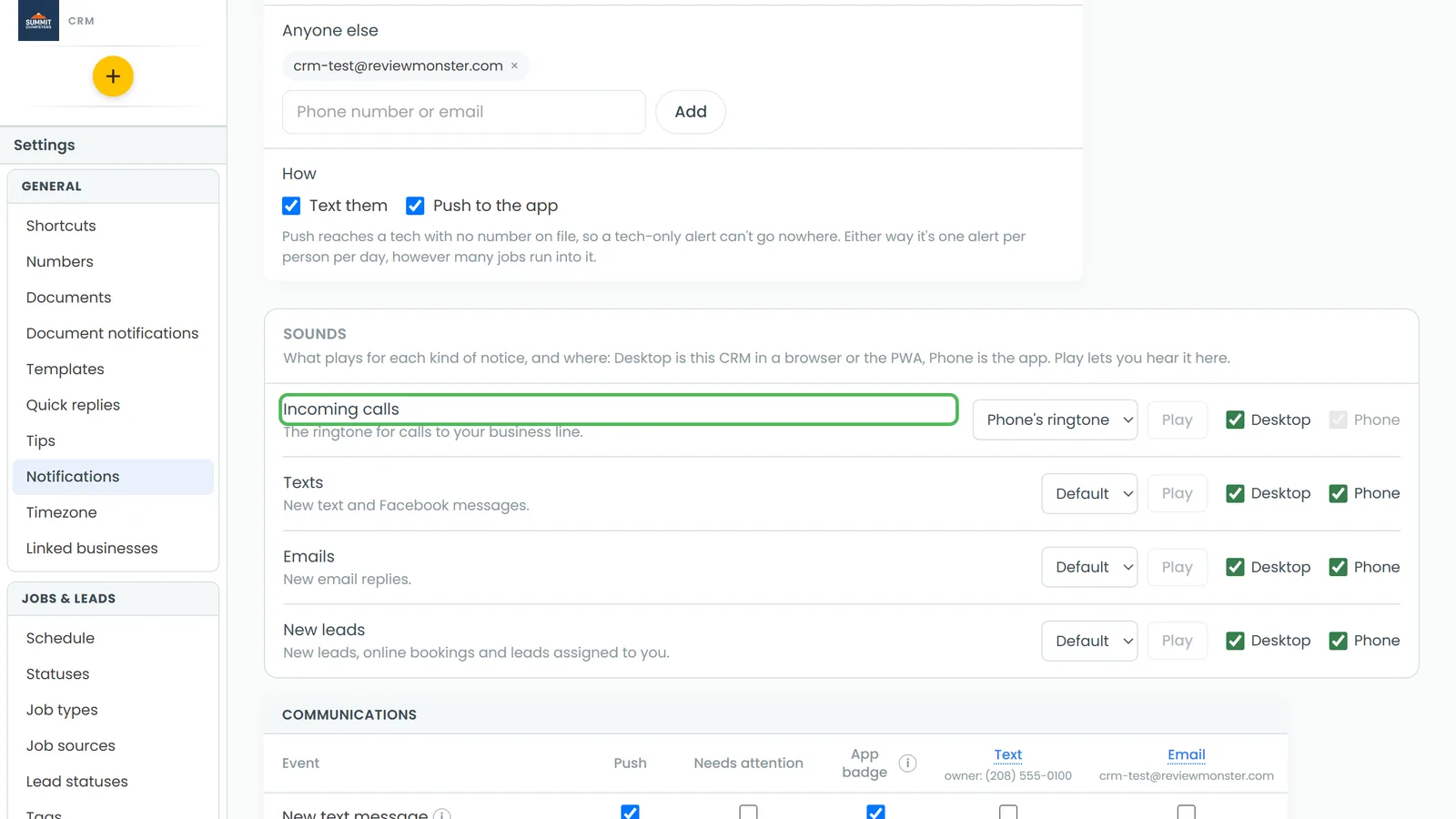
To change the ring on your computer:
- At the bottom of the menu, click the Settings gear.
- Under General, click Notifications.
- Scroll to Sounds.
- On the Incoming calls row, pick a ringtone from the list. Click Play to hear it.
- Tick Desktop to have the browser ring out loud, or untick it to keep it silent. The call card still pops up either way.
The Phone box on the Incoming calls row is always ticked and can't be changed, because the app always rings for a call.
Testing your setup
Once you're set up, test both directions:
- From a different phone, call your business number. Check that it rings where you expect and that you can answer.
- Talk for a few seconds to make sure you can hear the caller and they can hear you.
- Place a call from a client's page or the dialer, and check the same thing the other way.
If a device doesn't ring, check which people and devices your calls ring in Choosing who your calls ring.
Related articles
- Setting up your CRM phone
- Making and answering calls on the phone app
- Making and answering calls on the web
- Choosing who your calls ring
- CRM phone FAQ