In this article, you'll learn how to put a phone menu on one of your numbers, so callers can press a key for sales, scheduling, a particular person or voicemail. It sends each caller to the right place without anyone in the office playing switchboard.
To open a number's phone menu:
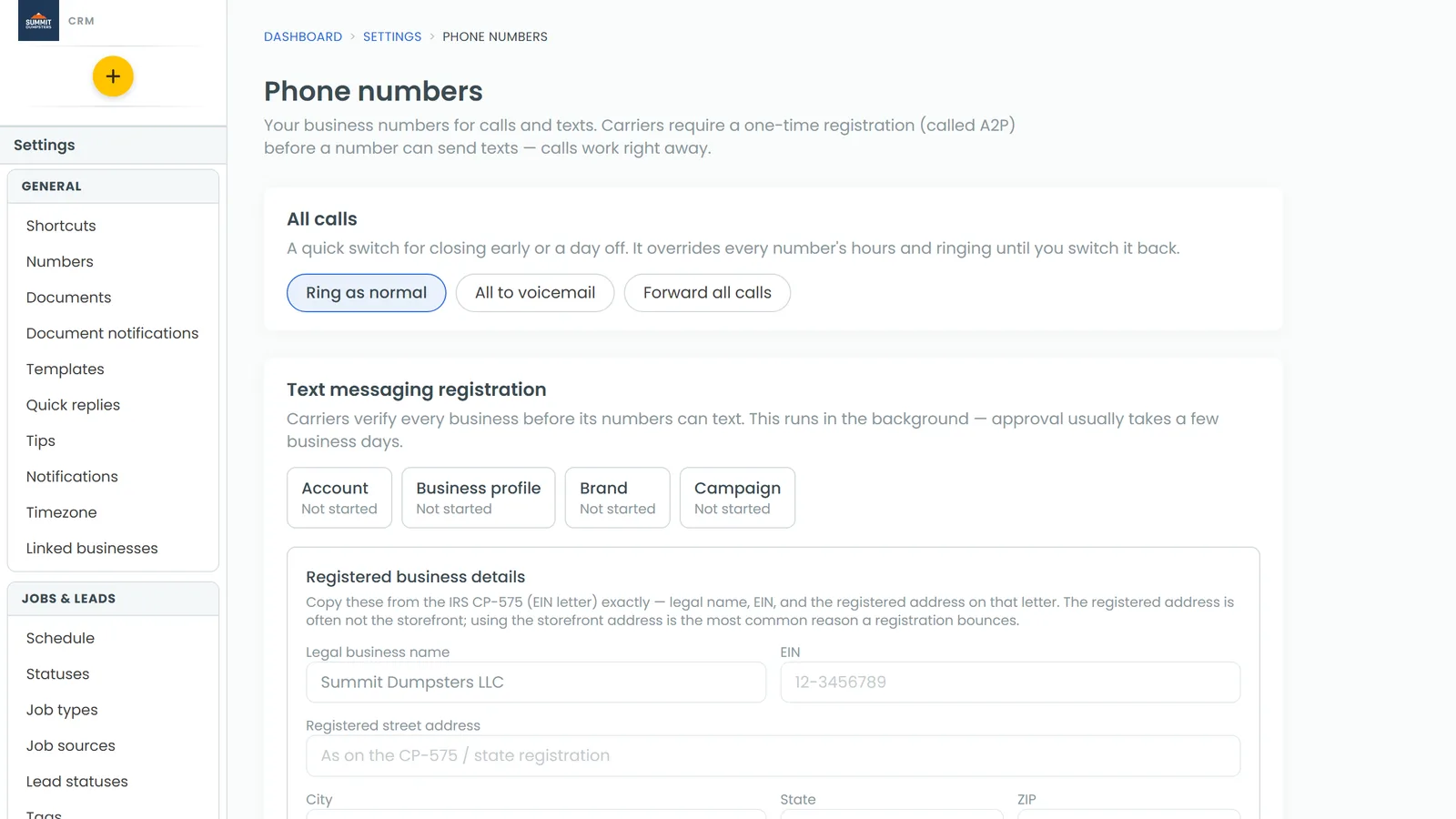
- In the sidebar, open Settings and click Phone numbers.
- Find the number and click Edit.
- Click the Phone menu tab.
Turning the menu on
- Tick Play a phone menu before ringing.
Callers hear the menu during that number's business hours only. Outside those hours they get your after-hours greeting, the same as before. If a caller presses nothing for a few seconds after the prompt, the call rings your team the normal way, so turning the menu on never blocks a call.
Adding menu options
Each option is one key on the keypad, a word for what it's for, and what happens when it's pressed.
- Click Add an option.
- Next to Press, pick the key, 1 to 9. A key already in use is greyed out.
- Next to for, type what the option is for, like sales or scheduling. This word is read out in the prompt.
- Pick what pressing the key does:
- Ring the team (normal ring order) rings whoever you set up under Ringing & forwarding, in the usual order.
- Ring one team member rings one person. Choose them under Pick a team member….
- Ring a phone number rings any outside number, like a dispatcher's cell.
- Go to voicemail skips the ringing and takes a message.
- Repeat for each option, up to nine. Click Remove to drop one you don't need.
Giving team members their own key
There's no separate extension list. To let callers reach a specific person, give that person a key on the menu.
- Click Add an option and pick a key.
- Next to for, type the person's name.
- Pick Ring one team member, then choose them under Pick a team member….
- Do the same for each person you want callers to reach directly.
A caller presses one key, so a menu holds up to nine people or departments in total.
Choosing what callers hear
Under What callers hear, the greyed-out wording is the prompt built from your business name and your options, along the lines of "Thank you for calling Summit Dumpsters. For sales, press 1. For scheduling, press 2."
- Leave the box blank to use that wording.
- Or type your own prompt, up to 600 characters. Keep the key numbers matching your options.
- Click Save.
Until the prompt has been recorded, the tab shows Saving will record this prompt. Saving records it in the same voice as your voicemail greetings. The button reads Recording the menu… while that happens, and once it's done a player appears under the box so you can listen back. Change the options or the wording later and the prompt is recorded again the next time you save.
Checking your business hours
The menu plays only while you're open. On the same Edit screen, the Hours tab sets those hours day by day. Tick Always open — ring at any hour if the menu should play around the clock.
Good to know
- A key that isn't on the menu rings the team as if nothing was pressed.
- If you've ticked Play a recording notice to callers under Basic, callers hear the notice before the menu.
- The All calls switch at the top of the Phone numbers page outranks the menu. While it's set to All to voicemail or Forward all calls, the menu doesn't play. The same goes for a date listed under Closed days.
- Everything above is also in the phone app. Go to Settings, tap Phone numbers, tap Call settings on the number, then the Phone menu tab. The switch is called Play a phone menu, each option has Key, For and Pressing it, and the actions are shortened to Ring the team, Ring one person, Ring a number and Voicemail. Saving records the prompt there too, and a Play recording button appears once it has. The web CRM uses this same layout on a phone-sized screen.