In this article, you'll learn where the Account page is in your Review Monster dashboard, what's on it, and how to check your details and change your password from the Profile section. It's where you go to confirm the email we have on file or switch to a new password.
To open the Account page:
- At the bottom of the dashboard sidebar, click the person icon on the left. It sits beside the sign-out icon, with a short line between them. Hover over it and you'll see Account.
- On a phone or small screen, tap the menu button at the top left first, then tap the same person icon at the bottom of the menu.
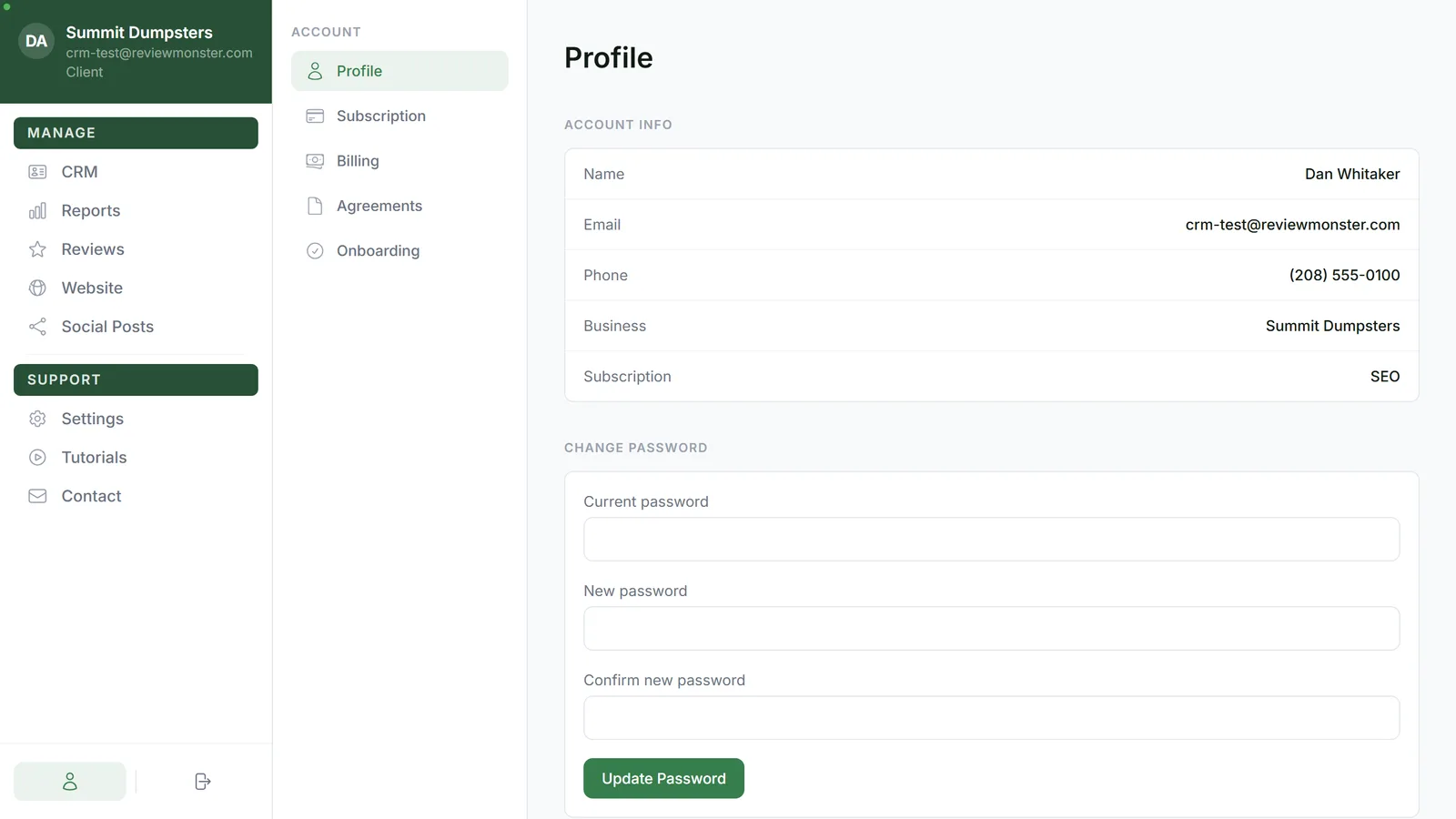
The sections on the Account page
The Account page has its own menu with five sections:
- Profile: your account details and the password form
- Subscription: your current plan
- Billing: your billing details
- Agreements: the agreements on your plan, with a Download PDF button for the ones you've signed
- Onboarding: your onboarding steps
On a big screen, this menu runs down the left side under the Account label. On a phone it's a row across the top that you can swipe sideways.
Check your account info
Click Profile. The Account Info box lists what we have on file for you:
- Name
- Phone
- Business
- Subscription
If something is blank, you'll see a dash instead. You can't edit these rows here. If one is wrong, get in touch with us and we'll fix it.
Change your password
You'll need your current password for this. If you've forgotten it, reset it from the login page instead (see the related articles below).
- Click Profile.
- Under Change Password, type your current password in Current password.
- Type your new password in New password. It has to be at least 8 characters.
- Type the new password again in Confirm new password.
- Click Update Password.
While it saves, the button reads Updating.... When it works, you'll see Password updated under the form and the three boxes clear. Use the new password the next time you log in.
If something's off, you'll be stopped before anything changes:
- If a new password is shorter than 8 characters, your browser won't send the form and asks for a longer one.
- New passwords do not match: the two new-password boxes are different. Type them again.
- Current password is incorrect: the first box doesn't match your current password. Check it and try again.
- Something went wrong: the change didn't go through. Check your connection and try again.
Related articles
- How to reset your own password
- Logging in and out
- Reading and signing your service agreement
- Reopening your onboarding steps from Settings
- How to customize your account settings