In this article, you'll learn how to keep several addresses on one client, like a landlord with a few rentals, a property manager, or a homeowner with a cabin. Everything stays on one record, so the same person doesn't end up filed three times.
When you add a client, the first address you give them is their main address, and it doubles as the billing address until you set a separate one. After that you can add as many properties as you need.
To open a client's addresses on a computer:
- In the menu, click Clients.
- Click the client's name.
- On the card on the left, click Addresses to fold it open.
Seeing every address on file
When the fold opens, you'll see a Service address card and a Billing address card. Any other properties sit under them as their own cards, titled Other property. If jobs are booked at one of them, the card says how many.
For a table of all of them, click the Addresses tab on the right side of the client's page. The badge on the tab is the count. The table has Label, Address, Unit, City, State, Zipcode and Primary columns, and the main address shows Yes under Primary.
Adding a property on a computer
- Open the Addresses fold on the client's card.
- Click the + at the right end of the Addresses row.
- A New property card opens. Start typing the street in Address and pick a suggestion to fill in the city, state and zip. You can also type every field yourself.
- Add a Unit if there is one.
- Click Save.
- Repeat for each property.
Adding a property on a phone
This works the same in the phone app and on the web on a phone.
- Open the client.
- Tap the Main address row, or the Billing address row. The address opens on its own screen with a map.
- Tap + Create new property.
- Type into Search for address and tap a match, or fill in Address, Apt / Suite / Floor, Zip code, State, City and Country yourself.
- Tap Save.
To see the rest of their properties on a phone, tap Other addresses on that same screen. Tapping one makes it the main address, or the billing address, depending on which screen you're on.
Fixing an address
On a computer, click the pencil on any address card, change it and click Save. On a phone, tap the pencil next to the address, or next to any address in the Other addresses list, then tap Save.
If jobs are already booked at that property, the form says how many, and saving asks you first:
- Save changes the property and moves every job at it to the new address.
- Create new adds the new address as a separate property and leaves those jobs where they were.
Picking the property when you book a job
Every job carries its own service address, so you can book work at any property.
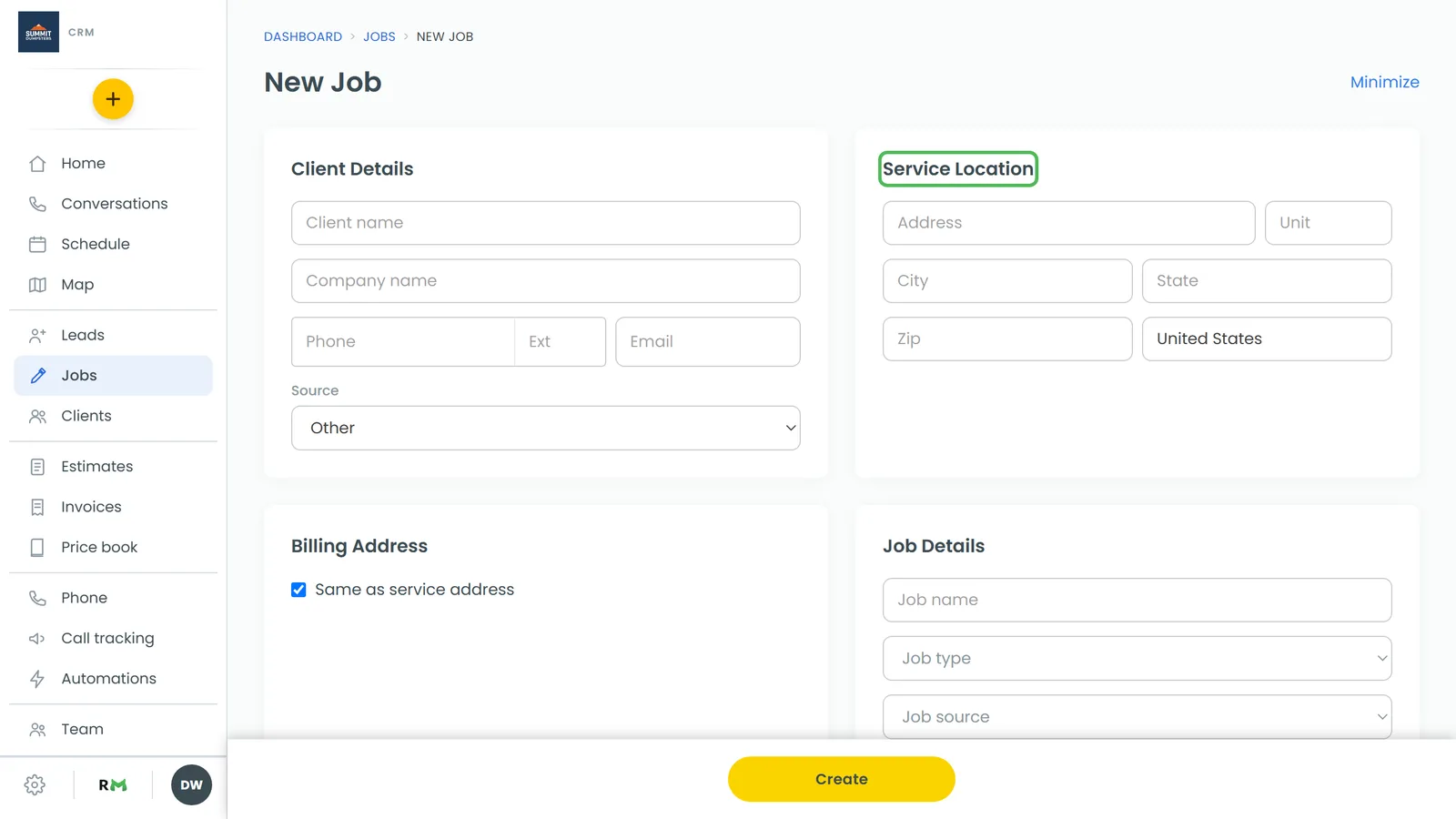
- On a computer: when you pick the client on a new job, Service Location fills in with their main address if it's still empty. To work somewhere else, type the other address over it.
- On a phone: tap the arrow on Service location. If the client has more than one property, you get a list to pick from, plus Create new property. If they have one, the address screen opens, with Choose another property and + Create new property on it. A property you create here is saved on the client and used for this job, without changing their main address.
Which address shows on estimates and invoices
A document's client values come from the client's record: their main address and their billing address. Its job values come from the job's own service address. So to change the billing address on a document, change it on the client's page. To change where the work is, change the address on the job. Which of these your templates show depends on how they're set up; see Showing billing and service addresses on estimates and invoices.