In this article, you'll learn how to choose which item details your customers see on a document. The usual case is a work order. Your crew and the customer need to know what's being done, but they don't need to see what each line costs.
These switches belong to each template, not to your whole account. Take the prices off the Work Order and your Invoice and Estimate still show every number.
To open your document templates:
- In the menu, click the Settings gear.
- Under General, click Documents.
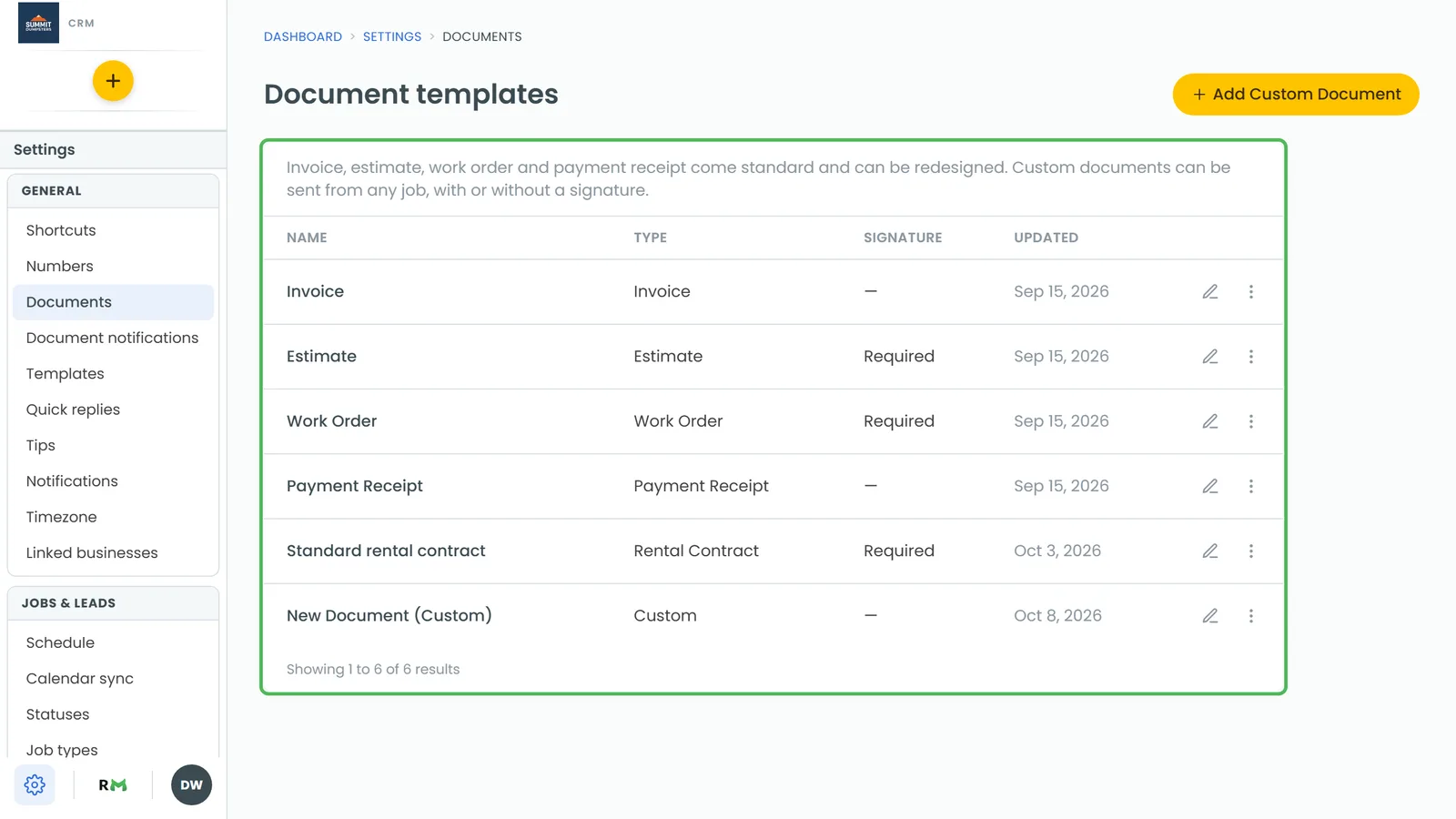
You'll see the Document templates list. Invoice, Estimate, Work Order and Payment Receipt are always there, along with any custom documents you've made. Click a template's name to open it in the designer.
Remove prices from your work orders
- On the Document templates list, click Work Order.
- At the top of the designer, click Settings. The Document settings panel slides open.
- Under What can my client see?, uncheck Price and Line total.
- Click Save at the bottom of the panel.
Saving the panel saves the template too, so you don't need to click the designer's Save button as well. From now on, the items list on your work orders shows only the Description and QTY columns. The Price and Amount columns are gone.
Choose the rest of what customers see
The same What can my client see? list has five checkboxes. Each one is on until you uncheck it:
- Quantity: the QTY column.
- Price: the price of each item.
- Line total: the Amount column, meaning quantity times price for each line.
- Service items: every line that isn't a product. Uncheck it and those lines are left off the list.
- Product items: every product line. Uncheck it and those lines are left off the list.
For example, if your crew only needs to know what they're installing, uncheck Service items on the Work Order and only the products will show.
The same panel also holds the Subject and Message that go out with the document when you text or email it.
Keep a priced and an unpriced version
Sometimes you'll want a work order with prices and sometimes without. You can keep both:
- On the Document templates list, click the More (three dots) button on the Work Order row and choose Duplicate. The copy appears in the list.
- Open the copy, click Settings, and change the checkboxes on that copy only.
- Click Save.
When you send a document from a job, through Actions and Send document or the Send document button in the job's Documents section, the Document dropdown lists every template. Work Order is picked for you, and you can choose whichever version fits.