In this article, you'll learn how to choose who hears about a new voicemail, and how to have voicemails sent to other phones and email inboxes. It's handy when you're out on a job or it's after hours and you still want to know a customer called.
There's nothing to build. Voicemail alerts come with the CRM phone. You just pick who gets them.
To open voicemail alerts:
- Click the Settings gear at the bottom of the menu.
- Under Phone & booking, click Phone numbers.
- Scroll down to the Voicemail alerts card.
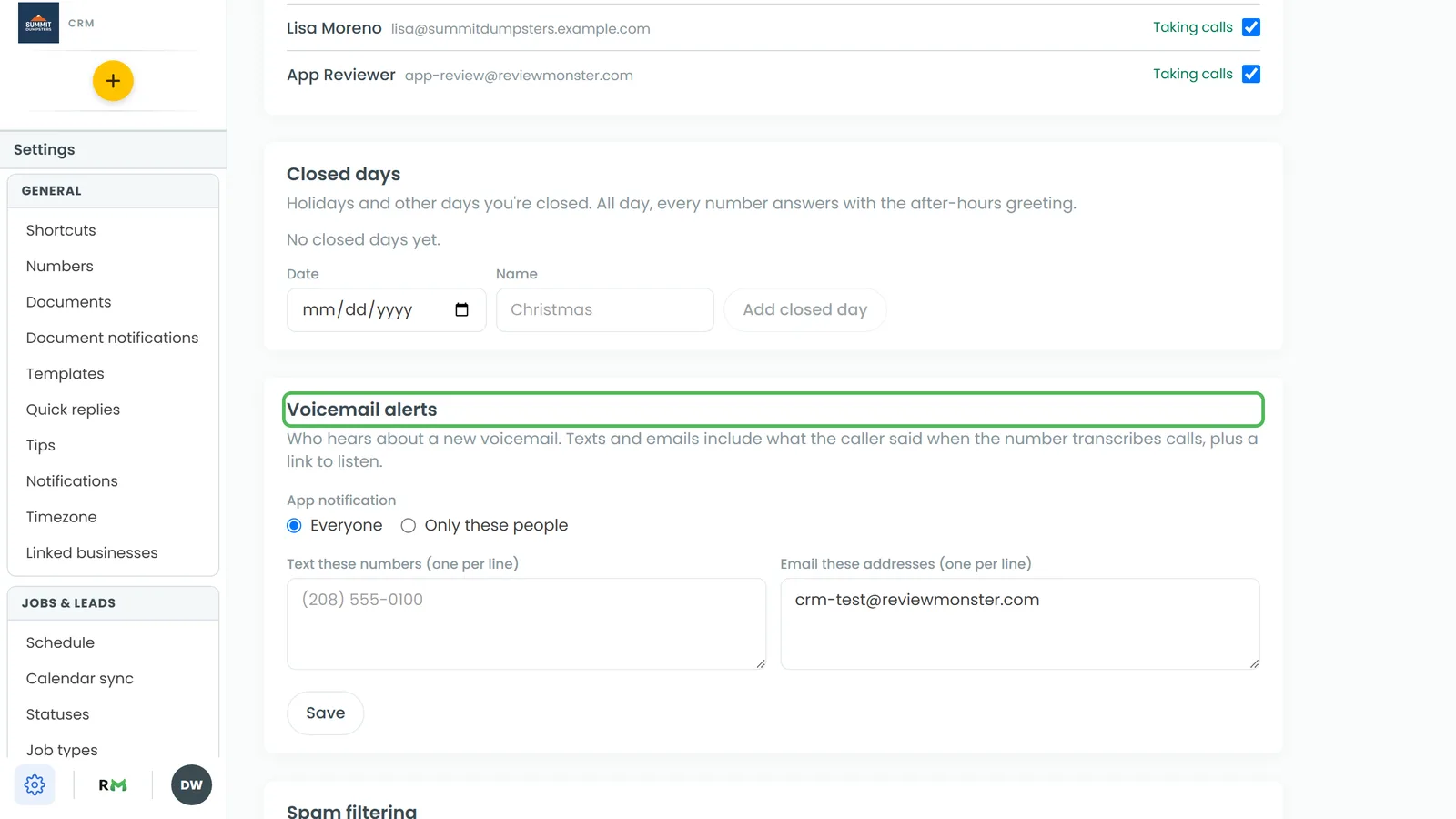
The phone app has the same card. Open the menu, tap the Settings gear at the bottom, then tap Phone numbers under Phone & booking. It has the same fields and saves to the same settings. The gear only shows for admins.
Choosing who gets the app notification
Under App notification, pick one:
- Everyone sends the notification to everyone on your team who has the app.
- Only these people lists your team. Tick each person who should get it. In the phone app, switch them on.
Click Save when you're done.
The app notification is titled New voicemail and goes out as soon as the caller hangs up. Tapping it opens the caller's conversation, where the voicemail plays.
Sending voicemails to other phones and email addresses
- In Text these numbers (one per line), type each phone number on its own line.
- In Email these addresses (one per line), type each email address on its own line.
- Click Save.
If something you typed isn't a real phone number or email address, it's left out when you save. The card tells you how many entries were left out so you can fix them. Each list holds up to 10 entries.
Turning on texts and emails for voicemails
Adding numbers and addresses isn't enough on its own. Voicemail texts and emails only go out when they're switched on for voicemails, and both start off.
- Click the Settings gear, then under General click Notifications.
- Under Communications, find the New voicemail row.
- Tick the box in the Text column, the Email column, or both. Your change saves as soon as you tick it.
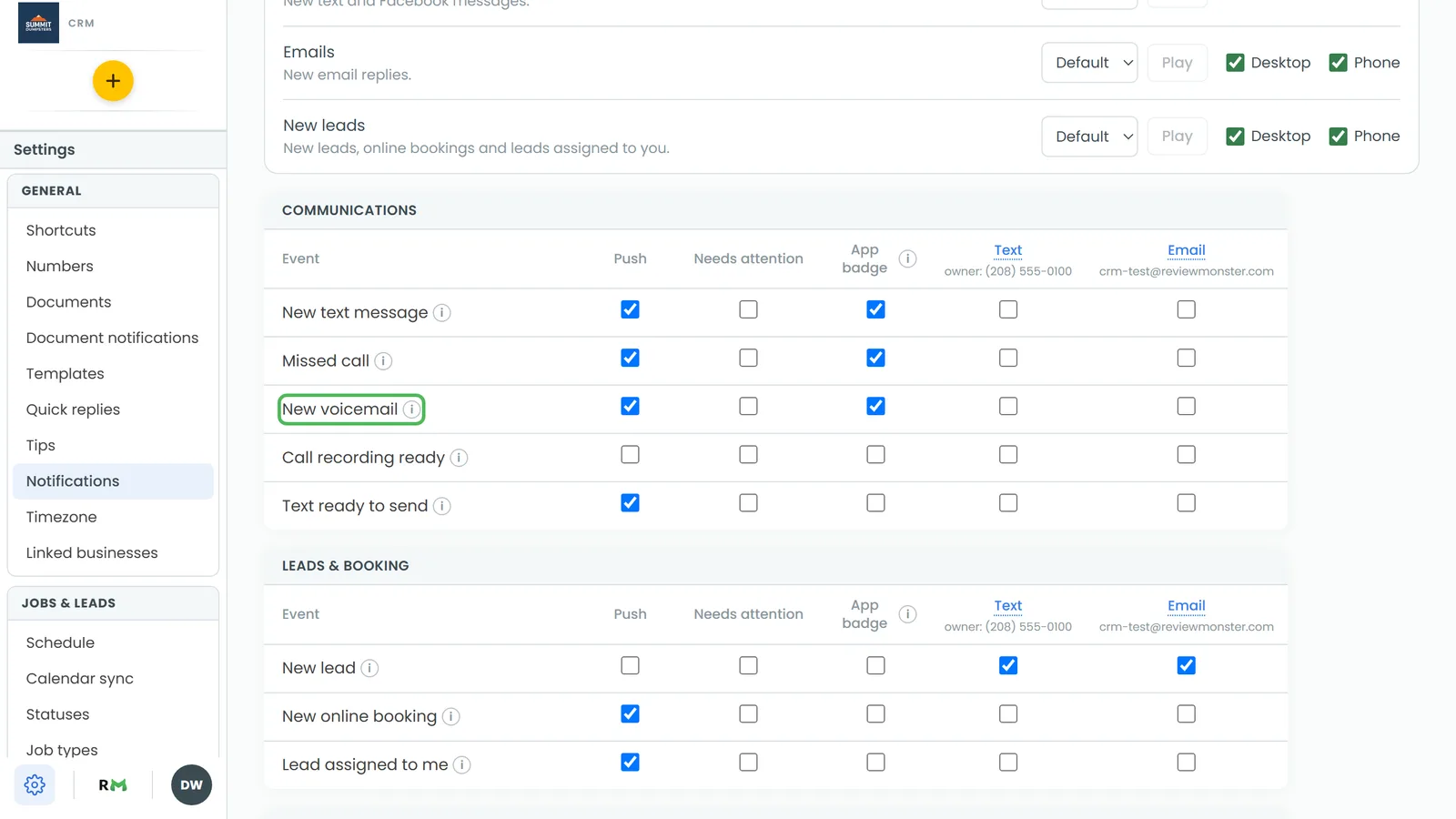
The Text and Email headings open the same two lists, so you can add or remove people from this page too. Changing these columns takes an admin or the Notifications permission. The Push box on the same row is each person's own switch for the app notification.
What the alerts look like
- Text: the recording is dropped straight into each listed phone's voicemail box, so you play it like any other voicemail. The drop shows your business line as the caller. If a drop can't be done (for example, the message is under six seconds), the phone gets a text with the caller's number and what they said instead.
- Email: the subject is New voicemail from the caller. The email names the caller, includes what they said, and has the recording attached.
A caller saved as a client shows by name and number. What the caller said is only included when the number transcribes calls. If a transcript fails or takes more than a few minutes, the drops and emails still go out, just without the words.
Suspected spam voicemails
If spam filtering sends a call to voicemail, the CRM reads the message first. If it's clearly a robocall, it's deleted and nobody is alerted. If it sounds like a real person, the app notification goes out as New voicemail (suspected spam).
Tracking numbers
A call tracking number set to ring the CRM takes voicemail the same way as your main line, and these alerts cover it. A tracking number that forwards to a phone hands the call to that phone. If nobody picks up there, you get a missed call alert instead of a voicemail.