In this article, you'll learn how to send a call recording or a voicemail to someone by text or email. It's handy when a partner, a crew lead or your bookkeeper needs to hear exactly what a customer said and doesn't have a CRM login.
Only call audio can be forwarded this way. Text messages can't.
To find the recording:
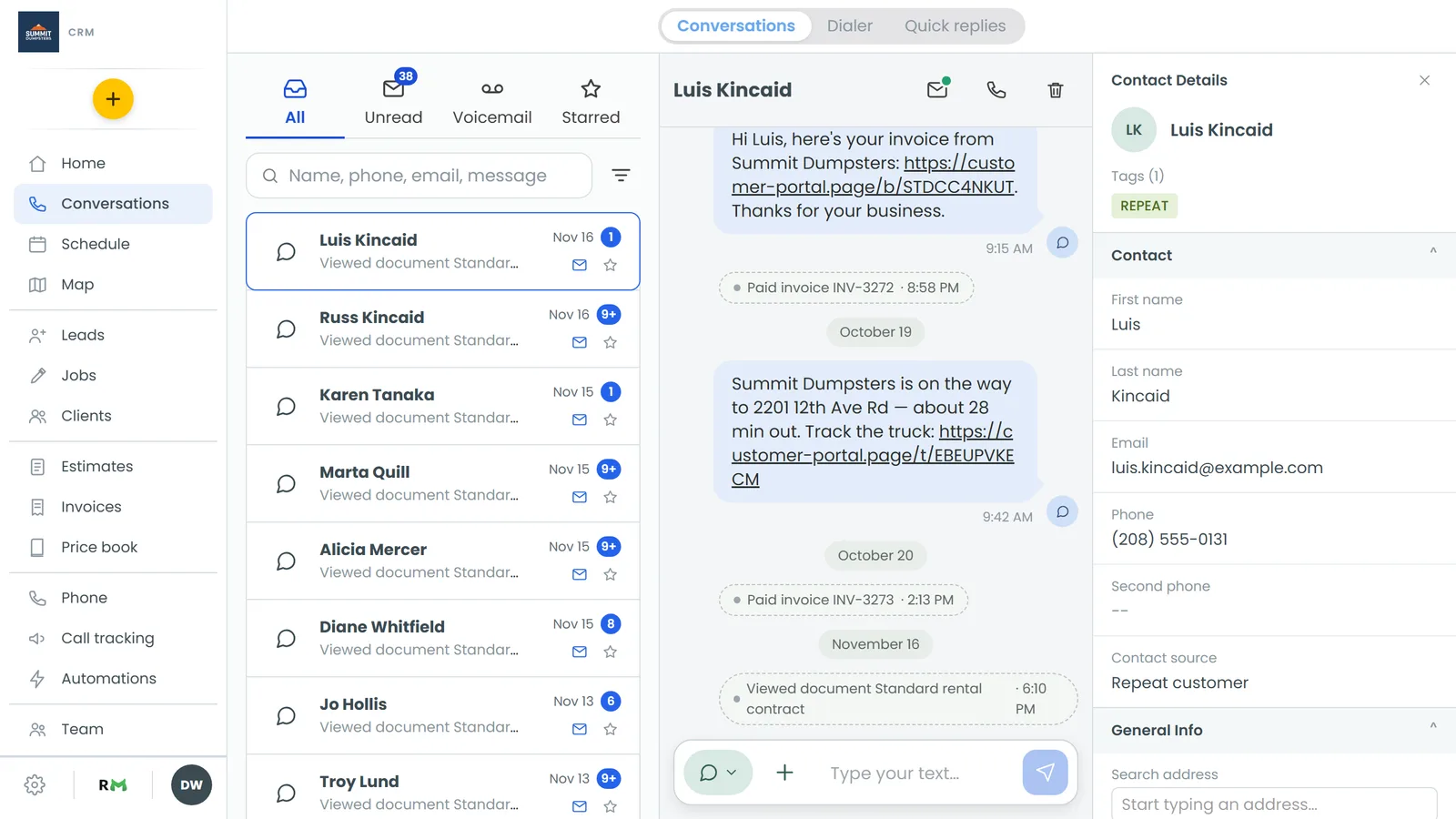
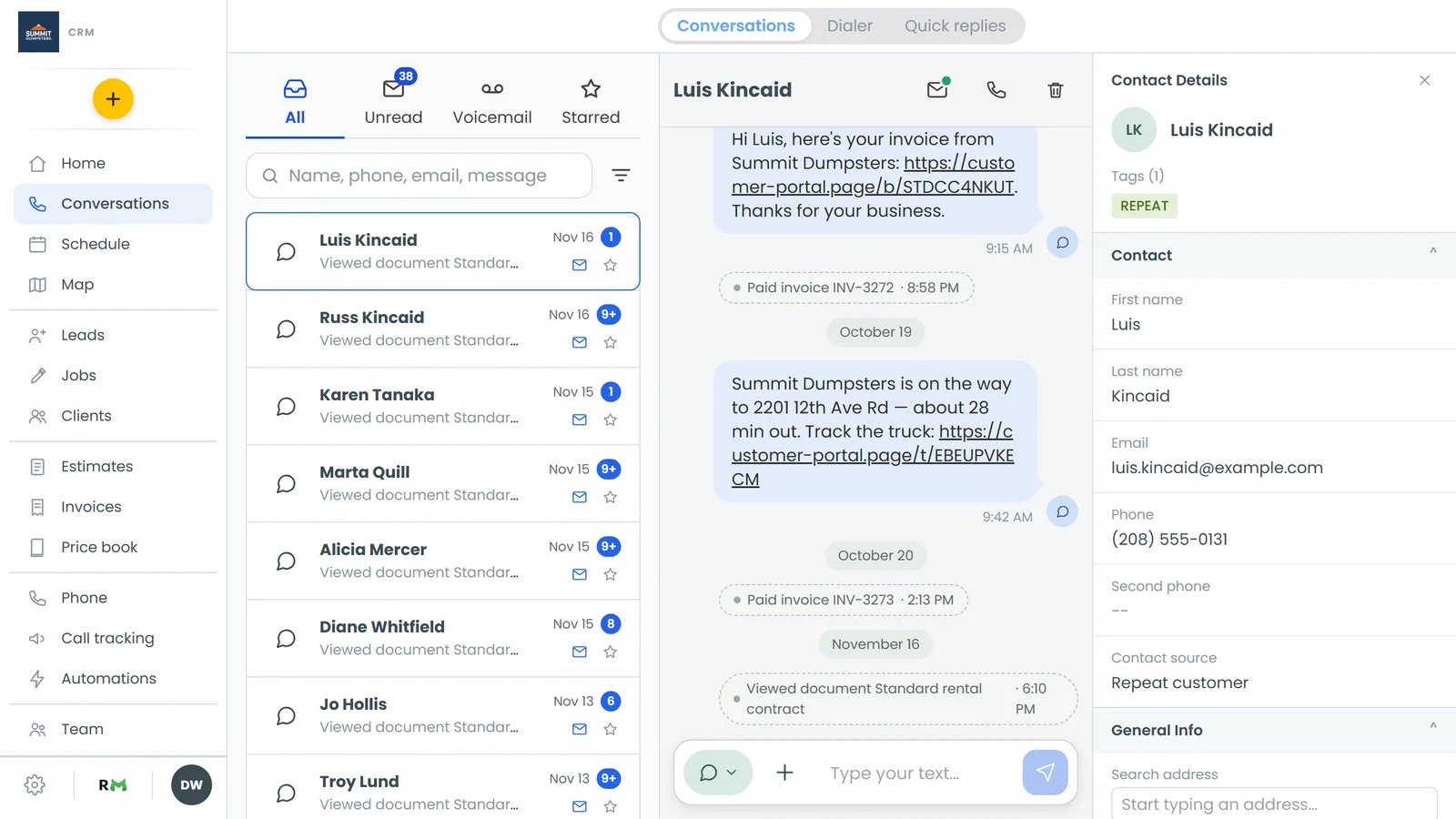
- In the menu, click Conversations. On a phone-sized screen and in the app, Conversations is in the bar at the bottom.
- Open the conversation that has the call or voicemail.
- Scroll to the call bubble. On a desktop it's labelled, for example, Incoming call (1 Min 12 Sec), Outgoing call (45 Sec) or Voicemail (45 Sec). On a phone-sized screen and in the app it reads Call (1 Min 12 Sec) or Voicemail (45 Sec).
Forwarding on a desktop
- On the call bubble, click the ⋮ button at the top right. It only appears on calls that have audio.
- Click Forward by text or Forward by email.
- A box opens titled Forward this recording by text (or by email, or Forward this voicemail by … for a voicemail). Type the phone number or email address.
- Click Send, or press Enter. The box shows Sent. and closes on its own.
Send stays greyed out until the number has at least ten digits or the address looks like an email. To back out, click Cancel or press Escape.
Downloading the audio instead
The same ⋮ menu has a Download option. It saves the audio file to your computer so you can keep it or attach it somewhere yourself.
Forwarding on a phone-sized screen or in the app
The web CRM on a phone and the phone app show the same call bubble: a play button, a scrubber, then a row of small buttons under it.
- Open Conversations and the conversation.
- On the call bubble, tap the forward arrow. It sits in the row under the player, right after the playback speed (1X).
- A sheet opens titled Forward this recording or Forward this voicemail. By text is picked to start with. Tap By email to send an email instead.
- Type the phone number or email address.
- Tap Send. The sheet shows Sent. and closes.
What the other person gets
They don't get the audio file. They get a link to listen to it. The link works for seven days and doesn't need a login.
- By text: a text from your business line. It starts with Voicemail or Call recording, then who the call was with and when, then the link.
- By email: an email with the same subject line, a Listen to the voicemail or Listen to the recording link, and a line saying the link works for seven days.