In this article, you'll learn how to see why a customer turned down an estimate. Once you know the reason, you can decide whether to lower the price, change the scope, offer another date or let it go.
What your customer sees when they decline
When you send an estimate, your customer opens it in the customer portal. From there they can approve it or decline it. If they click Decline, a Decline estimate box asks them why. They choose one reason from a list:
- Too expensive for my budget
- Found a better price or value
- Doesn’t align with my needs
- Timeline doesn’t work for me
- Personal circumstances
- None of the above
They have to pick a reason. If they click Decline without choosing one, the box tells them to select a reason first. If they click Cancel, the box closes and the estimate stays as it was.
After they decline, the estimate's status changes to Declined and the portal shows it as declined. They can't change their answer from the portal after that.
Where you see the reason
The reason shows on the estimate itself, both on the web and in the phone app.
To see why an estimate was declined:
- Open the estimate.
- Look for the red box that starts with Declined. The customer's reason comes after it in quotes, like this: Declined — “Timeline doesn’t work for me”.
If the box says Declined — no reason given, the customer didn't decline it from the portal. Someone in your office set the status to Declined, so there's no reason on file.
Getting told when an estimate is declined
You don't have to go looking for declines. The CRM can tell you as soon as a customer declines, and the message includes the estimate number, the amount and the reason they picked.
To choose how you're told:
- Open Settings, then click Document notifications.
- Under Text these numbers and Email these addresses, add the people who should hear about it. If both lists are empty, texts and emails go to the account owner's phone and email.
- Under What to send for each event, find the Estimate declined row and tick Text, Email and Push the way you want them. All three start out ticked.
- Click Save.
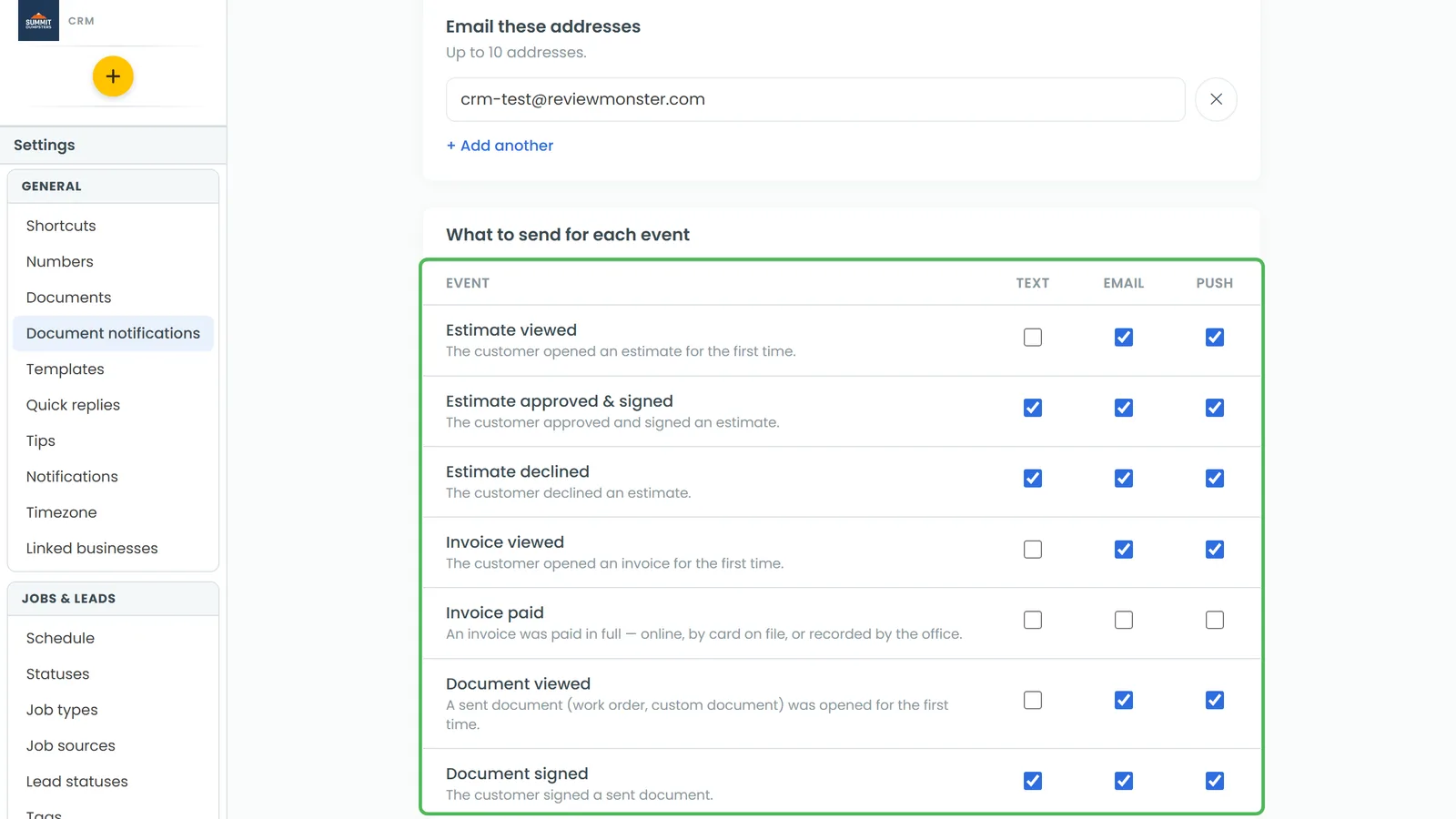
The Push box sends an Estimate declined notification to the phone app. The app has the same page under Settings › Document notifications.
Related articles
- How to update estimate statuses
- What your customers see when you send an estimate
- How to know when a customer has viewed an estimate
- Managing estimates from the Estimates page
- Estimates FAQ