How to Find Your Google Review Link and Make a QR Code
Find your Google review link in your Business Profile, save the QR code on a computer, share it the right way, and fix it when customers say it won't work.
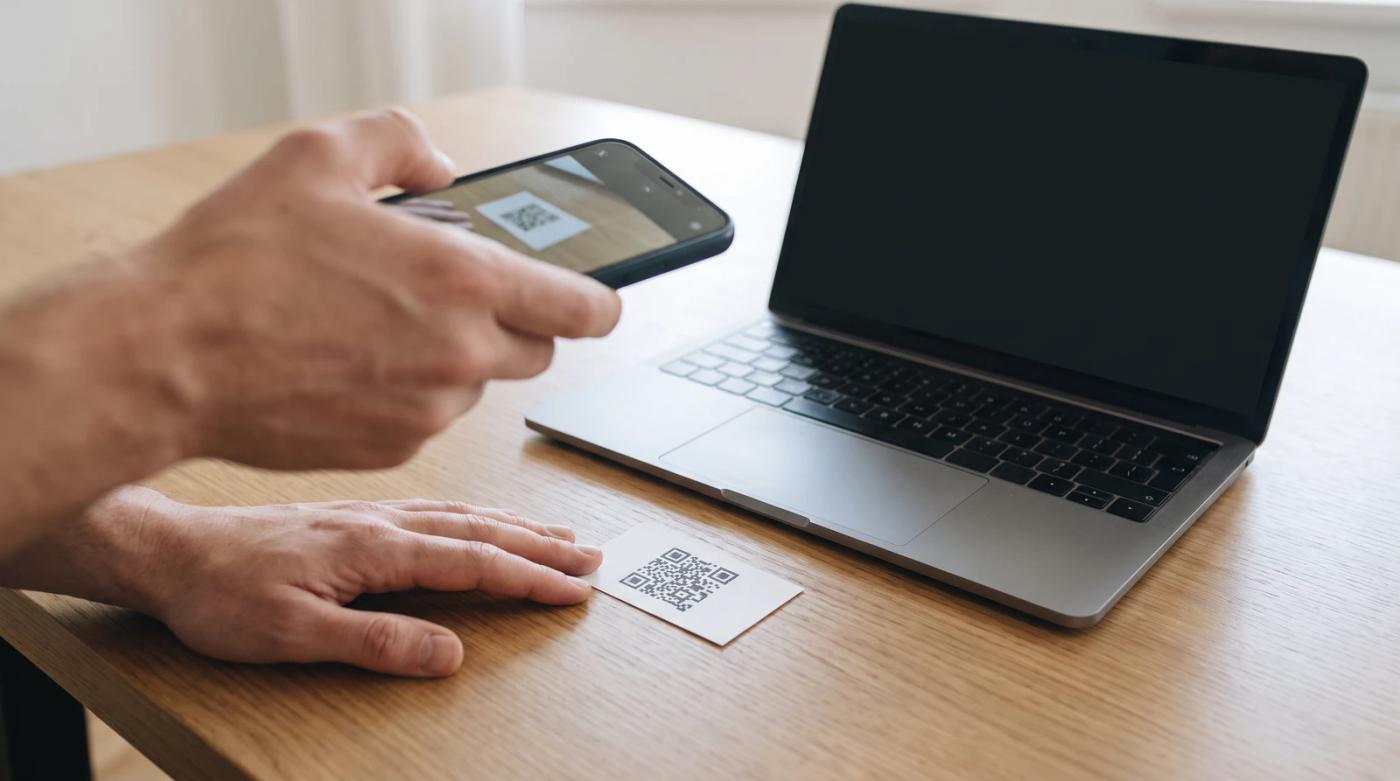
Your Google review link is inside your Google Business Profile: go to your profile, select Read reviews, then Get more reviews, and copy the link. The QR code is on the same screen, and you save it by right-clicking it on a computer, since Google says it can't be generated on a phone.
That's all there is to finding it. What you do with it after that matters more.
Picture a plumber finishing a water heater swap. The homeowner is happy and says they'll leave a review tonight. Then tonight comes, and the plumber's name gets lost behind dinner and soccer practice. Having the link already in their texts is what turns that promise into a real review.
How to find your Google review link
Google lays out the route on its help page for creating a review link or QR code:
- Go to your Business Profile.
- Select Read reviews, then Get more reviews.
- To copy the review link, select Copy.
Google's guide to sharing a review link walks through the same path. From that screen you can also send review requests by email, WhatsApp message or a Facebook post.
Google moves its menus around. If an older tutorial sends you somewhere else, look for the Get more reviews button anyway. Sterling Sky's 2023 walkthrough also had owners click Get more reviews and copy the link, even though the menu path to get there was different back then.
One thing Google's help pages don't spell out is whether your profile has to be verified before the option shows up. If you can't find it at all, that's worth checking, but Google doesn't say either way.
Turning your review link into a QR code
The QR code is on that same Get more reviews screen. Right-click it and choose Save image as, per Google's instructions.
Here's where people get stuck. Google says reviews QR codes can only be generated in a computer browser, not on a phone. So if you're poking around on your phone over lunch and can't find it, that's why. Wait until you're at a desk.
Tip: Before you print a stack of cards or a counter sign, scan the code with your own phone and make sure it opens your review box. A quick test beats reprinting everything.
Where to share your Google review link
Google's tips page suggests asking customers to visit a Google link or scan a QR code to leave a review. Its sharing guide says you can add them to customer emails, receipts and printed media.
What that looks like depends on your business:
- A plumber or roofer can text the link the day the job wraps up. On a roof that took a couple of weeks, that means the day the crew packs up, not day one.
- A salon with regulars can keep the QR code at the front desk and add the link to appointment follow-ups.
- A dentist can send the same plain message to every patient after a visit. Keep it generic, and don't mention what treatment anyone had.
- An auto shop can print the link or the QR code on the invoice.
Should you text it or email it? Use whichever one your customers actually read.
You don't need special software for any of this. A copied link and the habit of sending it will get you most of the way.
What Google and the FTC don't allow
This is where a lot of well-meaning owners get into trouble.
Google says offering incentives for reviews, like free or discounted goods or services, is strictly prohibited. That includes the little sign offering a discount on your next visit if you leave a review.
Google's Maps content policy also bans:
- Discouraging negative reviews, or asking only your happy customers (usually called review gating)
- Pressuring people to leave a review while they're still at your business
- Asking staff to collect a set number of reviews
The same policy does allow asking for genuine reviews when you don't offer anything in return. So ask everyone, and let them say what they want to say.
The FTC has its own Consumer Reviews and Testimonials Rule, which took effect October 21, 2024. Courts can impose civil penalties for knowing violations. The FTC's Q&A treats a business that emails every purchaser asking for a review as making a general request, and it warns that asking only the customers you think are happy could violate the FTC Act. Asking everyone is the approach both Google and the FTC point you toward.
When your Google review link doesn't work
When a customer says the link is broken, the link itself usually isn't the problem. The common causes:
- The customer isn't signed in. Google says people must be signed into a Google Account to leave a review.
- Google has blocked reviews on the business. Sterling Sky's troubleshooting guide lists this as a cause. It also lists categories that don't take reviews at all (schools, for example), and notes Google may temporarily turn off reviews on a listing that's being hit with spam or fake reviews.
- It works in one place but not the other. The same guide notes the review option can show up in Search but not Maps, or the other way around.
If a review posts and then disappears, that's a different problem. Per Sterling Sky, Google's automated systems may filter out reviews that come from a business's own network or from people who are too far away.
If a developer built your link by hand, it's probably tied to a place ID. Developers can get the write-a-review link from the Places API field googleMapsLinks.writeAReviewUri, and Google has a Place ID Finder for looking up any business. But a place ID can become obsolete when a business closes or moves, and Google recommends refreshing any that are more than 12 months old. If your link is old or you've moved, copy a fresh one from Get more reviews.
The quickest check is to open the link yourself on a phone that's signed into a personal Google account, not your business one. If the review box opens for you, the problem is probably on the customer's end.
Bottom line: finding your review link takes a few clicks in your Business Profile, and the QR code is one right-click away on a computer. Send it to every customer, offer nothing in exchange, and test it yourself when someone says it's broken.
If you'd rather have review requests go out by text and email after every job without having to remember, take a look at reviewmonster.com.
Sources
- Create a Google link or QR code to request reviews — Google Business Profile Help
- 3. Share a link or QR code to request reviews — Google Business Profile Help
- Amplify Your Word of Mouth: Get More Google Reviews By Sharing Your Link — Sterling Sky, Elizabeth Rule
- Tips to get more reviews — Google Business Profile Help
- Prohibited and restricted content (Maps user-contributed content policy) — Google Maps User Contributed Content Policy Help
- Consumer Reviews and Testimonials Rule: Questions and Answers — Federal Trade Commission
- Why Can't I Write a Google Review - No Option to Leave Reviews - Troubleshooting Guide — Sterling Sky, Joy Hawkins
- Link to Google Maps — Google Maps Platform (Google for Developers)
- Place IDs — Google Maps Platform (Google for Developers)
Want help with review automation?
Review Monster runs your review requests, listings and website in the background, so you can stay on the job.